
Verify a document the school issued
Check that a certificate, receipt, ID card or other paper really came from the school, using the reference or the verification code printed on it.
Every document JPRAXC School ERP prints — certificates, fee receipts, salary slips, ID cards, notices and reports — is recorded by the school when it is issued. The sheet carries a reference number and, at the foot, a barcode with the verification code printed under it. Verify Documents reads that code back against the school's own record and says whether the document is genuine and still in force, and whom it was issued to.
Before you start#
- Verification is done inside the ERP of the school that issued the document. Your role needs access to Document Verification. See Users and access.
- Have the paper in hand, or the reference number or verification code read out to you.
- A handheld barcode scanner, or a device with a camera, makes it quicker, but typing the code works just as well.
Verify a document in the ERP#
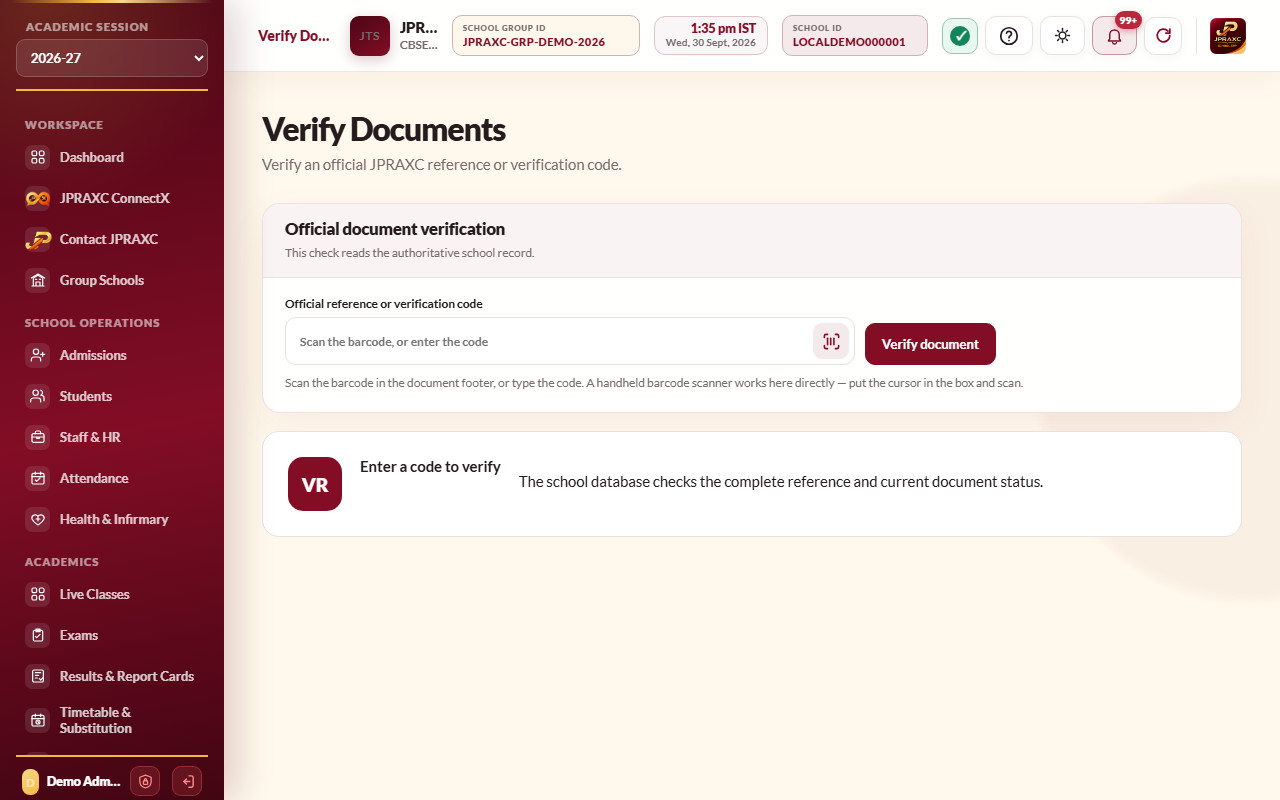
- Open Verify Documents in the sidebar. You can also select Verify document at the top of the Dashboard or of Certificates.
- Put the cursor in Official reference or verification code.
- Enter the code in one of three ways:
- Type the code printed under the barcode, or the reference number. Capital or small letters both work.
- Scan the barcode with a handheld scanner. It types the code and checks it for you.
- Select the camera button beside the box and point the camera at the barcode in the document footer. Select Stop camera to close it.
- Select Verify document, unless the scanner has already done so.
- Read the result, and compare it with the paper and with the person in front of you.
Reading the result#
| What you see | What it means |
|---|---|
| VERIFIED OFFICIAL DOCUMENT | The school issued this document and it is still in force. |
| NOT VERIFIED — No valid active document was found | No document of this school matches the code, or the school has since cancelled it. Check every character and try again. If it still fails, treat the paper as not valid. |
A verified result shows:
- The kind of document, such as Certificate or Fee Receipt, and its Reference, Status, Issued date and Subject.
- Whom it was issued to: the Student or Staff name, the Father's name, the Admission no. or Employee no., and the Class & section or Designation.
- A Preview document button that opens the document as the school holds it, so you can compare it with the paper line by line.
If you received a document from a school#
Parents, employers, banks and other schools cannot open a school's ERP. To check a document:
- Look at the foot of the sheet. Note the Reference on the left and the code printed under the barcode.
- Contact the office of the school that issued it, using the contact details you already have for the school, and give them the reference or the code.
- The office checks it in Verify Documents and can tell you whether it is a valid document, what kind of document it is, when it was issued and whom it names.
Also check the paper itself. A school certificate states the terms it is issued on. Among them: it is valid only when signed by the Head of Institution, any erasure or alteration makes it invalid, and a duplicate is marked as a duplicate.
Example#
Kavya Nair presents a transfer certificate from Sunrise Public School when applying to Greenfield School. The Greenfield office phones Sunrise Public School and reads out the code under the barcode. The Sunrise office types it into Verify Documents, which shows VERIFIED OFFICIAL DOCUMENT, Certificate, the issue date, and the student as Kavya Nair with her father's name, admission number and class. The Sunrise office confirms these details to Greenfield.
Good to know#
- Verification reads the issuing school's own record. One school's ERP cannot verify another school's documents.
- A certificate or notice that the school has cancelled no longer verifies, even though the paper still looks the same.
- A reprinted certificate carries the same reference and code as the original, so both verify.
- The ID card's barcode holds the card's reference. Scanning it shows whose card it is.
- The father's name is shown so the office can check that the paper belongs to the person presenting it. Only the details listed above are shown; the rest of the record stays private.
Troubleshooting#
| Symptom | What to do |
|---|---|
| NOT VERIFIED on a document you believe is genuine | Check for mistyped characters, especially 0 and O, or 1 and I. Try the reference number instead of the code. If the school cancelled the document, issue a new one. See Certificates and the Print Centre. |
| The camera button does nothing or shows an error | The browser cannot open a camera here, or camera permission was refused. Type the code, or use a handheld scanner. |
| The printed sheet has no barcode | The printout could not be recorded when it was printed. Check that your role may print in Print Centre, then print it again from the module it came from, such as the fee receipt register. |
