
Set up fee structures
Create fee heads, allocate them to classes, and set transport fares, hostel plans and mess plans.
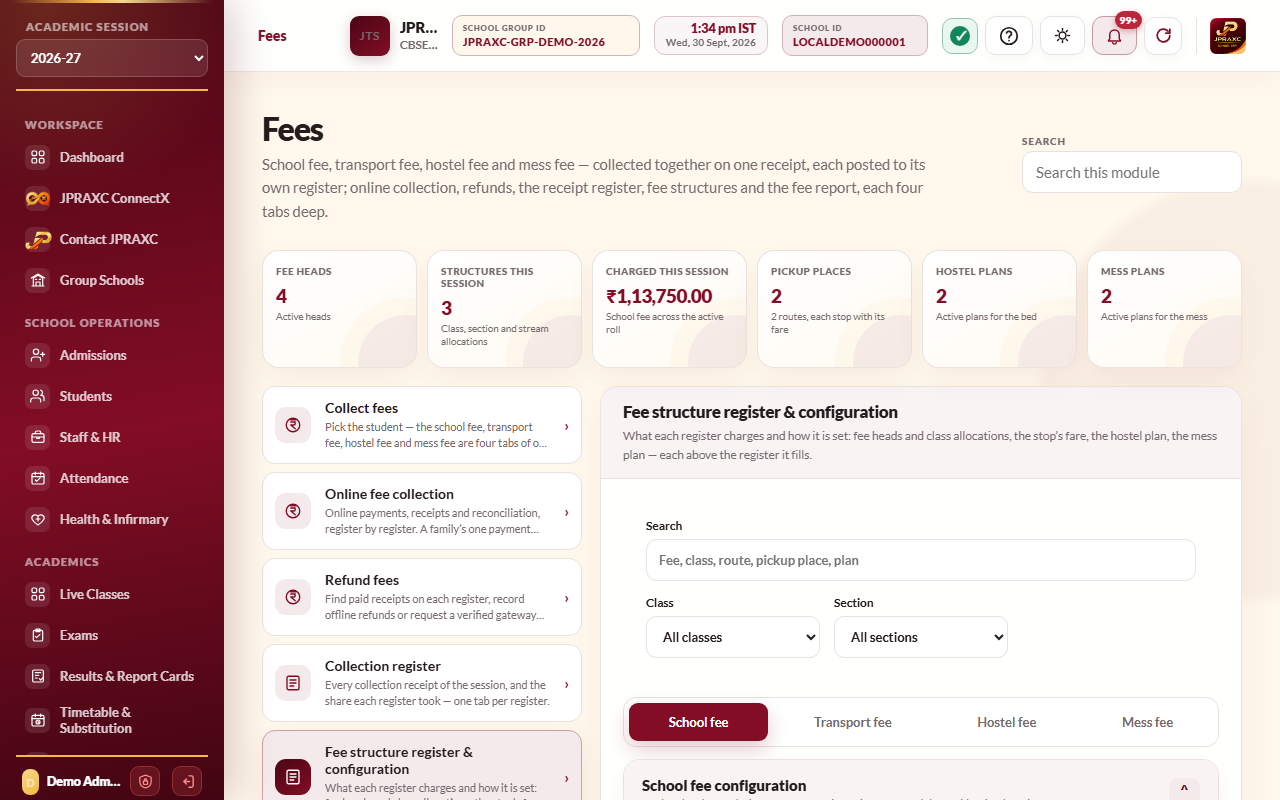
Before the office can collect a fee, the ERP needs to know what each student is charged. That is set in one place: Fees › Fee structure register & configuration. It has four tabs, one for each register: School fee, Transport fee, Hostel fee and Mess fee. On each tab the set-up form sits above the register it fills.
Before you start#
- Your role needs access to the Fees module.
- The Academic session chosen in the sidebar must be the session you are setting up. School-fee allocations belong to one session.
- Classes and sections for the session must already exist (under School Settings).
- For transport fares, the routes must already exist. See Transport and live bus tracking.
School fee: create a fee head#
A fee head is the name of something you charge, such as tuition fee or computer fee.
- Open Fees › Fee structure register & configuration and choose the School fee tab.
- In School fee configuration, type the Fee name (for example, Tuition fee).
- Type a short Fee code (for example, TUITION).
- Select Create fee head.
School fee: allocate a fee to a class#
An allocation says which class, or one section of it, pays a fee head, how much and how often.
- On the School fee tab, choose the Fee head.
- Choose the Class. Leave Section on All sections to charge every section, or pick one section.
- For Class 11 or 12 only, a Stream box appears. Leave it on Every stream (whole class), or pick one stream so that only students whose record carries that stream are charged.
- Choose the Frequency: Monthly, Quarterly, Half-yearly, Annual or Custom periods.
- Type the Amount (₹) charged each period.
- Set the Due day of the month (between 1 and 28). The default is 10.
- If the school charges a fine for late payment, type the Late fee per day (₹) and the Late fee grace days. Leave the per-day amount at 0 to charge no fine.
- If you chose Custom periods, fill in the Custom periods box: one period per line, in the form key | label | due date. For example: term1 | Term 1 | 2026-07-10.
- Select Allocate fee.
The ERP creates the periods for the whole session at once. A monthly fee gets one period for each month of the session. A quarterly fee gets one for every three months, a half-yearly fee one for every six, and an annual fee one for the session. Each period falls due on the due day of its first month.
School fee: tax details on printouts#
- On the School fee tab, fill in GST no. and PAN no. if the school has them.
- Select Save tax details.
These are printed on fee receipts and the fee structure only.
Transport fee: set the fare for a stop#
The fare belongs to the pickup place (the stop), not to the route.
- Choose the Transport fee tab.
- In Transport fee configuration, choose the Route.
- Type the Pickup place and a short Place code.
- Type the Monthly fee (₹).
- Set the Due day of the month, and if needed the Late fee per day (₹) and Late fee grace days.
- Optionally set the Pickup time and Drop time.
- Select Create pickup place.
The Fare register below lists every stop with its route, monthly fare, due day, late fee and times.
Hostel fee: create a hostel plan#
A hostel plan is the fee for the bed.
- Choose the Hostel fee tab.
- In Hostel fee configuration, type the Plan name (for example, Standard room).
- Type the Hostel fee / month (₹).
- Set the Due day of the month, Late fee per day (₹) and Grace days.
- Select Save fee plan.
A boarder is put on a plan when the bed is allotted, under Hostel management & attendance › Allot building & room. A boarder without a plan pays the fee typed at allotment.
Mess fee: create a mess plan#
The mess fee is set apart from the hostel fee, so a boarder who eats elsewhere can have a bed without the mess.
- Choose the Mess fee tab.
- In Mess fee configuration, type the Mess plan name (for example, Vegetarian mess, three meals).
- Type the Mess fee / month (₹).
- Set the Due day of the month, Late fee per day (₹) and Grace days.
- Select Save mess plan.
Change or delete an allocation#
- On the School fee tab, find the allocation in the Fee structure register. Use the Fee filter, or the Search, Class and Section boxes above the tabs.
- To change it, select Edit. You can change the Amount (₹), Due day of the month, Late fee per day (₹) and Late fee grace days. The fee, class and frequency cannot be changed.
- Select Save changes.
- To remove it, select Delete, then Delete fee to confirm.
Hostel and mess plans have their own Edit and Delete buttons in their registers.
Good to know#
- One fee head is charged to a Class 11 or 12 either to the whole class or stream by stream, never both. If you need to switch, delete the existing allocation first.
- When you edit an amount, periods that have already been receipted keep the amount the family was charged. Only unpaid periods take the new amount.
- A change to the late-fee rate applies to fines worked out from then on. A fine that has already been receipted is not changed.
- An allocation that has been collected against cannot be deleted. Cancel or reverse those receipts first.
- Select Print above the Fee structure register to print the session's fee structure, grouped by class, section and stream, with each group's session total. The printout carries a verification code.
- The cards at the top of this pane count the active fee heads, this session's allocations, pickup places, hostel plans and mess plans, and what the school fee charges the active roll for the session.
Troubleshooting#
| Symptom | What to do |
|---|---|
| This fee is already allocated stream-wise in Class 11. | The same fee head is allocated per stream. Allocate it per stream too, or delete the stream allocations first. |
| That section does not exist for the selected class in this session. | Check the section name, or create the section under School Settings for this session. |
| Every custom fee occurrence needs a key, label and valid due date. | Each line in Custom periods needs three parts separated by the bar sign, with the date written as year-month-day. |
| This fee has been collected against, so it cannot be deleted. | Cancel or reverse the receipts in Fee receipt register first, or leave the allocation in place. |
| A tab says the register could not be read | Your role cannot open the Transport or Hostel module, or that module is not set up yet. Ask your administrator. |
