
E-Diary and homework
Record what happened in each period of a class's day, set homework with photos and files, and see which families have seen it.
E-Diary & Homework has two halves. The E-Diary records, period by period, what each class did on a day: the chapter taught, classwork, anything to note. Homework sets a task for one class and subject, with photos or files and a due date. Families see both the same day in the Parent portal and the Parent app. Teachers can write both from the staff portal and the Staff app, and it lands in the same registers.
Before you start#
- The E-Diary is opened with the Timetable & Substitution permission; homework with the E-Diary & Homework permission. A role with only one of them sees only that half.
- The period structure must be set, because the E-Diary day is laid out by its periods. See Timetable and substitution.
- For teachers writing from the staff portal or Staff app, tick Write the class E-Diary on their staff portal account. See Staff and HR.
Write the E-Diary for a class#
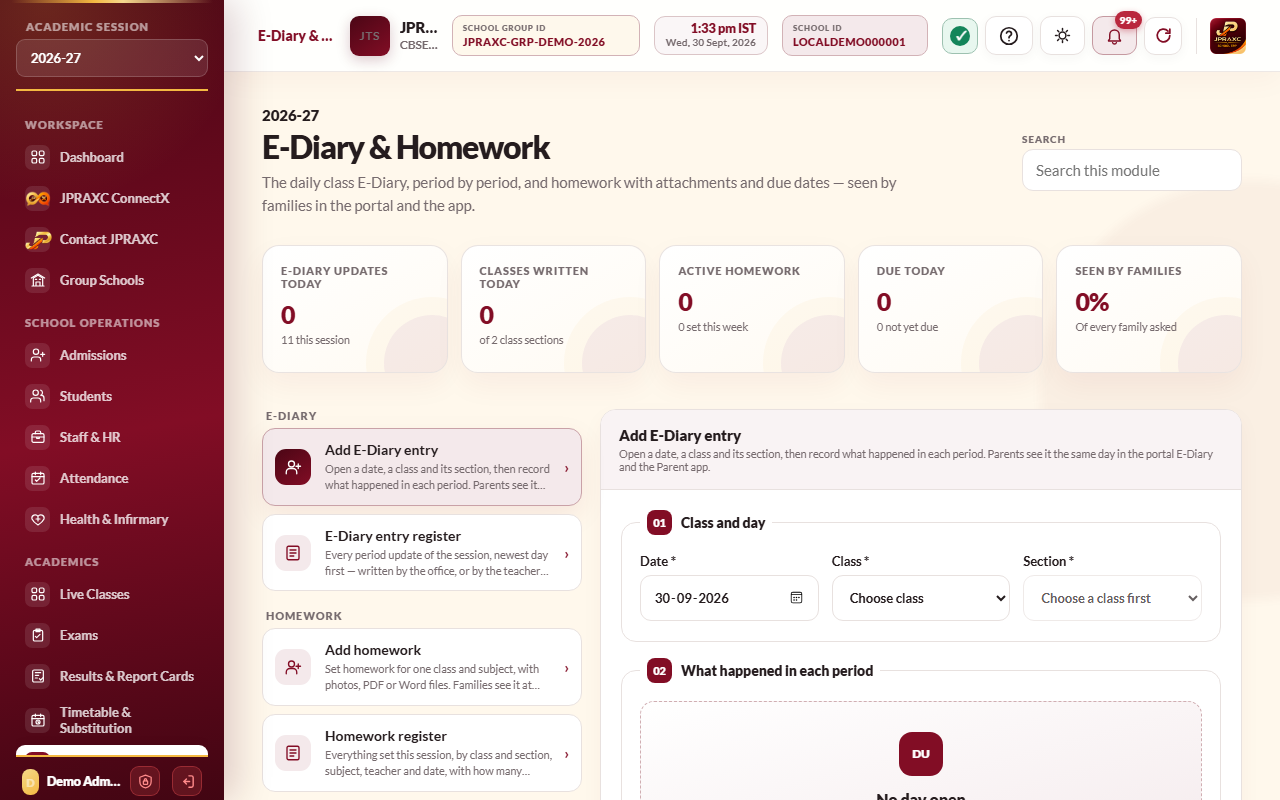
- Open E-Diary & Homework › Add E-Diary entry.
- Set the Date, then choose the Class and Section. The day opens, period by period, with the subject and teacher from the timetable and anything already written.
- In What happened in each period, type the update for each period (for example Chapter 4, fractions: examples 1 to 5 done in class). Breaks are shown as Scheduled break.
- Select Save daily updates.
Parents can see the entry in the portal E-Diary and the Parent app straight away. If no timetable is set for that weekday, you can still record updates.
The E-Diary register#
E-Diary entry register lists every period update of the session, newest day first. Filter by class and section, by teacher, by From and To dates, and by Written (Office, or Staff portal or Staff app), or search what was written. Select Print register to print it.
Set homework#
- Open E-Diary & Homework › Add homework.
- Class, subject and teacher: choose the Class and Section, then the Subject. Leave the teacher blank to name the teacher who takes that subject on the timetable.
- Dates: check Set on and choose Due on.
- The homework: type the Title (for example Exercise 5.2, questions 1 to 10) and the Instructions. Tick Ask families to mark it done if you want families to confirm.
- Photos and files: select Attach photos or files to add photos, PDF or Word files.
- Select Set homework.
Families see it at once in the Parent portal and the Parent app.
Follow up homework#
The Homework register lists everything set this session with the date set, class, subject, due date, who set it (the office or a teacher from the staff portal or Staff app), and how many families have seen it. Filter by class and section, subject, teacher, Date by (Day set or Due day), From, To and Status.
On each row:
- View shows the whole homework, its files, and for each student when the family saw it (Seen) and, if you asked, when they marked it Done. You can print this.
- Edit changes the task, the due date or the files. Families are told again when these change.
- Withdraw takes the homework away from every family of the class, with an optional reason. The record stays in the register as Withdrawn.
Select Print register to print the register.
Good to know#
- The figure cards show today's E-Diary updates, the classes written today, and the share of families who have seen homework.
- The registers follow the session chosen in the sidebar.
Troubleshooting#
| Symptom | What to do |
|---|---|
| Set the period structure in Timetable & Substitution first | Set the Period structure, then open the day again. |
| The E-Diary is not part of your role or Homework is not part of your role | Ask the administrator to add the missing permission to your role. |
| The subject list is empty | Choose the class first. |
| Families say they cannot see the homework | Check the class and section, and that the homework is not Withdrawn. Families need Parent portal or Parent app access; see Users, roles and access. |
