
Manage mailboxes
Create mailboxes, share out storage, reset passwords, suspend or delete a mailbox, and keep recovery e-mails in place.
As your organisation's mail administrator, you create a mailbox for each person, decide how much of the organisation's storage each one gets, and look after passwords and access. All of this happens on the Administration page of the webmail. Nothing here needs a ticket to JPRAXC.
Before you start#
- You need an Administrator mailbox. Only administrators see Organisation › Administration in the sidebar.
- Your domain must be listed under Administration › Domains. JPRAXC adds your domains when the plan is set up.
The Administration page#
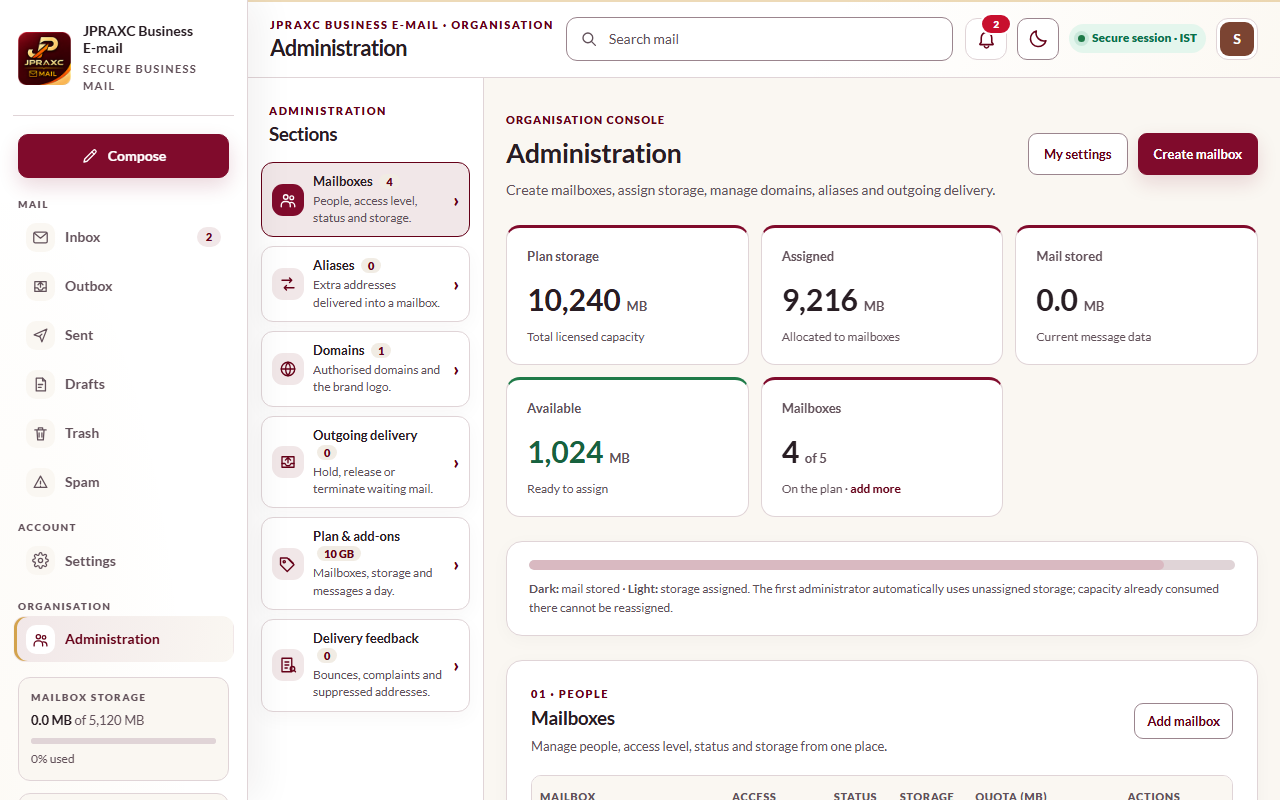
Open Administration from the sidebar or from the menu under your name. The top of the page shows:
| Tile | Meaning |
|---|---|
| Plan storage | The total storage your plan carries. |
| Assigned | Storage given to mailboxes as their quotas. |
| Mail stored | How much mail is actually stored. |
| Available | Storage you can still give to mailboxes. |
| Mailboxes | How many mailboxes you have, out of the number your plan allows. |
The bar under the tiles shows storage assigned (light) and mail stored (dark). The column beside the page jumps to each section: Mailboxes, Aliases, Domains, Outgoing delivery, Plan & add-ons and Delivery feedback.
Create a mailbox#
- On Administration, select Create mailbox (or Add mailbox in the Mailboxes section).
- In Mailbox name, type the part before the @, for example accounts.
- Choose the Domain.
- Type the person's Display name.
- Type a Temporary password of at least 8 characters.
- Choose the Access level: Mailbox user, or Administrator for someone who should manage mailboxes and aliases too.
- Set the Storage quota (MB). The box suggests a figure and will not go above what is Available.
- Select Create mailbox.
The page confirms Mailbox … created with … MB. Give the person their address and temporary password privately, not by a group message.
Change a mailbox's storage quota#
- In the Mailboxes table, find the mailbox.
- Type the new figure in Quota (MB).
- Select Set.
The figure cannot go above what that mailbox already has plus what is still Available. To free storage for someone else, lower another mailbox's quota first, or buy more storage. See Storage, plans and buying more.
Reset someone's password#
- In the Mailboxes table, select Manage on that row.
- Type a new Temporary password of at least 8 characters.
- Select Reset password.
- Tell the person the new temporary password privately.
Use this when someone has forgotten their password and has no recovery e-mail. Mail apps on their phone or computer will then need the new password.
Suspend or activate a mailbox#
- Select Manage on the mailbox's row.
- Select Suspend mailbox.
The status changes to suspended. The person can no longer sign in and sees This mailbox is currently suspended. Ask your administrator. Nothing is deleted. To give access back, select Manage, then Activate mailbox.
Suspend a mailbox when someone is on long leave, is leaving, or you suspect their password is known to someone else.
Delete a mailbox#
- Select Manage on the mailbox's row.
- Select Delete mailbox.
- Read the question and confirm.
Recovery e-mails#
Each person sets their own recovery e-mail in Settings › Profile; an administrator cannot set it for them. Remind your team to add one, because it is the only way to reset a forgotten password without asking you. Add one to your own mailbox too: another administrator in your organisation can reset your password, but if there is none, you will have to contact JPRAXC support.
Good to know#
- You cannot manage your own mailbox from the table. It shows Current account. Change your own password in Settings.
- The Access column shows Administrator or User. The Storage column shows mail stored against each mailbox's quota.
- If your plan's mailbox limit is lowered or runs out, existing mailboxes are not deleted; you only cannot add new ones.
Troubleshooting#
| What you see | What to do |
|---|---|
| The plan allows … mailboxes and all are in use. Buy more under Administration → Plan & add-ons, or free one. | Delete a mailbox you no longer need, or buy more mailboxes in Plan & add-ons. |
| Only … MB can still be assigned — lower the quota or free some space in the first administrator mailbox. | Choose a smaller quota, lower another mailbox's quota, or buy more storage. |
| That mailbox already exists. | The address is taken. Choose another mailbox name. |
| Give a valid mailbox name, choose a domain and use a password of 8+ characters. | Use letters, numbers, dots or hyphens before the @, pick a domain, and use a longer password. |
| That domain is not yours to manage. | Choose one of the domains listed under Domains. To add a domain, contact JPRAXC. |
| This mailbox can have at most … MB with the storage you have left. | Set a smaller quota or free storage first. |
