
Certificates and the Print Centre
Issue transfer, bonafide, character and other certificates to students and staff, reprint them, and find everything the school has issued in the Print Centre.
The Certificates module issues the school's official certificates to students and staff. Each gets a reference number and a verification code, printed with a barcode at the foot of the sheet, so it can be checked later. The Print Centre lists everything the school has issued this session — certificates, receipts, salary slips, ID cards, notices and other printouts — and reprints any of them.
Before you start#
- Your role needs access to Certificates to issue, cancel or reword certificates, and to Print Centre to search and reprint issued documents. See Users and access.
- The certificate takes its particulars from the student or staff record: name, parents' names, date of birth, class, address and photograph. Correct the record first if anything is wrong. See Students and Staff and HR.
- A Transfer Certificate can only be issued to a student the promotion register already marks as transferred out. Record the leaving on the student register first.
- Certificates are issued in the Academic session chosen in the sidebar.
Certificates the ERP offers#
| Issued to | Certificates |
|---|---|
| Student | Transfer, School Leaving, Character, Bonafide, Study, Conduct, Migration, Provisional, Attendance, Fee Clearance, Medium of Instruction, Date of Birth, Merit, Participation, No Objection |
| Staff | Experience, Service, Relieving, Salary, Character, Appointment, No Objection, Certificate of Appreciation, Training Participation |
Issue a certificate#
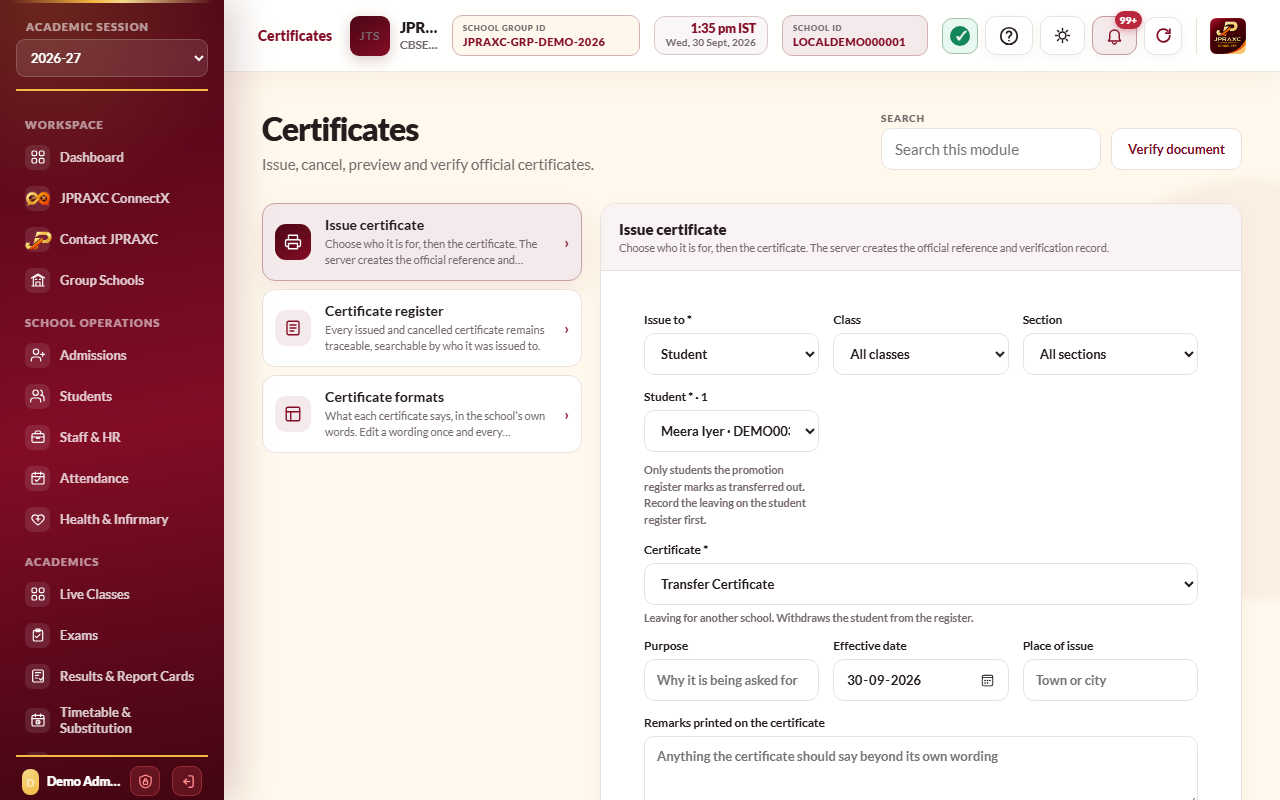
- Open Certificates in the sidebar, then Issue certificate.
- In Issue to, choose Student or Staff.
- Narrow the list: Class and Section for a student, or Staff group (Teaching or Non-teaching) for staff.
- Choose the person in the Student or Staff member list.
- Choose the Certificate. The note under it says what that certificate states.
- Fill in Purpose (why it is being asked for), the Effective date and the Place of issue.
- If the certificate should say something beyond its own wording, type it in Remarks printed on the certificate.
- Select Issue and preview certificate.
- The certificate opens in a preview. Select Print, or save it as a PDF from the browser's print window. Black & white prints without colour.
- Have it signed on the lines for the Class Teacher or Head of Department and the Principal.
Reprint or cancel a certificate#
- Open Certificates › Certificate register.
- Narrow it with Issued to, Class, Section, Staff group and Name, or type a reference, name or verification code in the search box.
- Select Preview on the row to open the certificate again and print it. A reprint carries the same reference and verification code as the original.
- To withdraw a certificate, select Cancel, type the Cancellation reason and confirm. The certificate stays in the register marked Cancelled, and it no longer passes a check in Verify Documents.
Word a certificate in the school's own way#
- Open Certificates › Certificate formats. Each certificate shows whether its wording is Built-in or Edited.
- Select Edit wording on the certificate.
- Change the Heading printed on the certificate if needed, and the text under What this certificate says. A blank line starts a new paragraph. Words in braces, such as {name}, {class}, {session} or {purpose}, are filled in from the record when the certificate is issued. The list under the box shows every placeholder you can use.
- Select Save wording.
To go back to the ERP's own wording, select Restore built-in and confirm. The Transfer Certificate is printed on the prescribed form and its wording cannot be edited.
Find anything the school issued: the Print Centre#
- Open Print Centre in the sidebar, or its quick action on the Dashboard.
- To see one person's papers, choose Issued to (Student or Staff), then the class and section or staff group, then the person.
- Or type a reference, document type, status or verification code in the search box. Search server loads the latest register.
- Select Preview on a row. The document opens in the layout its own module prints it in.
Each row shows the Reference, Document, Issued to, Issued date, Verification code and Status. A document the school has withdrawn, such as a cancelled certificate or notice, shows Revoked.
What "issued documents" means for the school#
Every certificate, receipt, slip, card, notice and report the ERP prints is recorded as an issued document before it is printed. That record is the school's proof of what it issued, to whom and when, and it is what Verify Documents checks a paper against.
A certificate or notice reprinted from its register keeps the original reference and verification code. Other papers, such as fee receipts and reports, are recorded again each time they are printed, each with its own code.
Example#
Riya Verma (ADM-2026-001, Class 8 B) at Sunrise Public School needs a bonafide certificate for a scholarship. The office chooses Student, Class 8, Section B, Riya and Bonafide Certificate, types Scholarship application in Purpose, and prints it. If the school has switched on the Certificate issued message, her parent is told it is ready (see Notices and communication).
Good to know#
- One certificate of each kind can be issued to a person in a session. One already issued is marked already issued with its reference in the list.
- A certificate keeps the wording it was issued in, even if the format is changed later.
- Aadhaar numbers print masked, showing only the last four digits.
- The transfer certificate is printed in the ERP's display language, English or Hindi.
- A student's certificates are also listed in the Academic Kundali, opened from the Dashboard.
Troubleshooting#
| Symptom | What to do |
|---|---|
| No student is marked transferred out when choosing Transfer Certificate | Mark the student as transferred out on the student register first. See Students. |
| This certificate was already issued to this person… | Reprint it from Certificate register, or cancel it and issue again. |
| This printout could not be registered for verification, so it will print without a barcode. | Your role may not have the print right in Print Centre. Ask your administrator, then print again. |
| A detail on the certificate is wrong | Cancel it with a reason, correct the student or staff record, and issue a new one. |
