
Get help from JPRAXC
The support channels for existing customers, what to include when you write, and how to reach Sales, the complaint desk and the Grievance Officer.
JPRAXC has separate contact points for Sales (buying, pricing, demos) and Support (help once you are running a product). Every e-mail to support@jpraxc.com is registered as a ticket, and replies stay linked to the same reference. This guide lists the channels and how to get the quickest answer.
Support channels for existing customers#
| Channel | Details |
|---|---|
| support@jpraxc.com — you receive a ticket number by return | |
| Phone or WhatsApp | +91 9792908836 |
| Inside School ERP | Contact JPRAXC in the sidebar |
| On jpraxc.com | Talk to us at the top of any page (see ALREADY WITH JPRAXC?), or Ask ConnectX › Talk to JPRAXC for a live chat |
| Partner app | Profile › Help and support |
For buying, renewals, add-ons or a demo of another product, contact Sales: sales@jpraxc.com, or call or WhatsApp +91 9792908835.
Support works on working days. Times in all JPRAXC messages are India Standard Time (IST).
Use Contact JPRAXC inside School ERP#
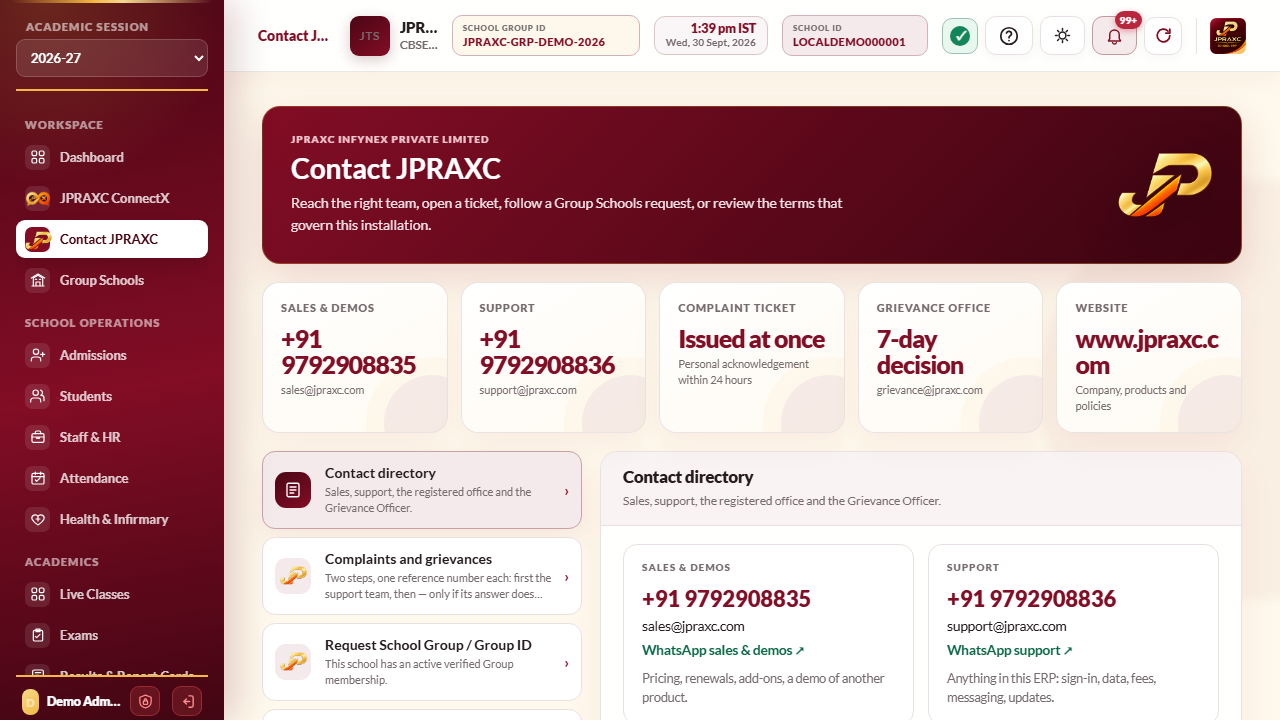
- Select Contact JPRAXC in the sidebar.
- The Contact directory lists Sales & demos, Support, the registered office and the Grievance Officer.
- Under Complaints and grievances, use Make a complaint, Check a complaint or Raise a grievance. See Complaints and grievances.
- Under This installation, note your school's name and release. Quote them when you write to support.
Write a message that gets a quick answer#
Include:
- your organisation's name and the product (for example, School ERP, Cloud edition);
- your licence or order reference, or the ticket number if you are following up;
- what you were trying to do, what happened instead, and when (date and approximate time);
- the exact wording of any error message;
- a screenshot, with student, parent, patient or financial details covered.
Do not include passwords, one-time codes, recovery codes, activation keys, card details or complete student or patient records. Nobody at JPRAXC needs them to help you.
To add to an open ticket, reply to the e-mail you received and keep the ticket number in the subject.
Remote help#
Sometimes support asks to see your screen, or, with your written permission, to access your installation. Access is used only for the task and what was done is recorded. You can say no, and you should end the session when the task is finished.
Good to know#
- The ERP's own users (parents, staff, students) should contact the school first. The school's administrator contacts JPRAXC if needed.
- To report a security problem or a suspected breach, e-mail support@jpraxc.com with "Security" in the subject.
- If support's answer does not satisfy you, see Complaints and grievances.
