
The ConnectX desk in School ERP
Read and answer what families and staff write from their portals and apps, with files and voice notes, in the School ERP's JPRAXC ConnectX module.
JPRAXC ConnectX in the School ERP is the office's desk for conversations with families and staff. When a parent or a member of staff writes from their portal or app, a conversation opens here. The office answers in the same conversation, and the answer reaches the person in their own portal and app.
Before you start#
- You are signed in to the School ERP, and your role gives you the JPRAXC ConnectX module.
- The school uses a Cloud or Shift-to-Cloud School ERP licence, with portal accounts for parents and staff in place.
Open the desk#
- In the menu, under Workspace, click JPRAXC ConnectX.
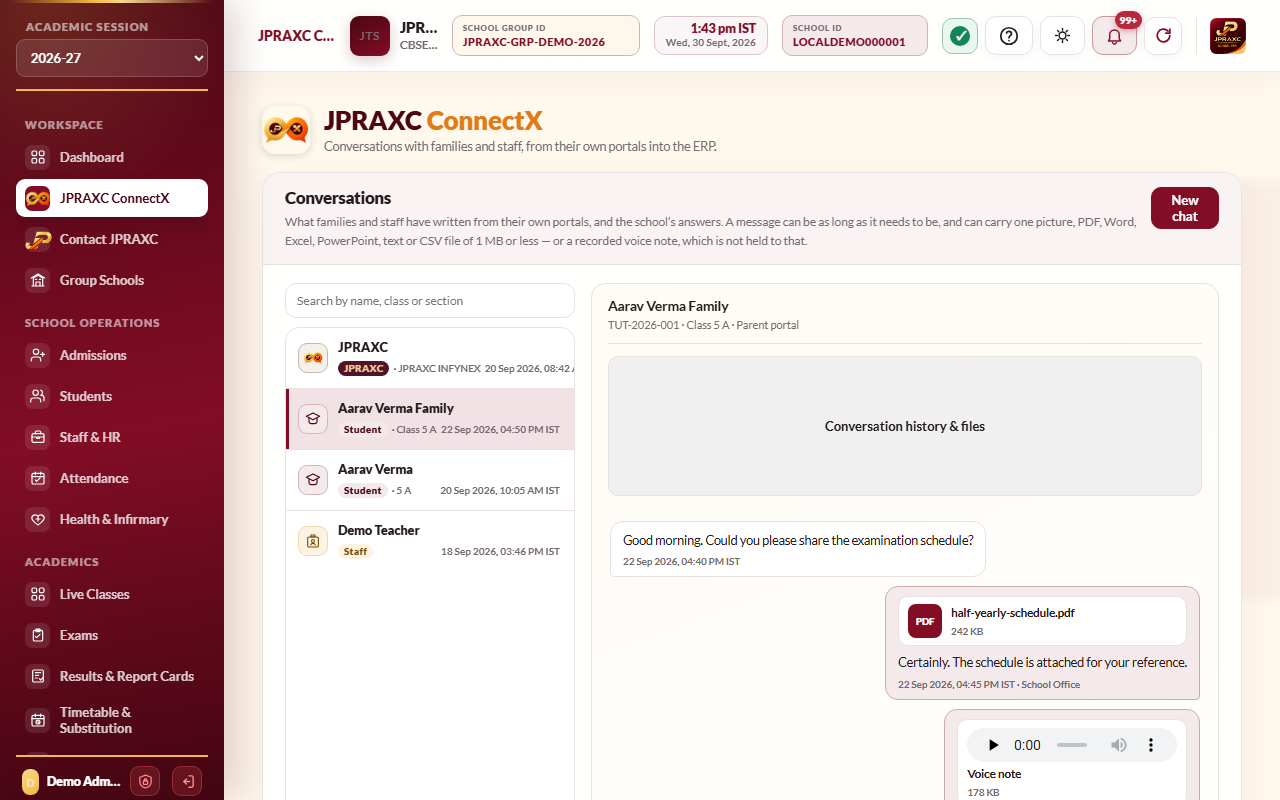
- The page is headed JPRAXC ConnectX with Conversations.
- The list on the left shows every conversation, newest first. The pinned JPRAXC conversation is always at the top. See Talk to JPRAXC from the School ERP.
- Each conversation is marked Student (a family, from the parent portal or Parent app) or Staff (from the portal for staff or the Staff app), with the class or section and the time of the last message.
- A number beside a name is that conversation's unread count.
To find someone, type in Search by name, class or section.
Reply to a family or member of staff#
- Click the name in the list. The conversation opens on the right.
- Read the messages. Files show as cards; pictures show as thumbnails. Voice notes play in place.
- Type in Write a reply….
- To attach a file, click the paperclip (Attach a file) and choose one picture, PDF, Word, Excel, PowerPoint, text or CSV file.
- Click Send.
The reply appears in the person's own conversation in their portal and app, where they can answer.
Send a voice note#
- In the reply bar, click the microphone (Record a voice note).
- Allow the browser to use the microphone if it asks.
- Speak. The Voice note window shows the recording time.
- Click Stop.
- Listen to it. Then click Send, Record again or Discard.
Edit or delete a message#
Hold a message for one second, or right-click it, to see its actions.
- Edit — only for the school's own messages, for 10 minutes after sending. Change the text and click Save the correction. Everyone sees the new wording marked edited. The original stays in the audit record.
- Delete for me — hides the message from the school's side only. The other side keeps its copy.
- Delete for everyone — only for the school's own messages, for 2 hours after sending. It removes the message from every ConnectX view.
The office cannot reword what a family or member of staff wrote.
See the full history and files#
- Open a conversation.
- Click Conversation history & files.
- Click Earlier messages to go further back, or Latest messages to return.
- Click a file name to open it.
- Click Close.
Good to know#
- A conversation starts the first time a parent or member of staff writes. To write first, use New chat. See New chat, broadcasts and ConnectX messages.
- Each outgoing message shows the name of the office user who sent it.
- Conversations with families of a class can also be held by the class teacher from the Staff app, if the office gives the teacher the JPRAXC ConnectX with students permission. The office does not see those conversations.
- The list updates by itself while the page is open.
- Parents also send leave requests through ConnectX. They arrive in the family's conversation starting with LEAVE REQUEST.
Troubleshooting#
| Symptom | What to do |
|---|---|
| Nobody has written yet | No family or member of staff has written. Use New chat to start one. |
| "That conversation could not be opened. Refresh ConnectX and try again." | Reload the page and open the conversation again. |
| The microphone does not start | Allow the microphone for the site in the browser (the padlock beside the address). Check that no other program is using it. |
| A file is refused | Choose a supported type and a smaller file. The paperclip's tooltip states the limit. |
| JPRAXC ConnectX is not in the menu | Your role does not include it. Ask your ERP administrator. |
