
Approvals and the Audit Log
Approve or reject changes made by other users, search the audit history by day or month, export it, and manage the Recycle Bin.
The Audit Log is the school's record of who did what and when. It also holds the Admin approval queue: every change made by a user other than the administrator takes effect at once so work carries on, and waits there for the administrator to approve or reject it. This guide also covers the Recycle Bin, where archived student records wait for a decision.
Before you start#
- Anyone whose role has View on Audit Log can read the history and the queue.
- Only the administrator can approve or reject changes, and delete or restore audit events.
How approval works#
| Status | What it means |
|---|---|
| Provisional | A non-administrator made this change. It is already in effect and waiting for review. |
| Approved | The administrator approved it. The change is permanent. |
| Rejected | The administrator rejected it. The change has been reversed. |
| Held | Nobody reviewed it within the seven-day limit, so the change was reversed and held. The administrator can still approve and publish it. |
Approve or reject changes#
- Open Audit Log. The Admin approval queue is at the top. It lists changes from every session.
- For each row, read Change, Submitted by, Changed rows, Submitted and Seven-day limit.
- To keep the change, select Approve (or Approve & publish for a held change) and confirm.
- To undo the change, select Reject, type the Reason for rejection and submit.
The Review column shows who decided and their note. If a held change could not be applied again, the reason shows there too.
Search the audit history#
- In the sidebar, choose the Academic session you want to search.
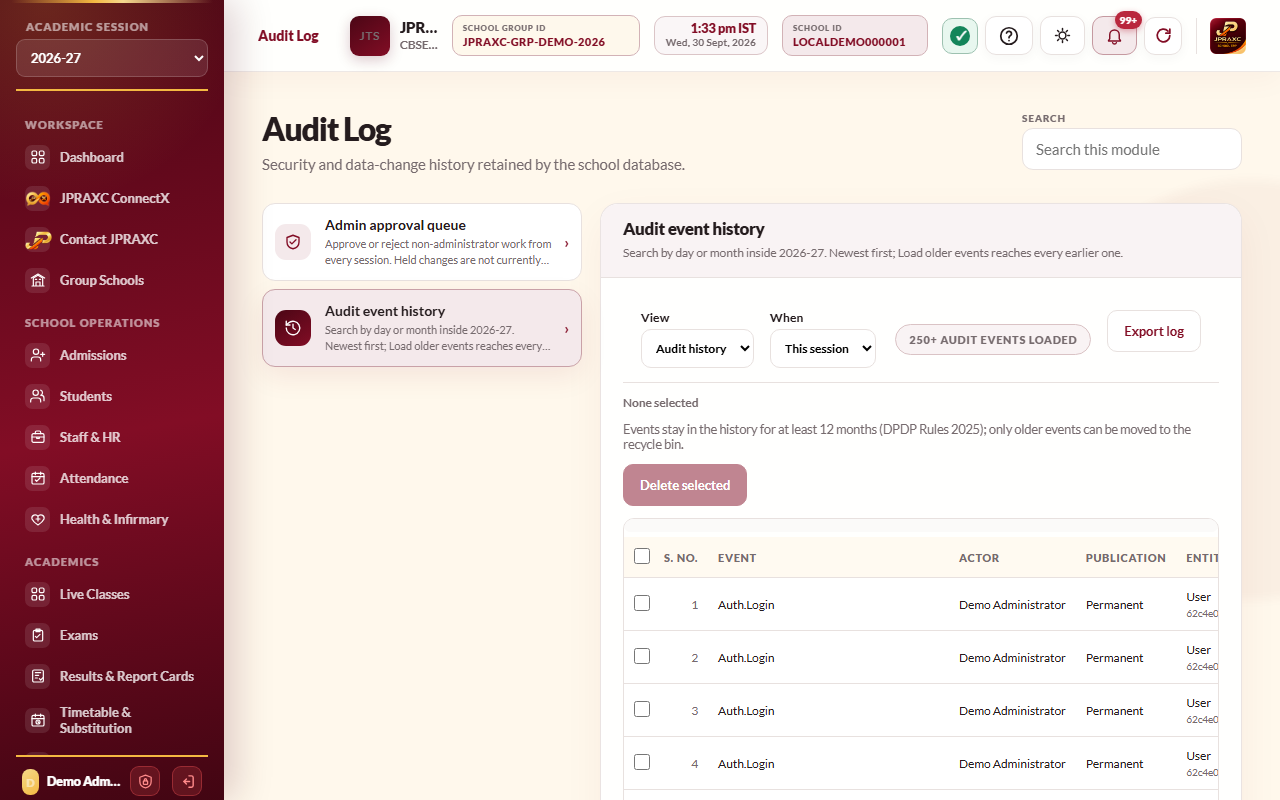
- Open Audit Log and go to Audit event history.
- In When, choose This session, One day or One month.
- For One day, pick the Date. For One month, pick the Month.
- Use the search box to find a name, event or record.
- Select Load older events to reach earlier entries. Newest events come first.
Each row shows the Event, the Actor who did it, Publication (the approval status, or Permanent for the administrator's own work), the Entity changed, when it was Recorded (IST) and the main Details.
Sign-ins, approval decisions, backup restores and imports, software update checks and installations, and every time someone reveals a full Aadhaar number are recorded here, along with changes to school records.
Export the audit log#
- In Audit event history, select Export log.
- Choose From and To dates. The form starts with the last 12 months.
- Choose the Format, for example Excel workbook (.xlsx).
- Select Export.
The file holds every event between the two dates, including events moved to the audit recycle bin, which are marked. Times are in IST. Keep the file safe: it names staff and records.
Delete and restore audit events#
Only the administrator sees these controls.
- In Audit event history, tick the events.
- Select Delete selected and confirm. The events move to the audit recycle bin.
- To bring them back, change View to Recycle bin, tick the events and select Restore selected.
The Recycle Bin for students#
When a student is archived from Students › Student register (Archive, with a reason), they leave the register and wait in Recycle Bin › Archived records. Nothing is removed on a timer.
To bring students back:
- Open Recycle Bin.
- Select Restore on a row, or tick several and select Restore selected.
The student returns to the Student register.
To delete students for good:
- Check the Held by column. A student the school still holds fees, transport or certificate records against cannot be deleted, and the column says what holds them. Nothing — can be deleted means the record is free.
- Select Delete permanently, or tick several and select Delete selected permanently.
- Read the warning and confirm.
Good to know#
- The administrator's own changes are permanent at once and do not go to the queue.
- A rejected change is reversed exactly; records made after it are not touched.
- The audit history search covers the session chosen in the sidebar. The export covers any date range.
Troubleshooting#
| Symptom | What to do |
|---|---|
| Approve and Reject are missing and the row says Reviewed | The change has already been decided, or you are not the administrator. |
| An older day shows no events | Check that the sidebar session covers that day, then choose One day and the date. |
| Delete selected refuses some events | Those events are less than 12 months old and must stay in the history. |
| A student cannot be deleted from the Recycle Bin | The Held by column shows the fee, transport or certificate records that keep it. Those records belong to the school and are kept. |
