
First sign-in and school profile
Set up a new School ERP, sign in as the administrator for the first time, and complete the school's profile and appearance.
A new JPRAXC School ERP asks a few one-time questions before anyone can sign in: how it is being installed, the activation details JPRAXC issued for your school, the school's essentials, a theme and the administrator's password. After that, the administrator signs in, sets up the second sign-in step and completes the school profile. This guide walks through all of it in order.
If JPRAXC or your partner has already completed the one-time setup for you, skip to Sign in for the first time below.
Before you start#
- The activation details JPRAXC sent your school for this installation. Keep them private.
- An internet connection. The product is verified once during setup, including on the Offline edition.
- The school's official details: board, affiliation or recognition number, full address, and the academic year.
- The administrator's phone with an authenticator app such as Google Authenticator or Microsoft Authenticator. The administrator needs it at the first sign-in.
- Optional: the school logo as a PNG, JPEG or WebP image, within the size shown on the screen.
One-time setup#
The setup screen shows six steps down the left side.
- Installation type. Choose Fresh installation for a new school workspace. (Choose Re-installing this school only when you are reinstalling an existing school; see Install the Offline edition on Windows.) Select Continue.
- Secure activation. Enter the activation details exactly as JPRAXC issued them, then select Verify credentials. The school name and the administrator's name, e-mail and phone are read from your licence.
- School essentials. Fill in Board of affiliation, Affiliation / recognition number, Full school address, City, District and State / Union Territory. Optional fields are Principal name, UDISE code, Postal code, School website and School / organisation logo.
- On the same step, enter the Three-letter document prefix (for example SPS for Sunrise Public School). It starts the reference number on the school's official documents.
- Check the Academic session label (for example 2026-27) and choose the month in Academic session starts in. Select Continue.
- Theme & font. Choose one of the colour themes and the Interface and document font. The theme is used in the ERP, the public portals and printed documents. Select Continue.
- Administrator. The login ID and the administrator's e-mail are shown and cannot be changed here. Type the Administrator password and Confirm password. Select Continue.
- Review & finish. Check the school, product, theme, logo and data summary. Select Activate workspace.
Sign in for the first time#
- Open the ERP. On the Offline edition, open JPRAXC School ERP from the desktop.
- Enter the Login ID and Password.
- Under Security verification, type the answer to the question shown. Select the refresh button for a new question, or the speaker button to hear it.
- Select Sign in securely.
- The ERP asks the administrator to set up the second sign-in step before the workspace opens. Follow The second sign-in step. Save the recovery codes it shows.
- The Dashboard opens.
Complete the school profile#
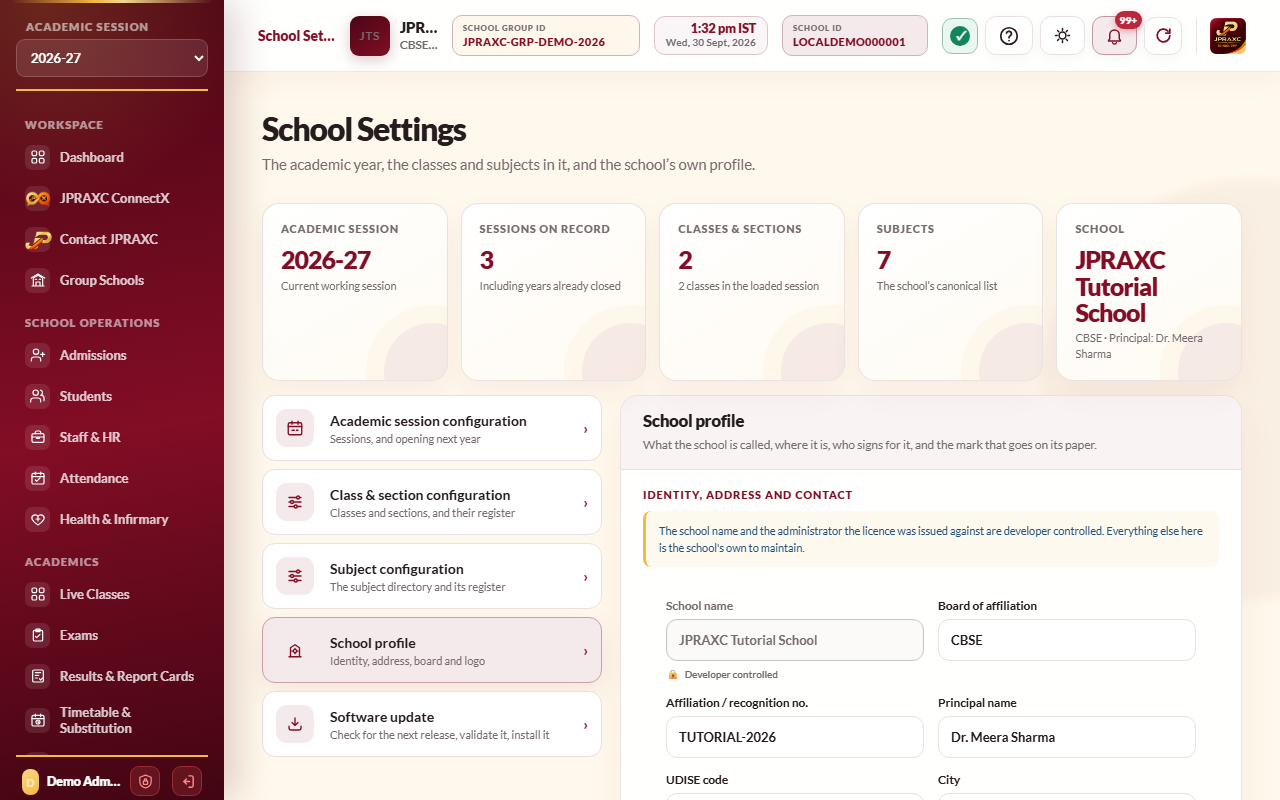
- Open School Settings › School profile.
- Under Identity, address and contact, check or fill in Board of affiliation, Affiliation / recognition no., Principal name, UDISE code, City, District, State, Postal code, Country, School phone, Alternate phone, School email, Website and Full address.
- Select Save school profile.
- Under School logo, choose the image in Replace the logo and select Upload school logo. The logo appears in the sidebar, on the sign-in page and on every printed document.
The School name and the Administrator name, Administrator email and Administrator phone fields show a lock. They come from your licence. To change them, contact JPRAXC support.
The principal's name, when entered, is shown to families and staff in the JPRAXC apps. The UDISE code, when entered, is printed on the school letterhead.
Set the appearance#
- Open General Settings › Appearance.
- Choose a Workspace layout: Workspace (rounded panels and colour themes) or Simple (flat and plain). This choice is saved for this computer only.
- Choose a colour theme, the Font family and the Display language (English or हिन्दी).
- Check the Three-letter document prefix and the watermark settings for printed documents.
- Select Apply throughout ERP.
What to set up next#
Work through these in order. Each one depends on the one before it.
- Classes, sections and subjects: see Academic sessions, classes and promotion.
- Staff records and class teachers: see Staff and HR.
- The period structure and class timetables: see Timetable and substitution.
- Fees, transport and hostel, only for the services your school runs: see Fee structures, Transport and bus tracking and Hostel.
- School working days and holidays: see Attendance.
- Students: add them one by one or import a list; see Students.
- Roles and users for the office and teachers: see Users, roles and access. Test each role with its own account before daily work starts.
Good to know#
- The sign-in page carries your school's name, logo, address and contact details, not the product's.
- The Dashboard shows the school's figures for the session chosen in the sidebar, quick actions (New admission, Add student, Mark attendance, Collect fees, Communication, Library circulation, Print Centre) and a Needs attention panel.
- Academic Kundali on the Dashboard opens one student's whole record for any session.
Troubleshooting#
| Symptom | What to do |
|---|---|
| Verify credentials is refused | Check each value against what JPRAXC sent, with no extra spaces. Check the internet connection. If it still fails, contact JPRAXC support. |
| The security question says it is unavailable | Select the refresh button to ask for a new question. Check the connection to the ERP. |
| The administrator password is forgotten | On the sign-in page select Forgot administrator password?, then Send email OTP. Enter the six-digit code sent to the administrator's registered e-mail, type a new password twice and select Verify OTP and reset. |
| The sign-in page says the licence is not active | See Licence status and renewal. |
| The SCHOOL ID chip reads SYNCING | The School ID has not reached your ERP yet. It fills in by itself; you do not need to reload. |
