
Health and infirmary
Keep health profiles, record infirmary visits with a message to the parent, manage the medicine stock and run check-up camps.
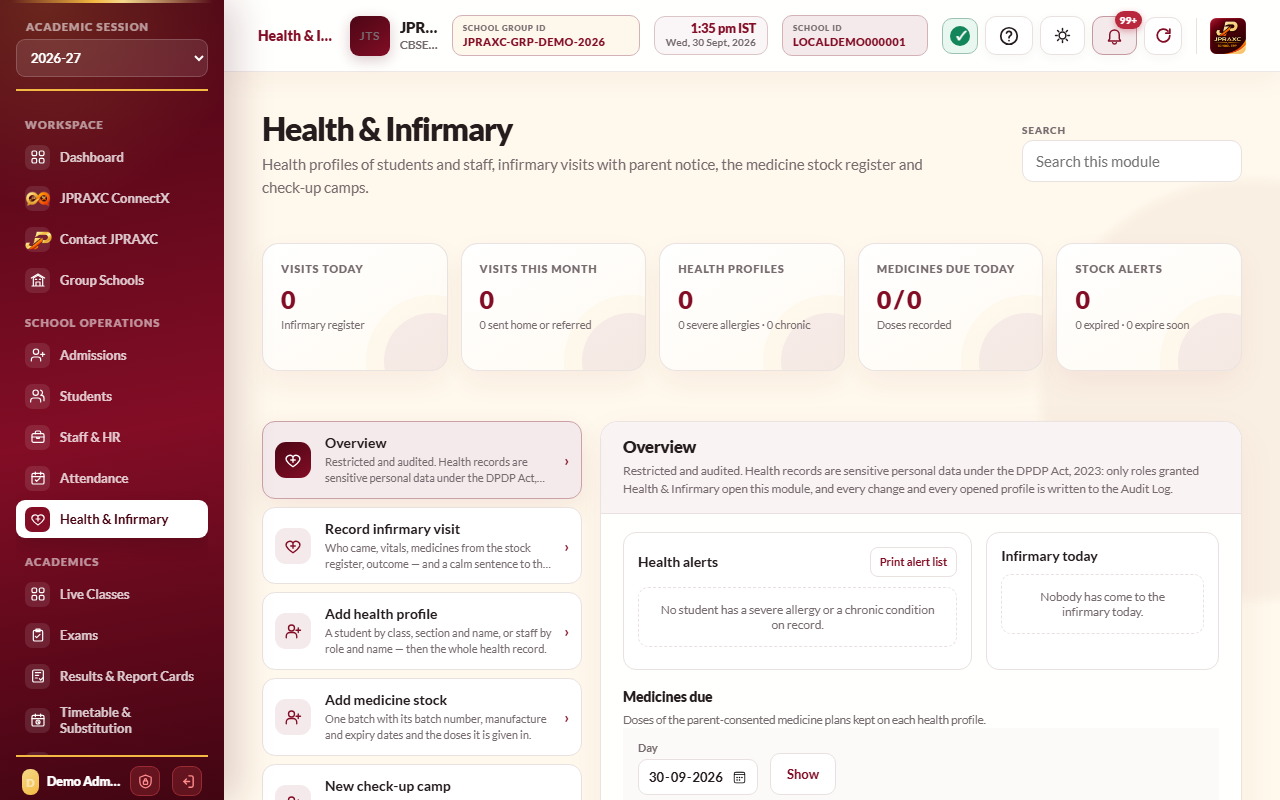
Health & Infirmary is the school nurse's register. It keeps a health profile for each student and member of staff (blood group, emergency contact, allergies, conditions, regular medicines and immunisations), records every visit to the infirmary and tells the parent in the Parent app, keeps the medicine stock by batch and expiry date, and holds the results of check-up camps. Health records are sensitive personal data, so the module is open only to roles given Health & Infirmary, and every change and every opened profile is written to the Audit Log.
Before you start#
- Your role must be given the Health & Infirmary permission. Without it, the module shows only that access is restricted.
- Printing the health alert lists and camp results needs the print right.
- Add the infirmary's medicines under Add medicine stock before recording visits that give medicine.
Create a health profile#
- Open Health & Infirmary › Add health profile.
- Choose the person: a student by class, section and name, or staff by role and name.
- Fill in what you know: Blood group, the emergency contact, family doctor and insurance, and notes on vision, hearing, dental care and special needs.
- Select Save and continue. The profile opens.
In the profile, use the tabs to add Height & weight, Allergies (with Severity and what to do if it happens), Conditions, Regular medicines, Medicine plans at school and Immunisations. Print health summary prints a confidential one-page summary. To open an existing profile, use Health profile register and select Open profile.
Medicines given at school#
A medicine the school itself gives needs a plan with the parent's consent, under Medicine plans at school: the medicine, dose, dose times, from and to dates, who gave consent and when, and the signed consent document. Doses due today appear in Overview under Medicines due, where the nurse marks each one Given, Missed or Refused.
Record an infirmary visit#
- Open Record infirmary visit and choose who came.
- Set the Date and Time, choose the Complaint, and add Details.
- Record any vitals: temperature, pulse, SpO2 and blood pressure.
- Under care, type the First aid or treatment. To give medicine, select Add medicine, choose it from stock and choose the dose. Stock is used from the batch that expires first; an expired or used-up medicine cannot be given.
- Choose the Outcome: Back to class, Rested in the sick room, Sent home (with who took them), or Referred to hospital (with where).
- Leave Tell the parent on the phone app ticked to send the parent a short message. Tick Keep the reason out of the message ("feeling unwell") if the reason should stay private. The screen shows exactly what the parent will read.
- Select Save visit.
The parent receives one short, calm message in the Parent app, built from fixed phrases: when the child visited, the reason (or feeling unwell), the care given and the outcome. Some sensitive complaints are always described as feeling unwell. Only a student's family is told; staff visits send no message.
The Infirmary visit register lists every visit between the dates you choose, with the medicines given and whether the parent was told. A visit can be edited or deleted; deleting it puts the medicines it gave back into stock.
Manage the medicine stock#
- Open Add medicine stock.
- Type the Medicine name, Strength and Form (tablet, syrup, inhaler and so on).
- Enter the batch: Batch no., Expiry date, the quantity received and the supplier.
- List the doses it is given in, for example 1 tablet or 5 ml.
- Select Add stock.
The Medicine stock register shows every batch with what came in, what was given, what was written off and what is left, and marks batches that are expired or expire soon. Use Write off for expired or damaged stock and Count to correct the quantity after a stock check. Each needs a reason. Ledger shows every movement of a batch.
Check-up camps#
- Open New check-up camp. Type the Camp name, choose the Type, set the dates, and add each doctor with their registration number and speciality. Select Create camp.
- In Check-up camps, select Enter results, choose a class and section (or a staff role), and open the results sheet.
- Type each person's height, weight, vision and dental findings, and any remarks. BMI is worked out as you type. Select Save all results.
- In Check-up camp register, choose the camp to see the results, and select Print card for one person, Print cards, or Print all for the summary.
The BMI reading shown is indicative only and is not a diagnosis. The school doctor confirms it.
Health alert lists and reports#
- Health alert lists: severe allergies and chronic conditions by class and section, made for class teachers, hostel wardens, a school trip, or the canteen (food allergies and diet needs). Choose who it is for, select Show the list, then Print. The printout is marked confidential.
- Visit reports: infirmary visits between two dates, grouped By day, By month, By person or By complaint, with how many went back to class, rested, were sent home or were referred.
- The Overview shows health alerts by class, today's infirmary visits and the medicines due today.
What families and staff see#
Parents see their child's Health page in the parent portal and Parent app, read-only: the health record, infirmary visits and check-ups. Staff see their own record in the Staff portal and app, and a class teacher can also see their class's health alerts and today's visits.
Troubleshooting#
| Symptom | What to do |
|---|---|
| A medicine is shown as expired and cannot be given | Every batch of it has expired. Write the expired stock off in the Medicine stock register and add a new batch. |
| No medicine is in the stock register yet. | Add stock under Add medicine stock first. |
| A BMI reading says it was not read | The person's date of birth is missing, or the child is under five. The doctor reads the growth chart instead. |
| Show the list is refused | Showing the health alert lists needs the print right for Health & Infirmary. |
