
Read and organise mail
Folders, reading a message, stars, read and unread, search, Trash and keyboard shortcuts in the webmail.
This guide shows how to find your way around the webmail: the folders in the sidebar, how to open and act on a message, how to search, and the keyboard shortcuts.
The screen#
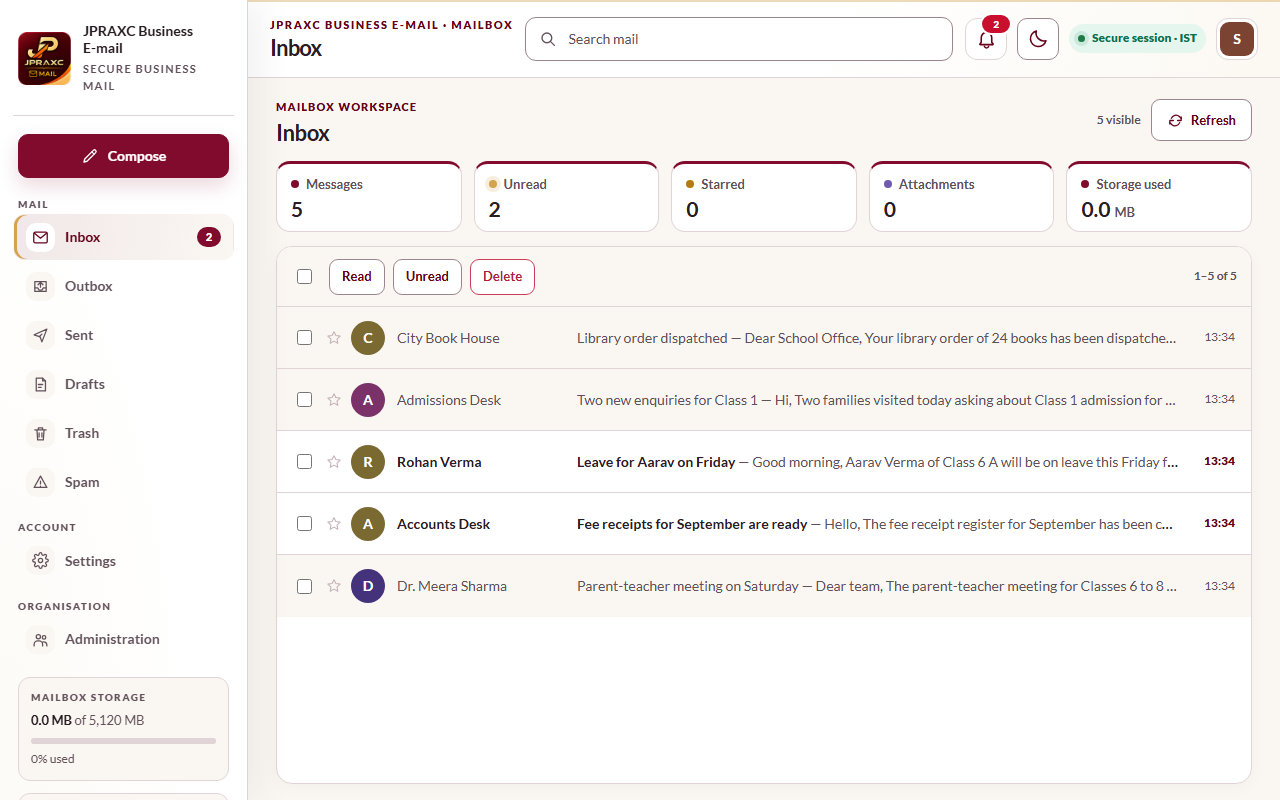
- Sidebar (left): the Compose button, then the Mail folders, Account › Settings and, for administrators, Organisation › Administration. Below them, the MAILBOX STORAGE card shows how much of your storage is used, and your account card has Sign out.
- Top bar: the page title, the Search mail box, a bell that shows how many Inbox messages are unread, the light/dark switch, the Secure session · IST label and your name (open it for Settings, Administration and Sign out).
- On a phone or narrow window, the sidebar is hidden. Use the menu button at the top left to open it.
The folders#
| Folder | What it holds |
|---|---|
| Inbox | Mail you receive. The number beside it is how many are unread. |
| Outbox | Messages still on their way, on hold, failed or cancelled. Delivered messages leave the Outbox and appear only in Sent. See Track outgoing mail. |
| Sent | A copy of every message accepted for sending, including mail sent from a mail app on your computer or phone. |
| Drafts | Messages you saved to finish later. |
| Trash | Deleted messages. You can restore them until they are deleted for good. |
| Spam | Messages kept apart as unwanted. |
The folders are fixed. You cannot create folders of your own in the webmail.
Each folder page shows tiles for Messages, Unread, Starred, Attachments and Storage used. Select Refresh to check for new mail.
Open and read a message#
- Select a folder in the sidebar.
- Select a message in the list. It opens on its own page and is marked as read.
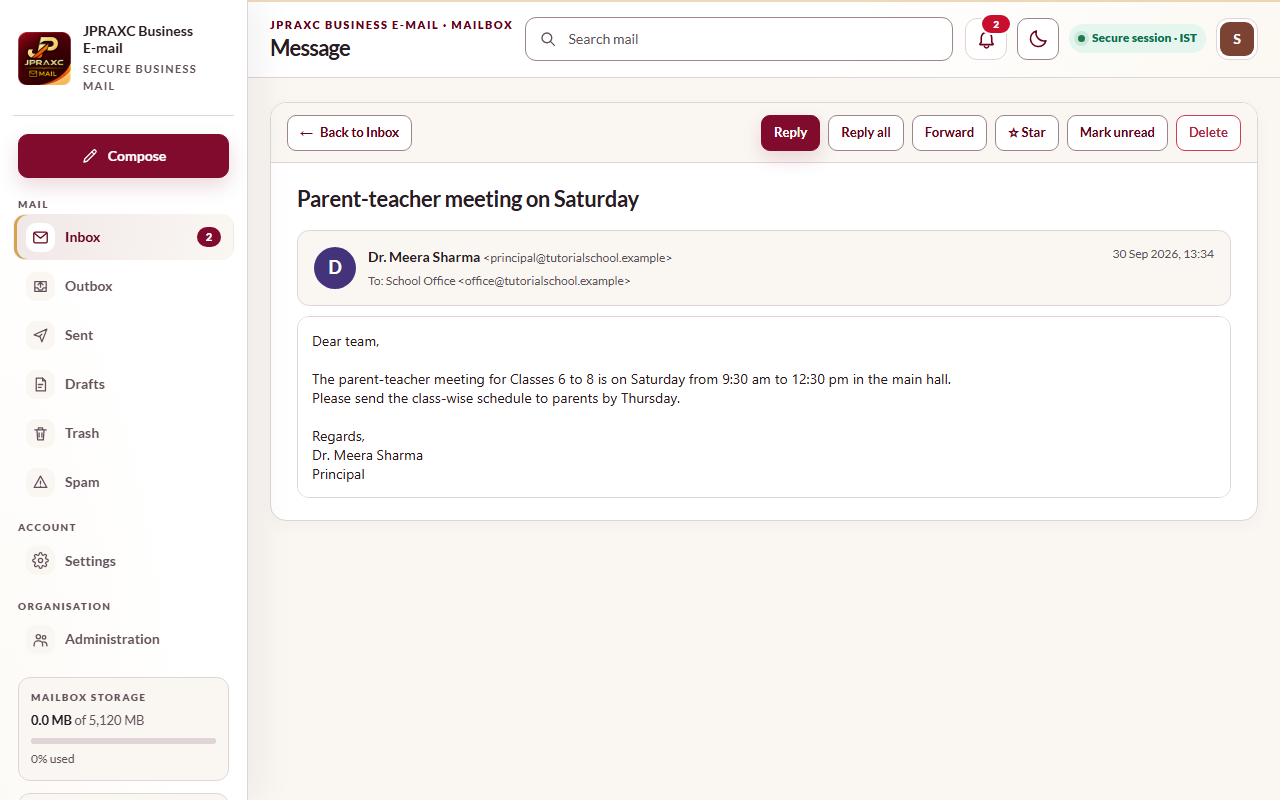
- Use the buttons at the top of the message:
- Reply, Reply all or Forward open a new message. See Write and send mail.
- ☆ Star marks the message to follow up. Select ★ Starred to remove the star.
- Mark unread puts it back as unread.
- Delete moves it to Trash.
- Attachments appear below the message with their size. Select one to download it.
- Select Back to and the folder name to return to the list.
Work with several messages at once#
- Tick the box at the start of each message you want. The box at the top of the list selects every message on the page.
- Choose an action in the toolbar: Read, Unread or Delete.
You can also hover over a message row to use its quick buttons (mark read or unread, delete), and select the star on a row to star or unstar it. The list shows 25 messages at a time; use the ‹ and › buttons to see newer or older pages.
Search#
- Open the folder you want to search.
- Type in Search mail at the top and press Enter.
The search looks in the folder you are in, at the subject, the sender's name and address, and the opening words of each message. To search another folder, open that folder first and search again. In the Outbox, search finds a recipient, a subject or a delivery error.
Trash and deleting for good#
- In Trash, select messages and choose Restore to put them back. Restored messages go to the Inbox.
- Delete forever removes the selected messages permanently.
- Empty trash deletes everything in Trash permanently. The storage is freed straight away.
Keyboard shortcuts#
The message list shows these shortcuts: c compose · / search · j/k move · Enter open.
| Key | What it does |
|---|---|
| c | Opens a new message. |
| / | Puts the cursor in Search mail. |
| j | Moves to the next message in the list. |
| k | Moves to the previous message in the list. |
| Enter | Opens the highlighted message. |
Shortcuts do not work while you are typing in a box.
Good to know#
- The light/dark switch in the top bar remembers your choice on that browser.
- An opened message is shown at its full length, with its pictures and formatting. Scroll the page to read it all.
- Times in the list are IST: today's mail shows the time, older mail this year shows the date, and mail from earlier years shows the full date.
Troubleshooting#
| What you see | What to do |
|---|---|
| This message is no longer available. | It was deleted or moved. Choose another message from the list. |
| A message you expected is not in the Inbox | Check Spam and Trash, then search the folder. Ask the sender to check that they used the right address. |
| Your storage card is nearly full | Delete mail you do not need and select Empty trash. See Storage, plans and buying more. |
