
Dues, reminders and late fees
Send fee-due reminders automatically, carry unpaid fees into the new session, import opening balances and understand late fees.
Dues & Reminders takes three routine jobs off the fee office. It sends fee-due reminders to families by itself. It carries what students still owe at year-end into the new session. And it brings in opening balances from the system the school used before. This page also explains how late fees work, including why some overdue periods show no fine.
Before you start#
- Dues & Reminders uses the Fees permissions of your role. You need to be able to view fees to see the lists, add fees to send a batch, carry dues forward or import balances, and edit fees to change the settings.
- To send reminders on WhatsApp or SMS, those channels must be switched on for the school. See WhatsApp and SMS.
Set up automatic reminders#
- Open Dues & Reminders › Reminder settings.
- Tick Send fee-due reminders automatically.
- Under Channels, tick WhatsApp, SMS and/or Parent app.
- Under When they go, set Days before the due date, tick On the due date if wanted, and type the Days after the due date as a list, for example 3, 7, 15.
- Set Quiet hours from and Quiet hours until. Nothing is sent in between.
- Under Limits, registers and language, set Reminders per family per month, the Minimum amount (₹) below which no reminder is sent, and the Language (English, Hindi, both, or as in the school's communication settings).
- Under Registers, tick which dues to remind about: School fee, Transport, Hostel, Mess.
- Select Save reminder settings.
Each day, the first time someone uses the ERP after the quiet hours end, the day's reminders are prepared and sent once.
What the family receives#
One message goes to each guardian mobile. It names every child the family has at the school, what each owes (late fee included, at the counter's figures), the total, and the link to the parent portal. Just before each message goes, the family's dues are checked again: a family that has paid since the list was prepared is skipped, and one that paid part is told only what is still owed.
Check or send today's reminders by hand#
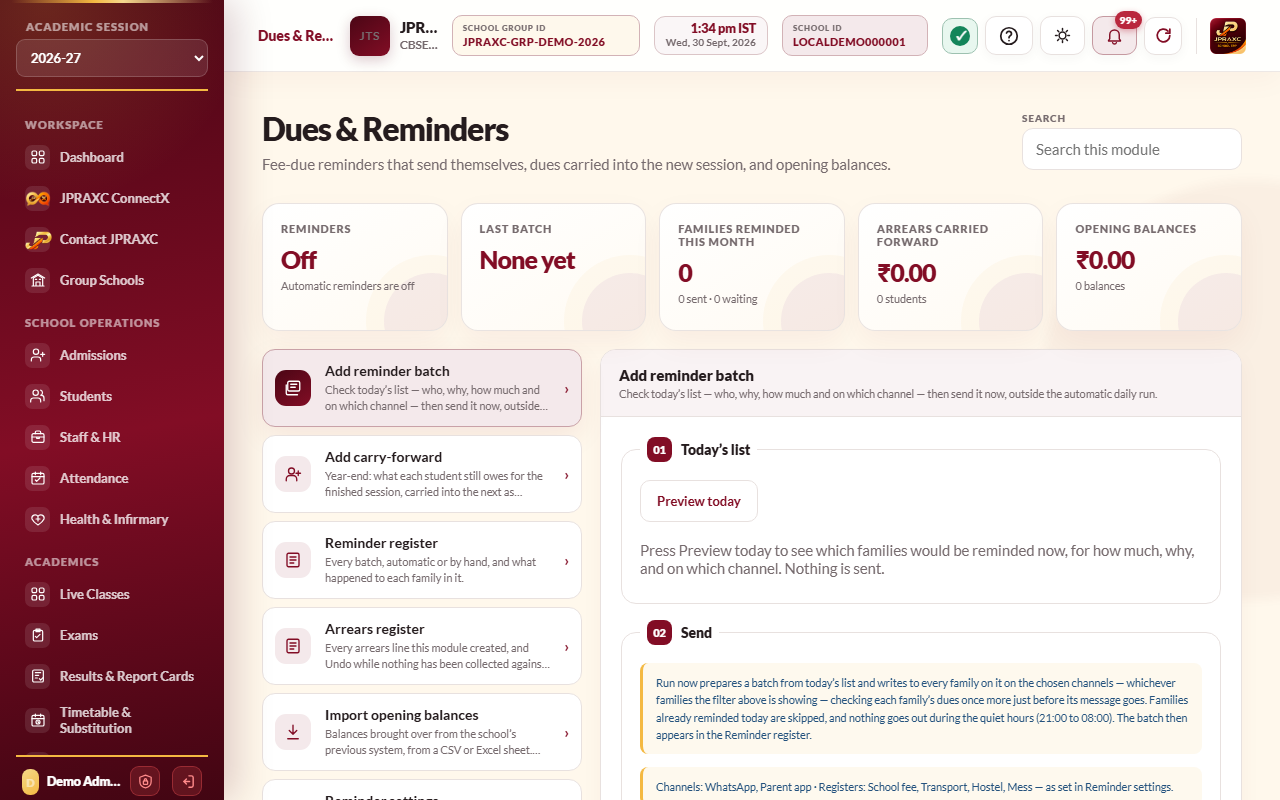
- Open Dues & Reminders › Add reminder batch.
- Select Preview today. Nothing is sent. You see each family, the children and amounts, Why today (for example Due in 3 days or 7 days overdue), the channels, and the Outcome: Will be reminded or Skipped, with the reason.
- Narrow the list with Outcome, Skipped because, the class picker or the search box if you want to send to only some families.
- Select Run now, then confirm. The batch is written to every family the filter is showing, on the chosen channels.
Reasons a family is skipped include Paid since the list was prepared, Quiet hours, Monthly limit reached, No mobile number, Below the minimum amount, Already reminded today and Channel switched off.
Follow up in the Reminder register#
Dues & Reminders › Reminder register lists every batch, automatic or by hand, with the date, who started it (Automatic, Scheduled (cron) or By hand), its status and how many families were sent, waiting, failed or skipped. Select Lines to see each family in a batch and Print it. A batch still Prepared or Sending has a Send now button.
Carry unpaid fees into the new session#
At year-end, a student's unpaid school fee for the finished session can become one Arrears line in the new session.
- Promote students into the new session first. A student still in the old session shows Not moved yet.
- Open Dues & Reminders › Add carry-forward.
- Choose From session and Into session.
- Set Arrears fall due on, and tick Include the late fee run up to the end of the session if the school wants that.
- Select Preview carry-forward. Every student who still owes is listed with Class then, Class now, Fee, Late fee, To carry and a status: Ready, Carried, Nothing to carry, Not moved yet, Left the school or Moved on.
- Untick any student you do not want to carry (or use Tick all shown and Untick all shown). Select Print if you want a copy.
- Select Carry forward ticked students, then confirm.
The arrears line is collected at Fees › Collect fees, and shows on the receipt, the fee report and the parent's ledger. The old session's periods stop being offered, so nothing can be paid twice. Transport, hostel and mess dues are not carried: they stay in their own registers, where an unpaid month is already offered as arrears.
Import opening balances#
For a school moving from another system:
- Prepare a sheet with the headings Admission no, Register (school, transport, hostel or mess), Amount in rupees and an optional Note. CSV and Excel files are accepted.
- Open Dues & Reminders › Import opening balances.
- Choose the Opening balance file and set Balances fall due on.
- Select Read the file. Each row is shown as Ready or with the problem found. Nothing is written yet.
- Select the import button, which names how many balances are ready (for example Import 42 balances), then confirm. Only ready rows are imported.
Each balance becomes an arrears line in the session open in the sidebar, collected at the counter.
Undo an arrears line#
In Dues & Reminders › Arrears register, an arrears line with nothing collected against it has an Undo button. Give a Reason and select Undo. For a carry-forward, last session's unpaid periods are offered at the counter again.
How late fees work#
A late fee is set per fee (see Set up fee structures): an amount per day after the due date, once the grace days have passed. It is worked out on the day the money is collected. When a school-fee period shows no fine, the late-fee column at the counter shows a dash; point at it to see why:
| Note shown | Meaning |
|---|---|
| This fee charges no late fee. | The fee's late fee per day is 0. |
| Not past its due date yet. | The due date has not passed. |
| Inside the 5 days allowed after the due date. | The period is still within its grace days. |
| Counted from the day the ride began, 12 Aug 2026. | Transport: in the month a ride began, days are counted from that day. |
| Exempt — the month falls before admission on 12 Aug 2026. | The period is from a month before the student's admission. |
| Counted from admission on 12 Aug 2026. | In the admission month, days are counted from the admission date, not the due date. |
| Refunded balance; no new daily late fee. | Part of this period was refunded, so no new daily fine builds up. |
Good to know#
- The office can waive a fine at the counter with a reason. See Collect fees at the counter.
- Promoting a student keeps the unpaid fees of earlier sessions collectable in the new one.
- The cards at the top show whether reminders are on, the last batch, families reminded this month, arrears carried forward and opening balances.
Troubleshooting#
| Symptom | What to do |
|---|---|
| It is inside the quiet hours now: nothing would go until they end. | Wait until the quiet hours end, or change them in Reminder settings. |
| Every family is skipped with Channel switched off | Switch the channel on in the school's communication settings, or choose another channel in Reminder settings. |
| A student shows Not moved yet in the carry-forward | Promote the student into the new session, then preview again. |
| An imported row shows a problem | Correct that line in your file (for example, an unknown admission number), then select Read the file again. |
