
Results and report cards
Set up terms and grading scales, record co-scholastic grades, remarks and the Holistic Progress Card, print marksheets and report cards, and publish results to families and the Results portal.
Results & Report Cards turns the marks entered in Exams into documents: examination marksheets, term report cards and the NEP 2020 Holistic Progress Card (HPC). From here you publish report cards to parents and examination results on the public Results portal. Marks themselves are entered in Exams; see Exams and marks.
Before you start#
- Your role needs the Exams · Results & Report Cards permission.
- Examinations and their marks must be in Exams.
- Publishing on the Results portal needs the Cloud edition with the Results Portal released in Users & Control › Access control.
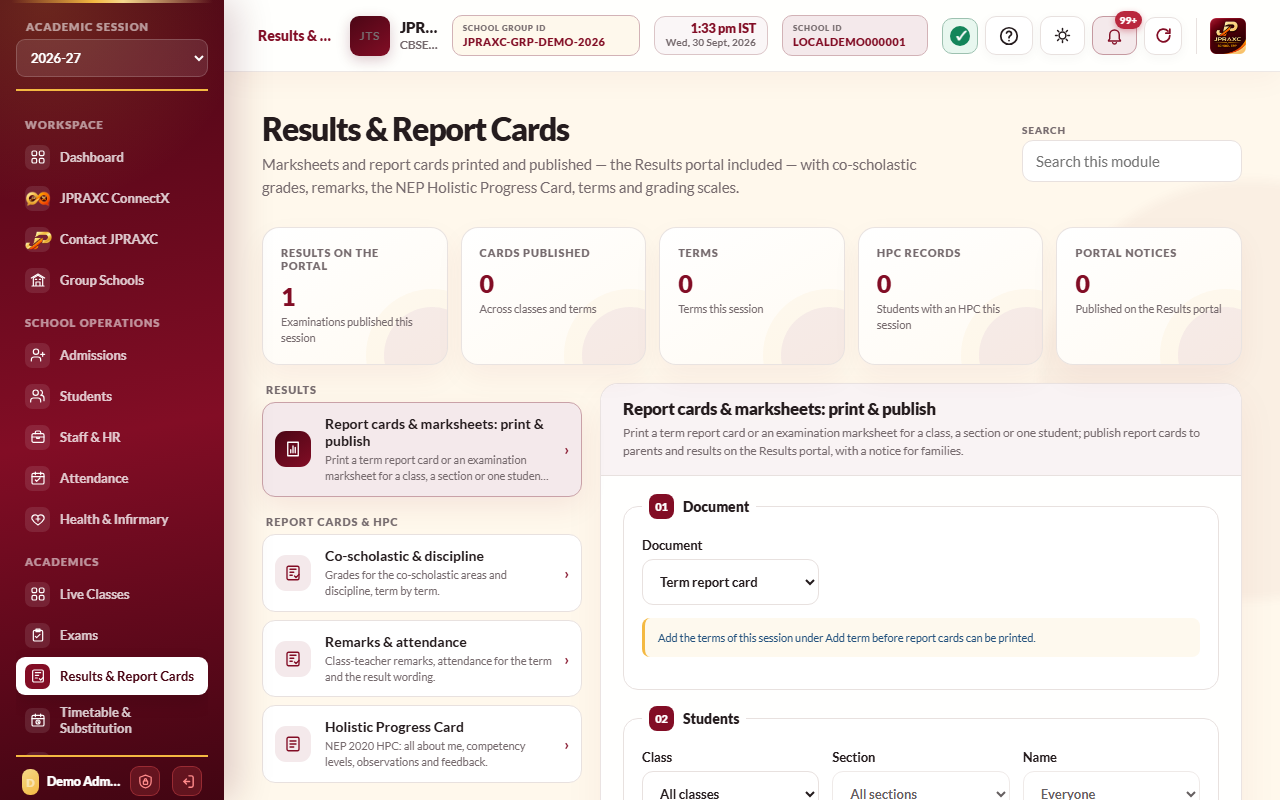
The module's panes are grouped like this:
| Group | Panes |
|---|---|
| Results | Report cards & marksheets: print & publish |
| Report cards & HPC | Co-scholastic & discipline, Remarks & attendance, Holistic Progress Card |
| Setup | Add term, Add grading scale, Terms & weightage, Grading scales, HPC competencies, Lists & settings |
Set up once a year#
Grading scales#
- Open Add grading scale.
- To use a CBSE scale, choose it in Built-in scale, set From class and To class, and select Load scale.
- Or choose Or set your own bands: name the scale, choose whether it grades Marks (percentage bands) or Co-scholastic areas (grades only), add each band with Grade, Min %, Max %, Grade point and Descriptor (use Add band for more), and select Save scale.
A mark earns the highest band whose minimum it reaches. Grading scales lists every scale with Edit and Delete.
Terms#
- Open Add term.
- Type the Term name (for example Term 1) and its Order, and choose the classes it covers with From class and To class.
- Set Starts on and Ends on. These dates decide the attendance counted for the term; leave both blank to count the whole session.
- Set the Weight in the final result. Two terms weighted 50 and 50 make an even year.
- Under Components, add each part of the term with what it is Worth, the examinations it comes from, and how they are Combined as: Average, Best of or Added up. Fill the CBSE pattern fills a standard layout; then tick the examinations each component is read from.
- Select Save term.
Report cards are printed per term, so add terms before printing report cards.
Lists and settings#
Open Lists & settings to set:
- Co-scholastic areas (for example Art Education, Discipline) and the classes each applies to.
- Quick remarks that teachers can pick when writing remarks.
- Report card settings: Card title, Decimal places in marks, Show rank on report cards, and Promote without detention from / to for the classes that are not detained.
HPC competencies#
HPC competencies lists the domains and competencies each HPC stage assesses: Foundational (Balvatika to Class 2), Preparatory (Classes 3 to 5), Middle (Classes 6 to 8) and Secondary (Classes 9 to 12). Use Add domain, Add competency, Put back NCERT domains or Add a domain for each school subject.
Record co-scholastic grades#
- Open Co-scholastic & discipline.
- Choose the term, the Class and the Section. The class sheet opens.
- Enter a grade for each student and area. Set all… fills a column at once. Enter moves down a column; Ctrl + S saves.
- Select Save grades.
Record remarks and attendance#
- Open Remarks & attendance.
- Choose the term, class and section.
- For each student, check Working days and Days present (filled from the attendance register), type a Remark or pick a Quick remark…, and check the Result on the card (for example Pass, Promoted or Needs improvement).
- Select Save remarks and attendance.
Fill in the Holistic Progress Card#
- Open Holistic Progress Card.
- Choose the class and section, and the Assessment period (Period 1 or Period 2). The stage follows the class.
- Select Fill in on a student. Enter Part A · All about me and Part B · Learning and development: a level for each competency, Teacher's observation, Self-assessment, Peer assessment, Parent's feedback and Teacher's summary, from the paper forms.
- Select Save, or Save and open next to move to the next student.
- Select Print on a row for one card, or Print whole class.
Print and publish#
Open Report cards & marksheets: print & publish.
Term report cards#
- In Document, choose Term report card, then the Term.
- Choose the Class and Section. Choose one student to print a single card, or leave it for the whole section.
- Select Print report cards to preview and print.
- Select Publish to parents and confirm. Parents see the cards in the Parent portal and app as they stand now. The ERP warns you if any card still has marks missing.
- To take cards back, select Withdraw. After corrections, select Publish again.
Examination marksheets and the Results portal#
- In Document, choose Examination marksheet, then the Examination.
- Choose the class, section or student. Leave them on "All" to print every marksheet in that scope.
- Select Print marksheets.
- Select Publish on the Results portal to let families look up the result. Select Unpublish to take it down.
Publication register#
The Publication register lists every examination on the Results portal and every class's published report cards, with their status (Published, Not published or Withdrawn) and when. Filter by document, status and class, and use Open, Publish, Unpublish or Withdraw on a row.
Notices on the Results portal#
- Under Results portal notices, type the Notice title and the Notice for the public Results portal.
- Select Save notice as draft.
- Select Publish on the notice to show it above the Results portal's search form. Use Unpublish, Edit or Delete later.
Good to know#
- The figure cards show results on the portal, report cards published, terms, HPC records and portal notices for the session.
- Deleting a term deletes its co-scholastic grades, remarks and attendance corrections. Marks entered in Exams are not touched.
- Deleting a grading scale does not change grades already given.
- Unpublish before correcting a result that families can already see, then publish again.
Troubleshooting#
| Symptom | What to do |
|---|---|
| Add the terms of this session under Add term before report cards can be printed | Add at least one term. |
| Print report cards is greyed out | Choose the term, class and section so the class sheet loads. |
| A report card shows no grade | Check that a grading scale covers that class. |
| Families cannot find the result on the Results portal | Check that the examination is published and that Results Portal is released in Users & Control › Access control. |
