
Library
Build the catalogue, add accession copies, issue, renew and return books, and set the loan and fine rules.
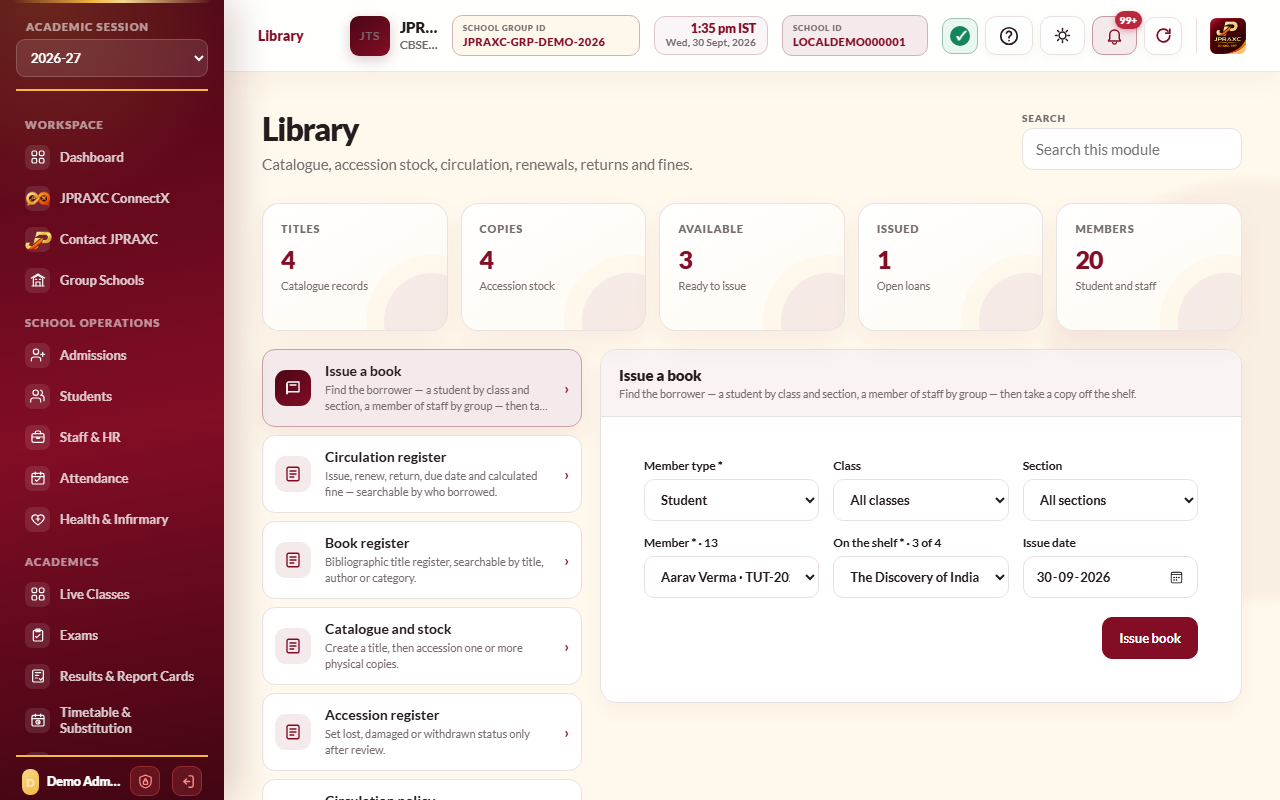
The Library module keeps the school's books. You enter each title once in the catalogue and add every physical copy with its own accession number. Books are issued to students and staff, renewed and returned, and the ERP works out the due date and any fine from the school's own circulation policy.
The drawer entries are Issue a book, Circulation history, Catalogue, Catalogue and stock, Accession stock and Circulation policy.
Before you start#
- Adding titles and copies and issuing books need the add right for the library; returning, renewing, changing a copy's status and saving the policy need the edit right.
- Set the circulation policy before the first issue.
Set the circulation policy#
- Open Library › Circulation policy.
- Set Student loan days and Staff loan days: how long each may keep a book.
- Set Maximum renewals: how many times a loan can be renewed.
- Set the Fine per day (₹) for a late return. Leave it at 0 for no fine.
- Select Save circulation policy.
Add books#
- Open Library › Catalogue and stock.
- Enter the title: Title, Author, and if known ISBN, Publisher, Category and Language. Select Add catalogue title.
- Add each physical copy: choose the Catalogue title, type its Accession number, and optionally the Shelf code, Acquisition date and Price (₹). Select Add accession copy.
Each copy needs its own accession number, which must be unique in the school. Repeat step 3 for every copy of the same title.
Issue a book#
- Open Library › Issue a book.
- Choose the Member type: Student or Staff.
- For a student, narrow the list by Class and Section. For staff, choose the Staff group: Teaching or Non-teaching.
- Choose the Member.
- Choose the copy from On the shelf. Only copies that are available are listed.
- Check the Issue date.
- Select Issue book. The message shows the due date.
Borrowers are the active students of the session chosen in the sidebar, and active staff.
Renew or return a book#
- Open Library › Circulation history.
- Find the loan. Narrow by Member type, then class and section or staff group, then Member.
- To renew, select Renew. The due date moves on by the member's loan days. A loan cannot be renewed beyond the Maximum renewals set in the policy.
- To return, select Return. The dialog shows the fine worked out up to today. Check Returned on and select Return and calculate fine. The fine is worked out for the actual return date.
While a book is overdue, its Fine column shows the fine so far and how many days overdue it is.
Look up the catalogue#
Library › Catalogue lists every title with its copies and how many are available. Use Search by (Anything, Title, Author or Category), the search box and the Category filter.
Mark a copy lost, damaged or withdrawn#
- Open Library › Accession stock.
- Select Set status on the copy.
- Choose Available, Lost, Damaged or Withdrawn, and select Update copy.
A copy that is out on loan must be returned before its status can be changed.
Good to know#
- The fine is worked out at the fine rate in force on the day the book is returned.
- A student's overview (Academic Kundali) lists the books they have out, marked Issued or Overdue, with any fine due.
- The Dashboard shows how many books are out and how many are overdue.
- The library records fines but has no screen to collect them. Money received for a fine can be posted in the Income and expense register under the income category Late fee and fine.
Troubleshooting#
| Symptom | What to do |
|---|---|
| This copy is not available. | The copy is already out or marked lost, damaged or withdrawn. Choose another copy. |
| The issue date must be inside the academic session selected in the sidebar. | Change the date, or choose the right session in the sidebar. |
| The maximum number of renewals has been reached. | Return the book and issue it again, or change Maximum renewals in the policy. |
| Return or close the active loan before changing this copy status. | Return the book first, then set its status. |
| No copy is on the shelf | Every copy is out or unavailable. Add copies under Catalogue and stock. |
