
School ERP overview
What JPRAXC School ERP covers, the Cloud and Offline editions, how the workspace is laid out, who can do what, and where each guide is.
JPRAXC School ERP runs the daily work of a school in one place: admissions and the student register, staff, attendance, timetables, the E-Diary and homework, exams and report cards, fees and payroll, transport, hostel, library, documents, notices and messages to families. This page explains how the product is organised and points you to the guide for each task.
Editions#
| Cloud | Offline for Windows | |
|---|---|---|
| Where it runs | On a server looked after for your school. You open it in a web browser. | On one Windows computer in your school. It opens in its own window. |
| Public portals (online admission, results, parent and staff portals) | Included | Not included |
| JPX Parent and Staff apps | Supported | Not supported |
| Storage | The allowance on your licence (see Storage and purchases) | The computer's own disk |
| Saving | The status in the top bar reads Saved to School Cloud | The status reads Saved locally |
The modules and screens are the same in both editions. Where a screen differs, the guide says so. To install the Windows edition, see Install the Offline edition on Windows.
The workspace#
This section describes the browser and Windows workspace. For phone and tablet navigation, ERP account sign-in and App PIN settings, start with the JPX School ERP app guides. The app's Home, modules and school records guide links each area of office work to these school task guides.
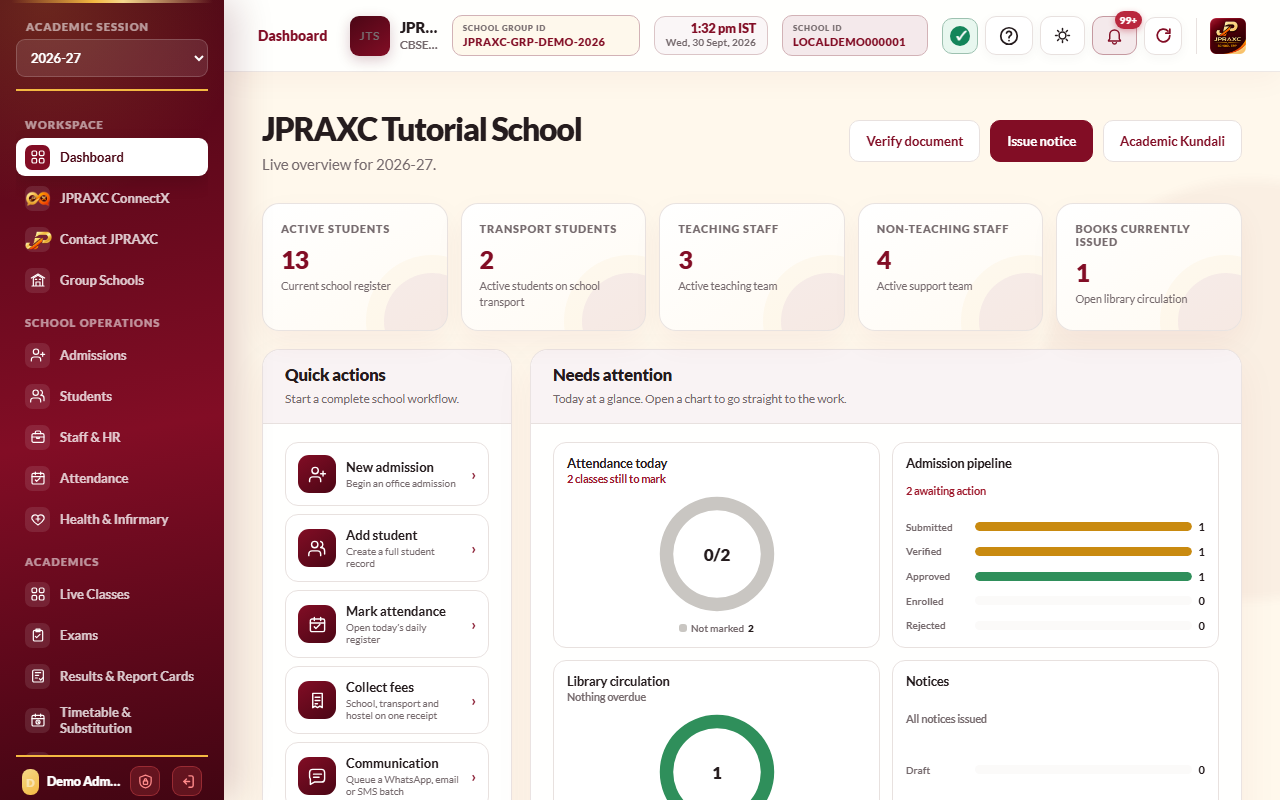
After you sign in, the screen has three parts.
- The sidebar on the left. At the top is the Academic session selector: every register you open shows the session chosen here. When a new release is ready, an Update available button appears under it. Below that are the modules, in groups. At the bottom are your name, the Sign-in security button (a shield) and Sign out.
- The top bar. It shows the group and module you are in, the school's name and logo, the time and date in IST, and the SCHOOL ID chip (select it to copy the School ID, which families and staff need to connect the apps). On the right are the save status, Help & search (also Ctrl + K, or ⌘ K on a Mac), the light and dark mode switch, the Notifications bell and Refresh this module.
- The page. Most modules open with figure cards at the top and a list of panes down the side. Select a pane to open that task. Registers have search boxes and Class and Section filters.
All times in the ERP are India Standard Time (IST), whatever time zone the computer is set to.
Menu groups#
| Group | Modules |
|---|---|
| Workspace | Dashboard, JPRAXC ConnectX, Contact JPRAXC, Group Schools (shown only when your school belongs to a school group) |
| School Operations | Admissions, Students, Staff & HR, Attendance, Health & Infirmary |
| Academics | Live Classes, Exams, Results & Report Cards, Timetable & Substitution, E-Diary & Homework |
| Finance | Fees, Payroll & Statutory, Income & Expense, Dues & Reminders, Tally & Day Book |
| Operations | Transport management & tracking, Library, Hostel management & attendance, Assets & Inventory, Visitors & Gate |
| Documents | Certificates, Print Centre, ID Cards, Verify Documents |
| Engagement | Notices, Communication |
| Administration | Backup, Users & Control, School Settings, General Settings, Recycle Bin, Audit Log |
A user sees only the modules their role allows.
Who can do what#
- The administrator. The school's main account. It can open every module, approve other users' changes, run backups and updates, and manage users. It always signs in with a password and a code from an authenticator app.
- ERP users. Named people the administrator creates in Users & Control, each holding a role. The role's permission matrix decides which modules they can view, create in, update, delete from, print and approve. Changes they make take effect at once and wait in the administrator's approval queue. See Users, roles and access and Approvals and the Audit Log.
- Staff portal and Staff app accounts. Each member of staff can get their own login, set in Staff & HR. This is separate from ERP users. See Staff and HR.
- Guardian accounts. Parents sign in to the Parent portal and the Parent app with a guardian login linked to their children. See Users, roles and access and Mobile apps.
Getting help inside the ERP#
- Press Ctrl + K (or select the question-mark button) to open Help & search. Type what you want to do, in English or Hindi, for example add student or promote class.
- Contact JPRAXC in the sidebar reaches JPRAXC sales and support, the legal pages, a complaint desk that gives you a ticket number, and the Grievance Officer.
- To show the ERP in Hindi, choose Display language in General Settings › Appearance.
Guides in this section#
Setup and administration#
- First sign-in and school profile
- Academic sessions, classes and promotion
- Users, roles and access
- The second sign-in step
- Approvals and the Audit Log
- Backup and session archives
- Software updates
- Install the Offline edition on Windows
- Licence status and renewal
- Storage and purchases
- Group Schools
People#
Academics#
- Timetable and substitution
- E-Diary and homework
- Exams and marks
- Results and report cards
- Question papers
- Live classes
Fees and finance#
- Collect fees at the counter
- Online fee collection
- Fee refunds
- Dues and reminders
- Fee structures
- Fee reports and registers
- Payroll and statutory deductions
- Income and expense
- Tally and Day Book
Operations#
Documents and communication#
For the School ERP, Parent and Staff apps, see Mobile apps. For JPRAXC ConnectX, see ConnectX.
Guides in this section
- First sign-in and school profileSet up a new School ERP, sign in as the administrator for the first time, and complete the school's profile and appearance.
- Academic sessions, classes and promotionSet the school year, create classes, sections and subjects, open the next session, switch between sessions and promote students with their unpaid fees and hostel beds.
- Users, roles and accessCreate roles and ERP users, set exact permissions, give guardians portal access, and control when and from where people can sign in.
- The second sign-in stepSign in to the ERP with your password and a six-digit code from an authenticator app, keep your recovery codes, and set the school's policy.
- Approvals and the Audit LogApprove or reject changes made by other users, search the audit history by day or month, export it, and manage the Recycle Bin.
- Backup and session archivesTake and check backups, download an academic session as one ZIP, delete an old session into a 30-day trash, and restore it from the trash or from its ZIP.
- Software updatesHow a new School ERP release reaches your school, and how the administrator checks, validates and installs it without touching school data.
- Install the Offline edition on WindowsInstall JPRAXC School ERP Offline on a Windows computer, update or reinstall it without losing data, and uninstall it safely.
- Licence status and renewalSee how long your School ERP licence runs, renew it from inside the ERP when the renewal notice appears, and buy add-ons without leaving the ERP.
- AdmissionsRecord admission enquiries, take office admissions, review online applications, and approve and enrol students.
- StudentsAdd students, import a whole roll from a spreadsheet, match photos in bulk, keep documents, export the register and archive students who leave.
- Staff and HRAdd teaching and non-teaching staff, import a staff list, assign class teachers, change employment status and give staff their own portal and app login.
- AttendanceMark daily student and staff attendance, keep the school calendar, print attendance reports, and connect biometric, card and Staff app self-attendance.
- Staff leaveSet each member of staff's leave allowance, record and approve leave requests, and see how approved leave reaches attendance and payroll.
- Timetable and substitutionSet the day's periods, build each class's weekly timetable, print it, arrange cover for absent teachers and watch every teacher's workload.
- E-Diary and homeworkRecord what happened in each period of a class's day, set homework with photos and files, and see which families have seen it.
- Exams and marksCreate an examination, schedule its papers across classes and sections, print admit cards and attendance sheets, and enter marks for a whole class at once.
- Results and report cardsSet up terms and grading scales, record co-scholastic grades, remarks and the Holistic Progress Card, print marksheets and report cards, and publish results to families and the Results portal.
- Question papersGenerate a draft question paper from your own syllabus with JPRAXC Local Question AI, then review, edit, save and print it.
- Live classesSchedule online classes for a class and teacher, run them through the JPX Staff and Parent apps, and download recordings.
- Collect fees at the counterTake school, transport, hostel and mess fees from a family on one receipt, with discounts, fines and payment modes.
- Set up fee structuresCreate fee heads, allocate them to classes, and set transport fares, hostel plans and mess plans.
- Dues, reminders and late feesSend fee-due reminders automatically, carry unpaid fees into the new session, import opening balances and understand late fees.
- Refund feesRecord a refund already paid to a family, or send a refund back to the original online payment.
- Online fee collectionSee the fees families pay online, check a payment's status, open its receipt and match gateway deposits to the bank.
- Fee reports and registersFind, reprint, cancel or reverse fee receipts, and build the session fee report for a class or the whole school.
- Payroll and statutory deductionsPut staff on payroll, run and approve the monthly payroll, pay salaries, issue salary slips and prepare PF, ESI, PT and TDS files.
- Income and expense registerRecord the school's other income and spending, read the register by day, month or category, and open the statement for your accountant.
- Tally export and day bookRead the day book, close the cash each day, follow cheques to clearing, and export vouchers to Tally.
- Transport and live bus trackingSet up routes and stops, seat students on the bus, stop or restart a ride, and follow buses live on the map.
- Hostel and messSet up hostel buildings and rooms, allot beds with hostel and mess plans, take the night roll and print the attendance report.
- LibraryBuild the catalogue, add accession copies, issue, renew and return books, and set the loan and fine rules.
- Assets and inventoryKeep registers of laboratory, sports, computer lab, furniture and other items, and record what happens to them.
- Visitors and gateCheck visitors in and out with a printed pass, book visits ahead, keep a watch list, and record who collects each child.
- Health and infirmaryKeep health profiles, record infirmary visits with a message to the parent, manage the medicine stock and run check-up camps.
- Certificates and the Print CentreIssue transfer, bonafide, character and other certificates to students and staff, reprint them, and find everything the school has issued in the Print Centre.
- ID cards for students and staffChoose a card layout, keep the class-teacher and principal signatures, and issue and print identity cards for students and staff.
- Verify a document the school issuedCheck that a certificate, receipt, ID card or other paper really came from the school, using the reference or the verification code printed on it.
- Notices and communicationIssue formal school notices, send messages by WhatsApp, SMS, e-mail and ConnectX, choose the automatic messages, and check what was delivered.
- Group SchoolsBring several schools under one management into a verified group, add or remove member schools, and see their combined figures.
- Storage and purchases in the ERPSee how much storage the school uses, buy more storage, student capacity, SMS packs and e-mail add-ons from inside the ERP, and know what happens when storage is full.
