
Hostel and mess
Set up hostel buildings and rooms, allot beds with hostel and mess plans, take the night roll and print the attendance report.
Hostel management & attendance looks after boarders. You add the hostel buildings and their rooms, give a waiting student a bed with a hostel plan and a mess plan, move or vacate boarders, and take the roll every night. The money side (hostel and mess plans, collecting their monthly fees and the receipts) is under Fees. See Set up fee structures and Collect fees at the counter.
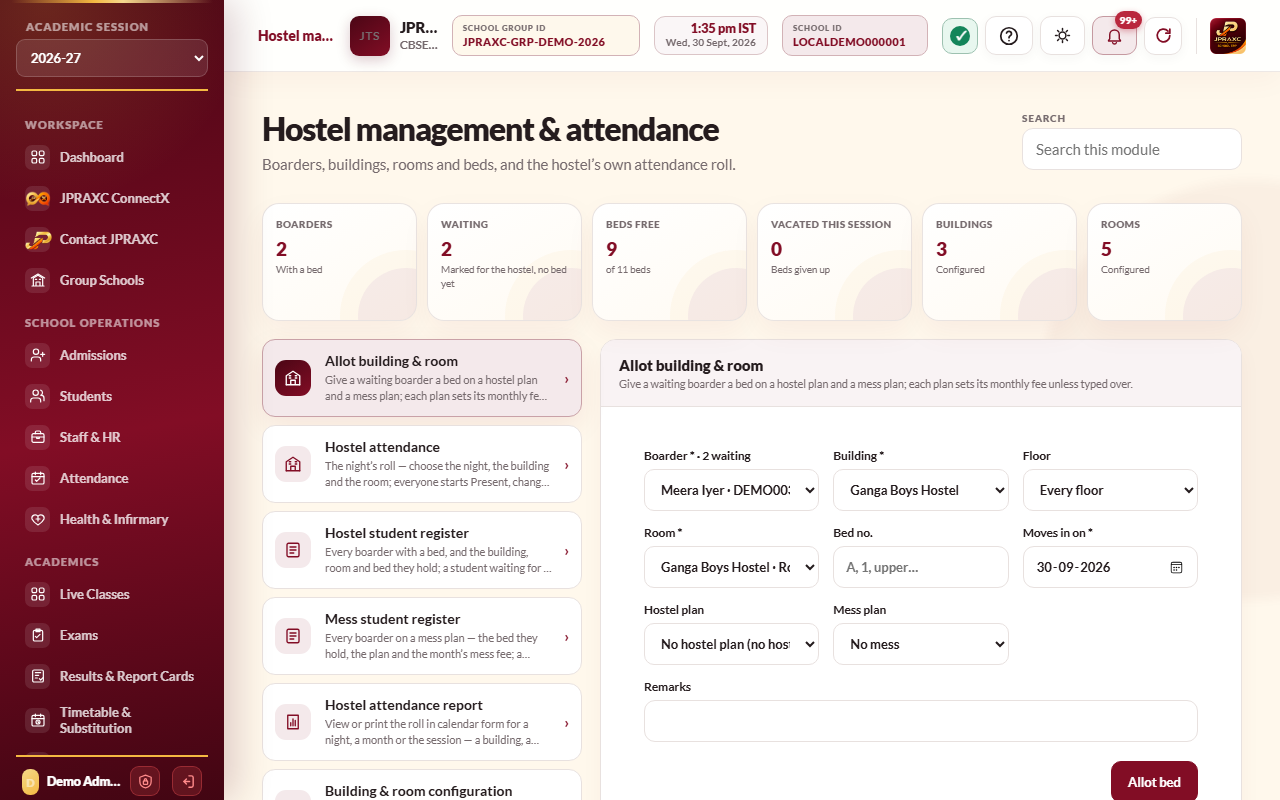
The drawer entries are Allot building & room, Hostel attendance, Hostel student register, Mess student register, Hostel attendance report and Building & room configuration.
Before you start#
- Adding buildings, rooms and allotments needs the add right for the hostel; editing, vacating and saving the roll need the edit right; deleting needs the delete right.
- Create the hostel plans (the bed's monthly fee) and mess plans first, under Fees › Fee structure register & configuration, on the Hostel fee and Mess fee tabs.
Set up buildings and rooms#
- Open Hostel management & attendance › Building & room configuration.
- Type the Building name and a short Code, choose Hostel for (Boys, Girls or Boys and girls), and add the Warden and Warden mobile. Select Add building.
- To add rooms, choose the Building, then set Floors, Rooms on each floor and Beds in each room. Select Add the rooms.
Rooms are numbered floor by floor: 101, 102 and so on on the ground floor, 201, 202 on the first. The Building register and Room register below show beds, occupied and free. Use Edit on a room to change its number, floor or beds, and Close or Reopen to take a room out of use. A room a boarder has ever held stays in the register and can only be closed.
Put a student on the waiting list#
On the student's admission form or record, set Hostel accommodation required to Yes. The student then waits for a bed and is counted on the Waiting card.
Allot a bed#
- Open Allot building & room.
- Choose the Boarder from those waiting.
- Choose the Building, optionally the Floor, and the Room. Each room shows how many beds are free; full rooms cannot be chosen.
- Type the Bed no. if the school numbers beds (for example A, 1 or upper).
- Set Moves in on. It must fall inside the session chosen in the sidebar.
- Choose the Hostel plan and the Mess plan. Choose No mess for a boarder who eats elsewhere.
- Select Allot bed.
The monthly hostel and mess fees are taken from the plans at the time of allotment. The Allotment register below lists every bed given in this session, including those vacated.
Change, vacate or delete an allotment#
- Edit: move the boarder to another building, floor, room or bed, or change their hostel or mess plan, then Save allotment. Changing a plan sets that fee to the new plan's fee.
- Vacate: set Moves out on. Tick The student is leaving the hostel altogether to take them off the hostel register; leave it unticked to put them back on the waiting list. Select Vacate bed. Months up to the move-out date can still be collected afterwards.
- Delete: removes the allotment as though it was never given. An allotment with a fee receipt on it cannot be deleted; vacate it instead.
Hostel and mess registers#
- Hostel student register lists every boarder with a bed: class, building, room and bed, since when, mess, the monthly amount and status. Use Edit or Vacate from here too.
- Mess student register lists every boarder on a mess plan with the plan and the monthly mess fee.
Both can be searched by admission number, name, building or room, and narrowed with Search by to a building and room or to a class and section.
Take the night roll#
- Open Hostel attendance.
- Choose the Night of date.
- Narrow to a building or room if you wish. Every boarder who held a bed that night is listed, starting as Present.
- Change only the exceptions: Absent, Late, On leave or Out / home. Add the time In and Out and any remarks. Mark all present resets the list to Present.
- Select Save hostel attendance.
If the hostel gate has an attendance machine, its punches fill the same roll, and those rows are marked Punched by the gate machine. The machine's rules (when roll call starts, when a boarder counts as late, and whether a boarder with no punch is marked absent) are set under General Settings › Attendance configuration, on the hostel tab.
Print the hostel attendance report#
- Open Hostel attendance report.
- Choose the Building, Room and Boarder, or leave them on all.
- Choose the Period: A month, A single night or Whole academic session (untick any months you do not want).
- Select View hostel attendance report. It opens in calendar form, ready to print.
Nights this session, below the form, totals each boarder's present, late, absent, on-leave and out nights.
How hostel and mess months are charged#
- Every month from the move-in month to the move-out month (or the end of the session) owes the full hostel fee and, for a boarder on the mess, the full mess fee. There is no part-month charge.
- Months before the boarder moved in are never charged.
- The bed and the mess are separate lines at the counter, each with its own due day and late fee from its plan. They can be paid together or apart.
- The move-in month never carries a late fee.
Good to know#
- Promoting a student to the next class moves their active hostel bed with them.
- A student's overview shows their hostel status: Boarder, vacated, or waiting for a bed.
Troubleshooting#
| Symptom | What to do |
|---|---|
| This student already holds a bed. Vacate it before allotting another. | Use Edit on their allotment to move them, or vacate the current bed first. |
| A room says it is full | Choose another room, or raise its beds with Edit in the Room register. |
| Vacate the boarders in this room before closing it. | Move or vacate every boarder in the room first. |
| Delete or move the rooms in this building first. | A building with rooms cannot be deleted. |
| A boarder is missing from the night roll | They had not moved in by that night, or their bed has been vacated. |
