
Assets and inventory
Keep registers of laboratory, sports, computer lab, furniture and other items, and record what happens to them.
Assets & Inventory keeps a register of the school's physical items: laboratory instruments, sports equipment, computer lab machines, furniture and anything else. Each item is entered once with its quantity. After that, quantities change only by recording what happened (broken, lost, repaired, found, disposed of, or more bought), so the Movement register always shows the full history of every item.
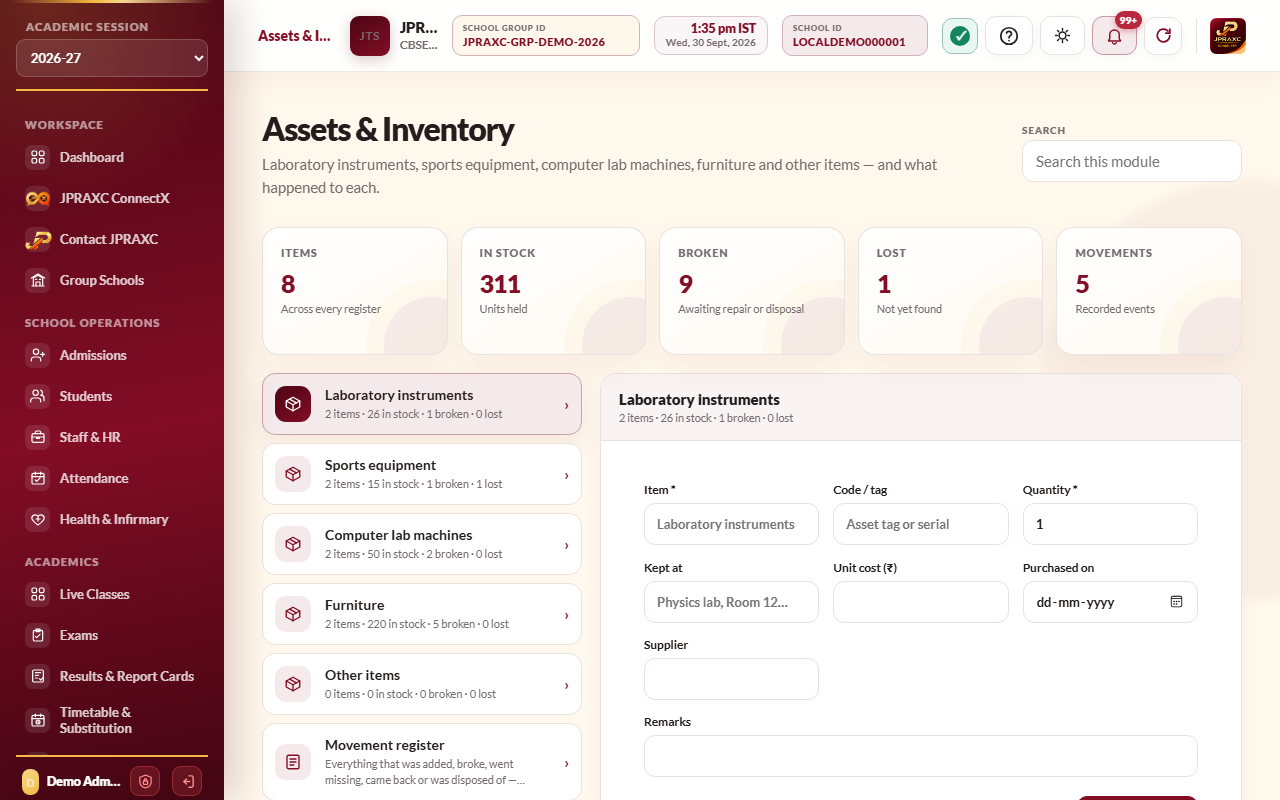
The drawer has one entry per register (Laboratory instruments, Sports equipment, Computer lab machines, Furniture and Other items) and the Movement register.
Before you start#
- Adding and editing items needs the add right for Assets & Inventory; recording what happened needs the edit right; deleting needs the delete right.
Enter an item#
- Open Assets & Inventory and choose the register, for example Sports equipment.
- Type the Item name (for example Cricket bat, full size).
- Optionally type a Code / tag, such as an asset tag or serial number.
- Type the Quantity.
- Optionally fill in Kept at, Unit cost (₹), Purchased on, Supplier and Remarks.
- Select Add to register.
The item appears in that register's list with its Total, In use, Broken, Lost and Disposed counts. An Added entry is written to the movement register.
Record what happened#
On an item's row, choose the button for what happened. Only the buttons that make sense are shown.
| Button | Use it when | What changes |
|---|---|---|
| Broken | Some units in use are broken | In use goes down, Broken goes up |
| Lost | Some units in use have gone missing | In use goes down, Lost goes up |
| Repaired | Broken units are working again | Broken goes down, In use goes up |
| Found | Lost units have turned up | Lost goes down, In use goes up |
| Disposed | Units are thrown out or written off | Taken from Broken first, then In use; Disposed goes up |
| More | More units were bought or received | Total and In use go up |
- Select the button.
- Type How many.
- Optionally type a Note: what happened, where, and who reported it.
- Select Record.
Edit an item#
Select Edit to change the item's name, code, location, cost, purchase date, supplier or remarks, or to move it to another register with Register. Select Save item. Quantities cannot be changed here; record what happened instead, so the movement register stays true.
Read the movement register#
Assets & Inventory › Movement register lists every event, newest first: when, the item (with its register, code and location), what happened, the quantity, the note and who recorded it. Use Search movement register to find an item, a code, a location, a kind of event or a person.
Good to know#
- The cards at the top count the items across every register, the units on the registers, and how many are broken or lost.
- Each register's drawer entry shows its own summary, such as 12 items · 140 in stock · 3 broken · 1 lost.
Troubleshooting#
| Symptom | What to do |
|---|---|
| Repaired or Found is missing on a row | Nothing is recorded as broken or lost on that item yet. |
| How many will not accept the number | You cannot move more units than the item has in that state. Check the counts shown at the top of the dialog. |
