
Refund fees
Record a refund already paid to a family, or send a refund back to the original online payment.
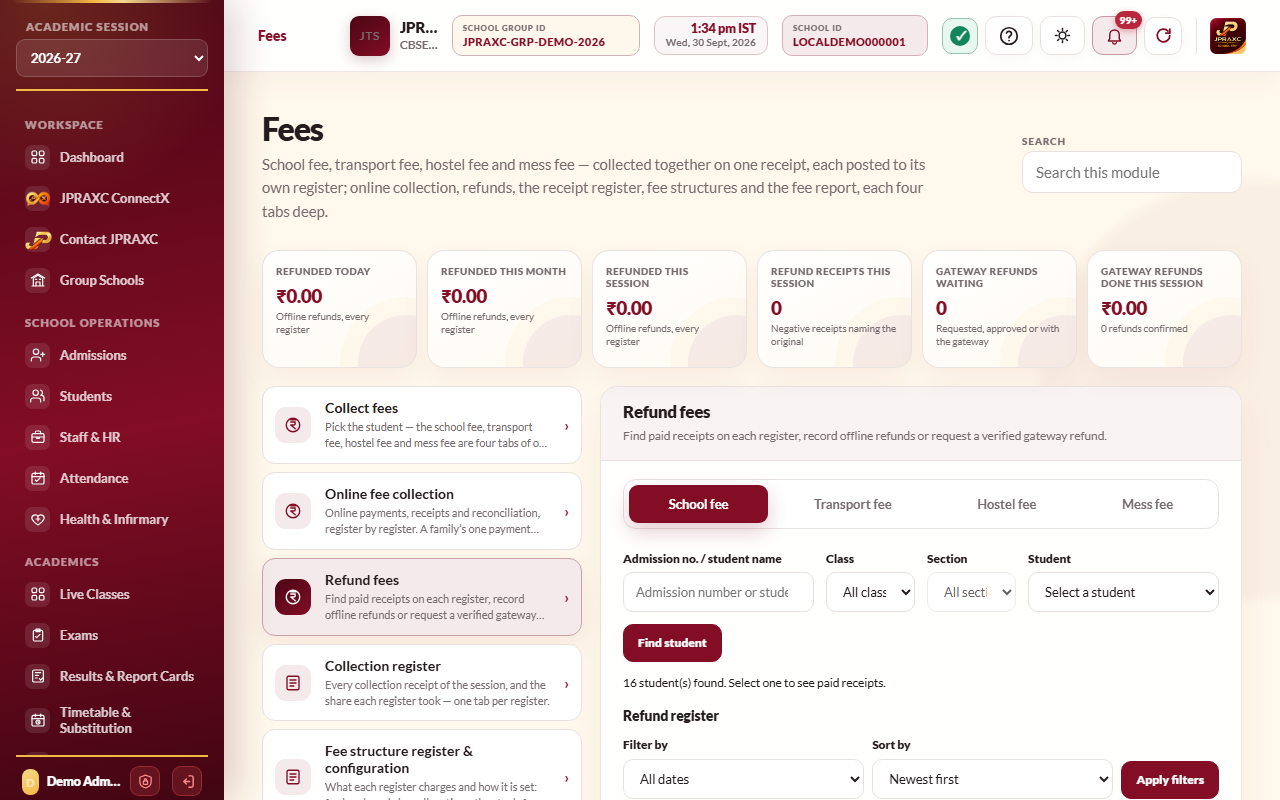
When money has to go back to a family, use Fees › Refund fees. There are two kinds of refund. An offline refund records money the school has already handed back in cash, by bank transfer, UPI or cheque. An online refund asks the payment gateway to send the money back to the card, account or UPI app the family paid from. Either way, the original receipt stays as it was, a refund entry is added against it, and the refunded fee falls due again.
Before you start#
- Refund fees has four tabs: School fee, Transport fee, Hostel fee and Mess fee. Each is judged by that module's rights. Your role needs the approve right in Fees for school-fee refunds, in Transport management & tracking for transport refunds, and in Hostel management & attendance for hostel and mess refunds.
- You will be asked for your own sign-in password to confirm every refund.
- An online refund is possible only for a receipt that was paid through the school's payment gateway. See Payment gateway integration.
Find the receipt#
- Open Fees › Refund fees and choose the tab for the register.
- Type in Admission no. / student name, or narrow the list with Class and Section.
- Choose the student in Student. Their paid receipts are listed, with Paid, Refunded or reserved and Available for each.
- Select View details / refund on the receipt. You see what the receipt paid for, line by line, with any late fee and discount, and the amount available to refund.
Record an offline refund#
Use this after the money has actually been handed back.
- Type the Refund amount (₹). It cannot be more than the amount available.
- Leave Refund channel on Offline — record a refund already paid.
- Type the Reason.
- In Already paid through, choose Cash, Bank transfer, UPI or Cheque.
- Set the Actual refund date. It cannot be before the original payment or after today.
- Type the Voucher / UTR / transaction reference.
- Tick I confirm this amount has already been paid to the recipient.
- Type your Current login password.
- Select Record paid offline refund.
The refund is recorded straight away. It does not transfer any money.
Request an online refund#
- Type the Refund amount (₹) and the Reason.
- Choose Online — request refund to original source in Refund channel.
- Leave Refund destination on Original payment source.
- Type your Current login password.
- Select Request original-source refund.
The request goes to the gateway. The register shows Awaiting gateway confirmation until the gateway replies. The refund is recorded as paid only after the gateway confirms it. The screen checks again by itself every so often while a refund is waiting.
The refund register#
The Refund register under each tab lists every refund with its date and reference, the student and original receipt, the amount and method, the reason, the status and who recorded it.
- Use Filter by (All dates, Date, Month, Academic session or Date range) and Sort by, then select Apply filters.
- Select Refresh receipts and register to read the latest statuses.
- An online refund requested from the older refund screen may show Awaiting accounts approval. Someone with the right to approve selects Approve refund or Reject refund, types their Current login password, and confirms.
What a refund does to the accounts#
- A refund receipt, for a negative amount, is added against the original receipt. The original receipt is never changed.
- An expense is recorded in Income & Expense on the refund date, under School fee refund, Transport fee refund or Hostel fee refund. See Income and expense register.
- The refunded amount falls due again on the student's fee list.
- A refund gives back any late fee first, then the fee itself. A discount was never money paid, so it is never refunded.
Good to know#
- To give back a whole school-fee receipt that was paid at the counter, you can also use Reverse in the Fee receipt register. See Fee reports and registers.
- A receipt with a gateway payment or an earlier refund cannot be cancelled or reversed. Use Refund fees for it.
- Refunds to a different bank account or UPI ID need a separately activated payout service. Without it, those choices are shown but cannot be used.
Troubleshooting#
| Symptom | What to do |
|---|---|
| The refund exceeds the remaining paid amount after existing refund requests. | Other refunds already reserve part of this receipt. Refund no more than the Available figure. |
| This receipt has no verified gateway transaction to refund to its source. | The receipt was paid at the counter. Choose Offline and record the refund after paying the family. |
| The result could not be confirmed. | Your connection dropped. Type your password again and select Retry unchanged refund request. The same refund is reused, so nothing is doubled. |
| Configure an academic session containing the actual refund date before recording this refund. | The refund date falls outside every academic session. Check the date, or add the session under School Settings. |
| This receipt has no refundable balance. | Everything on the receipt has already been refunded or reserved. |
