
ID cards for students and staff
Choose a card layout, keep the class-teacher and principal signatures, and issue and print identity cards for students and staff.
The ID Cards module prints identity cards for students and for staff, straight from their records. Every card carries the school's name, logo and theme colours, the holder's photograph and particulars, the signatures the school has uploaded, and a barcode on the back. Each card issued is recorded with its own reference, so a card can be reopened, reprinted and checked later in Verify Documents.
Before you start#
- Your role needs access to ID Cards. See Users and access.
- Check the Academic session chosen in the sidebar. Student cards show that session, and only students on its roll are listed.
- Only active students and active staff can be given a card.
- Add photographs to the records first. A card without one prints a PHOTO box instead.
What a card shows#
| Side | Student card | Staff card |
|---|---|---|
| Front | Name, photograph, Admission No., Class / Section, Session, Date of Birth, Father's Name | Name, photograph, Staff ID, Designation, Department, Date of Birth, Contact |
| Back | School address and contacts, a please return this card line, Card Holder, Emergency Contact, the Class Teacher and Principal signatures, and the barcode | The same, with the Principal signature only |
The student's Emergency Contact is the father's mobile number on the record.
Get the photographs onto the records#
- For one person, add or change the photo on their student or staff record. A camera photo can be taken there with Take photo.
- For a whole class, use Students › Import student photos, or Staff & HR › Import staff photos, with the roster sheet and the image files.
- When a family or a member of staff sends a new photo from their app, the notification bell shows New profile photo to review. Open it to see the photo under Profile photo for approval, then select Approve to put it on the record, or Reject with an optional reason the app shows back. See Parent, Staff and Mail apps.
Choose the card layout#
- Open ID Cards › Templates. Each layout is drawn in portrait and in landscape, in your school's colours.
- Select Use portrait or Use landscape under the layout you want. It is marked In use.
The layouts are Classic, Banner, Sidebar, Minimal, Crest, Stripe, Badge, Panel and Ledger. Every card printed after the change uses the new layout.
Upload the signatures#
- Open ID Cards › Protected ID-card signatures.
- For a class teacher's signature, choose the Class and Section, choose the image in Class teacher signature, and select Upload scoped signature. It is kept for that class and section in the session chosen in the sidebar.
- For the principal's signature, choose the image in Principal signature and select Upload principal signature. It is used on every card.
- Check the list under the forms. It shows each signature held, its session and class, and when it was uploaded. Narrow it with Class and Section.
Uploading again for the same class and section, or for the principal, replaces the earlier signature. Use a clear PNG, JPEG or WebP image of the signature on a plain background.
Issue and print cards#
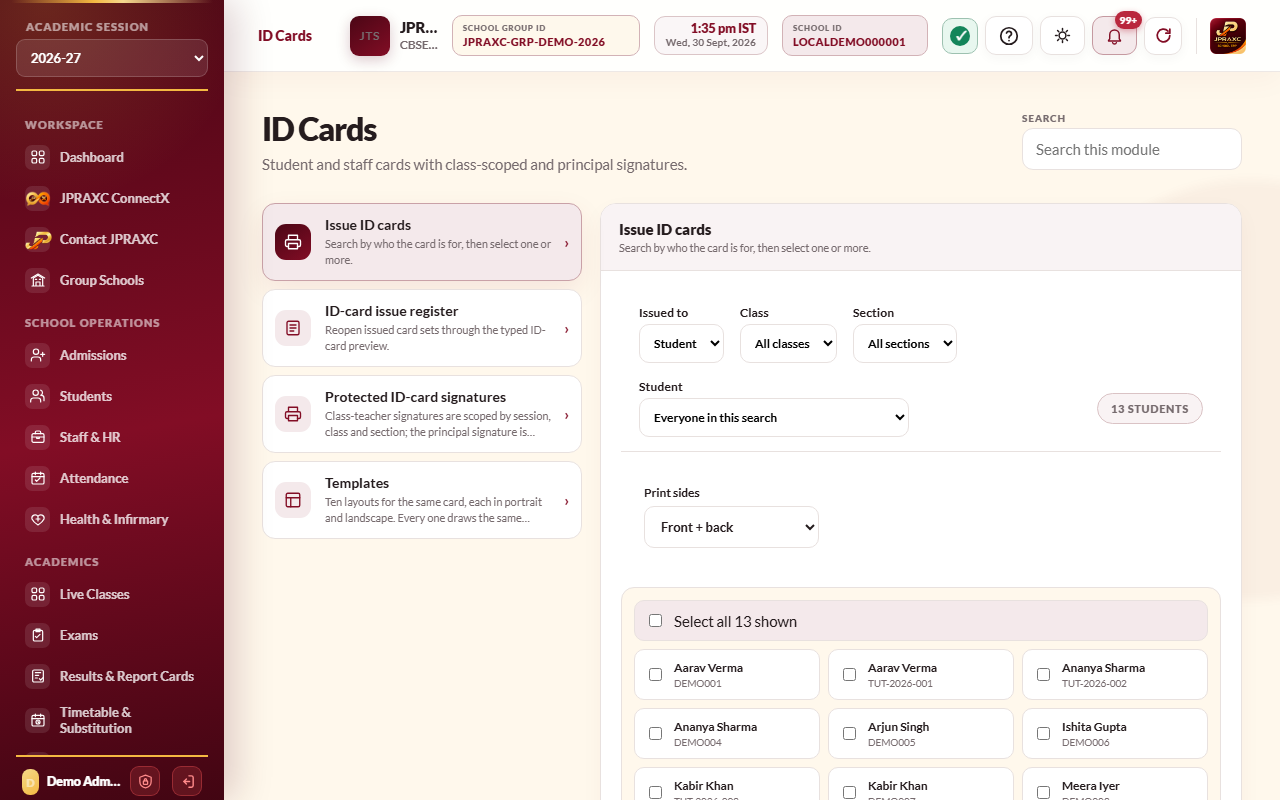
- Open ID Cards › Issue ID cards.
- In Issued to, choose Student or Staff.
- Narrow the list with Class and Section, or Staff group, and if needed a single person.
- Tick the people who need a card, or tick Select all to take everyone shown.
- In Print sides, choose Front + back or Front only.
- Select Issue and preview ID cards.
- The cards open in a preview. Select Print.
The cards are laid out on A4 sheets, ready to cut. A sheet holds five complete cards when you print front and back, with each front printed next to its own back, or ten fronts when you print the front only.
Reprint a card#
- Open ID Cards › ID-card issue register.
- Narrow it with Issued to, Class, Section or Staff group, and the person.
- Select Preview on the row, then Print.
The register shows each card's Reference, Holder, Type, Mode (front and back, or front only), Issued date and Status. Issued cards are also listed in the Print Centre.
Example#
At the start of 2026-27, Sunrise Public School uploads the class teacher's signature for Class 3 A, chooses Student, Class 3, Section A, ticks Select all, keeps Front + back and selects Issue and preview ID cards. Thirty-two cards print on seven sheets. Aarav Sharma's card (ADM-2026-001) carries his photo, class and date of birth on the front, and his father's mobile number, both signatures and the barcode on the back.
Good to know#
- The barcode on the back holds the card's reference. Scanning it in Verify Documents shows whose card it is.
- A card can be issued again at any time, for example after a new photo. The newest issue is the card that stands.
- Cards are printed in the ERP's display language. In Hindi, the card uses the name as recorded in Hindi where the school has entered it.
- The card follows the school's theme colours and logo, set in General Settings.
Troubleshooting#
| Symptom | What to do |
|---|---|
| Select at least one holder. | Tick at least one person before selecting Issue and preview ID cards. |
| A student is missing from the list | The student is not active on the roll of the session chosen in the sidebar. Check the session and the student's status. |
| A card shows a PHOTO box | The record has no photograph. Add one, then reissue or reprint the card. |
| The class teacher's signature line is blank | No signature is held for that class and section in this session. Upload one under Protected ID-card signatures. |
