
Live classes
Schedule online classes for a class and teacher, run them through the JPX Staff and Parent apps, and download recordings.
Live Classes lets the school teach online through its own apps. The administrator schedules a class for a class and section with one of its teachers. At the time, the teacher starts it and students join from the JPX Parent app. The class can be recorded, and the administrator can download the recording for a limited time after the class ends.
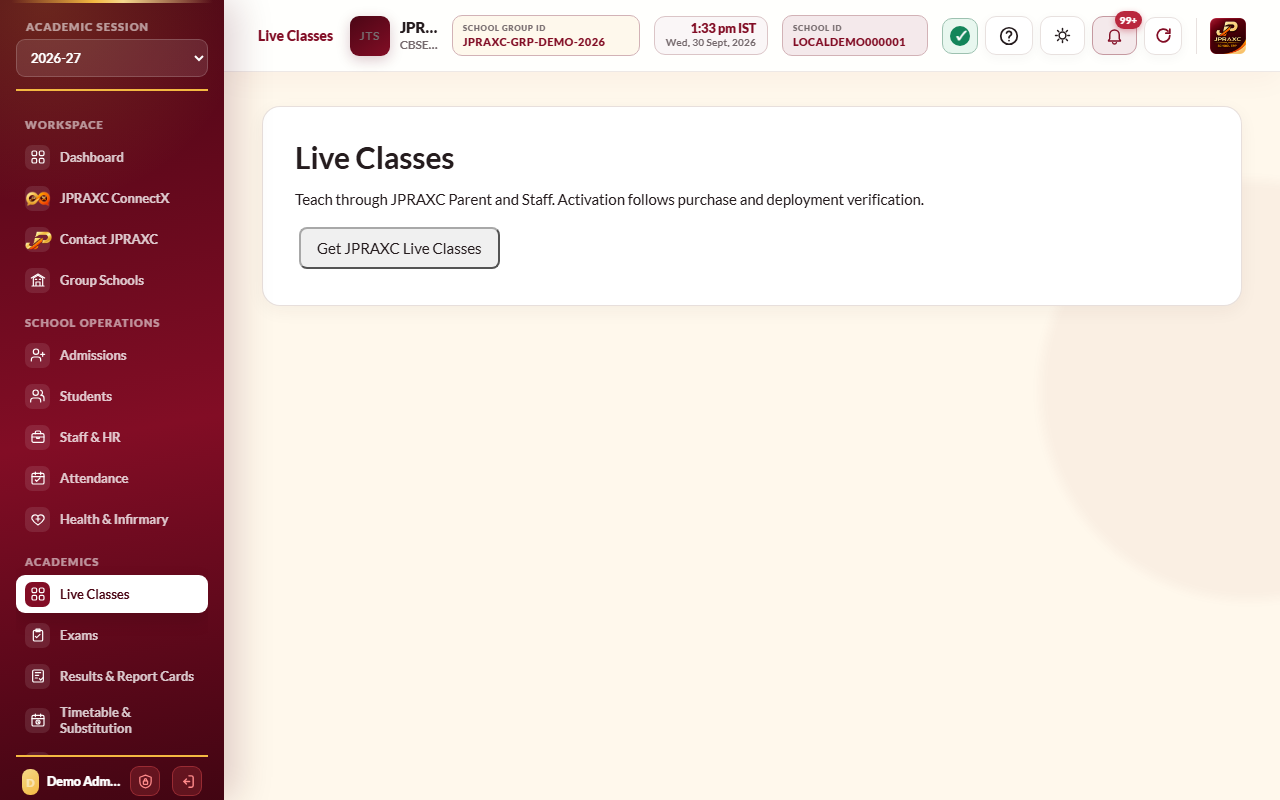
Live Classes is an add-on. It is switched on for your school after you buy it and JPRAXC has verified your deployment.
Before you start#
- Live classes are scheduled by the school administrator.
- Your school uses the Cloud edition with the JPX Parent and Staff apps.
- The teacher must be the class teacher of that class and section, or teach it on the timetable.
Get Live Classes#
- Open Live Classes in the sidebar.
- If it is not active yet, the page says so. Select Get JPRAXC Live Classes.
- Choose a plan and pay on JPRAXC's secure checkout. See Licence status and renewal.
When it is active, the page shows the schedule form and your classes. Plans & renewal opens the plans again.
Schedule a class#
- Open Live Classes.
- Type the Title (for example Class 8 A · Science revision).
- Choose the Class and the Teacher.
- Set Start (IST) and End (IST). A class must be in the future and can last up to four hours.
- Select Schedule class.
The class appears in the list with its start time and state.
Run the class#
- The teacher starts the class from the JPX Staff app. The administrator can also select Start in the ERP. A class can be started from shortly before its start time until its end time.
- Students join from the JPX Parent app once the teacher has started the class. Until then they are asked to wait.
- In the classroom, the teacher has Microphone, Camera, Share screen, Record and End for everyone. Everyone has Leave class.
- Participants are told that the school may record the class.
The class closes by itself at its end time.
After the class#
- Connection register shows who connected and when.
- Download recording appears for a recorded class. The recording is available to the administrator until 24 hours after the class ends.
- Cancel / end closes a scheduled or running class for everyone.
Good to know#
- All times are in IST, whatever time zone the computer is set to.
- Your plan decides how many classes can run at the same time, how many can join, and whether recording is included.
Troubleshooting#
| Symptom | What to do |
|---|---|
| Enter a title and a future class lasting up to four hours. | Check the title, and that the start is in the future and the class is no longer than four hours. |
| Choose a current class and one of its assigned teachers. | Choose a teacher who is the class teacher of that class or teaches it on the timetable. |
| This class is outside its joining time. | The class can be joined only from shortly before its start until its end. |
| Wait for your teacher to start the class. | The teacher has not started it yet. |
| Your simultaneous class limit is in use. | End a running class first, or ask JPRAXC Sales about a larger plan. |
| Recording unavailable or expired. | Recordings can be downloaded only for a limited time after the class. |
