
Your profile, password and recovery e-mail
Set your photo, display name and recovery e-mail, change your password and turn on the photo card.
Settings holds everything about your own mailbox: how your name and photo appear, the outside e-mail address used to recover your password, your password, the server details for mail apps, and an API key for automated sending. Open it from Account › Settings in the sidebar, or from the menu under your name at the top right.
The column beside the page lists the sections: Profile, Security, Mail apps and Developer access.
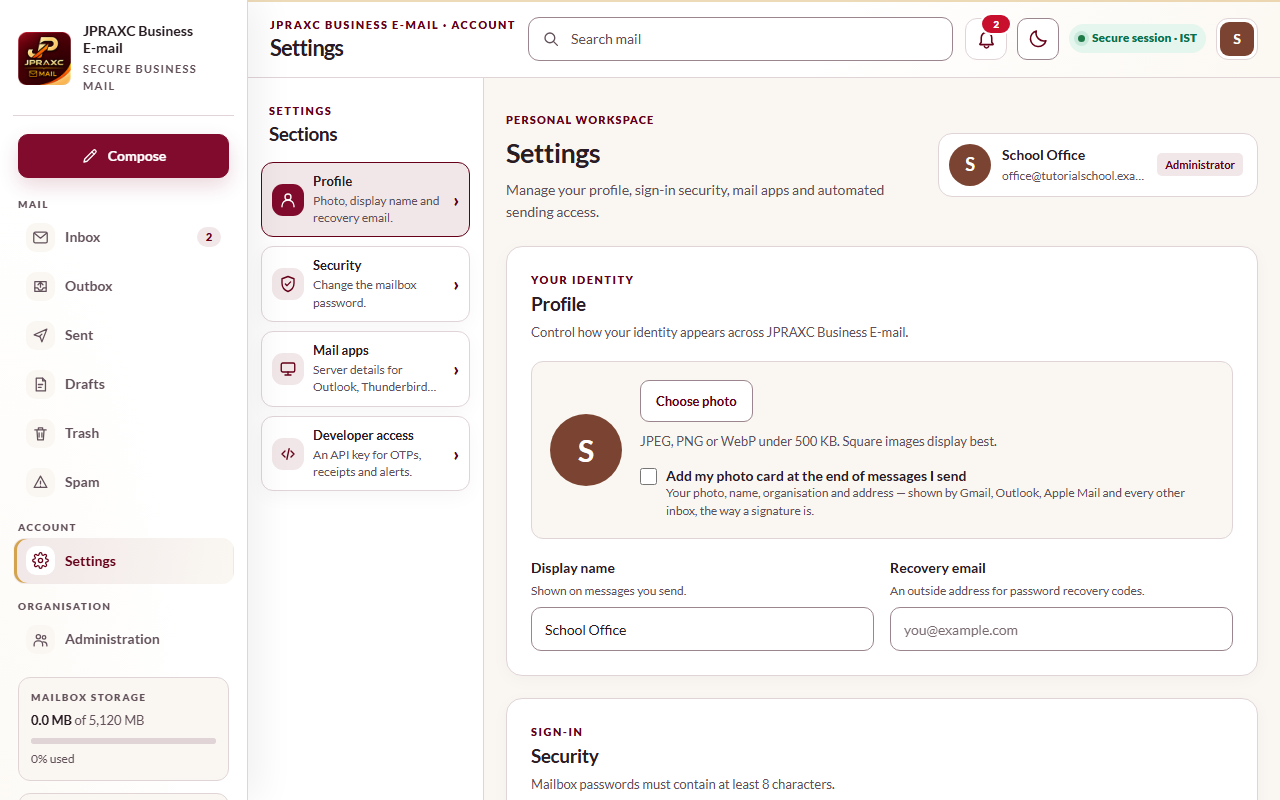
Set your photo and display name#
- Open Settings.
- Under Profile, select Choose photo (or Replace photo) and pick a JPEG, PNG or WebP picture. The page states the size it accepts. Square pictures look best; the webmail crops the picture to a square for you.
- In Display name, type your name as you want recipients to see it.
- Select Save changes.
To remove your photo, select the × on the photo and save.
Your photo shows beside your messages to colleagues on JPRAXC Business E-mail. Other mail services such as Gmail do not show a sender's personal photo from a message; for those, use the photo card below, or ask your administrator about the brand logo in Connect your domain.
Add a recovery e-mail#
A recovery e-mail is an outside address, such as your personal mail, where password reset codes are sent.
- Open Settings › Profile.
- In Recovery email, type an address that is not this mailbox.
- Select Save changes.
Change your password#
- Open Settings › Security.
- Type your Current password.
- Type a New password of at least 8 characters.
- Select Save changes.
To update only your profile, leave both password boxes empty before saving.
Turn on the photo card#
- Open Settings › Profile.
- Tick Add my photo card at the end of messages I send.
- Select Save changes.
Each message you send then ends with your photo, name, organisation and address, the way a signature does. It is off unless you turn it on.
Mail apps and Developer access#
- Mail apps shows the server details for Outlook, Thunderbird, Apple Mail and similar apps. See Use a desktop or phone mail app.
- Developer access creates an API key so software, such as your School ERP, can send mail from this mailbox. See API key for automated sending.
Good to know#
- Your role is shown beside your name at the top of Settings: Administrator or Mailbox user.
- Changing your password here does not change the password saved in mail apps on your phone or computer. Update them too.
Troubleshooting#
| What you see | What to do |
|---|---|
| The recovery email must be a valid OUTSIDE address — not this mailbox. | Use an address at another mail service. |
| The current password is wrong. | Type your current password again. If you have forgotten it, sign out and use Forgotten your password? |
| Use a password of at least 8 characters. | Choose a longer password. |
| A message asking for a JPEG, PNG or WebP photo within the size limit | Pick a smaller picture in one of those formats, or crop it first. |
| Saved. but the photo did not change | Refresh the page. Your browser may be showing the old picture. |
