
Tally export and day book
Read the day book, close the cash each day, follow cheques to clearing, and export vouchers to Tally.
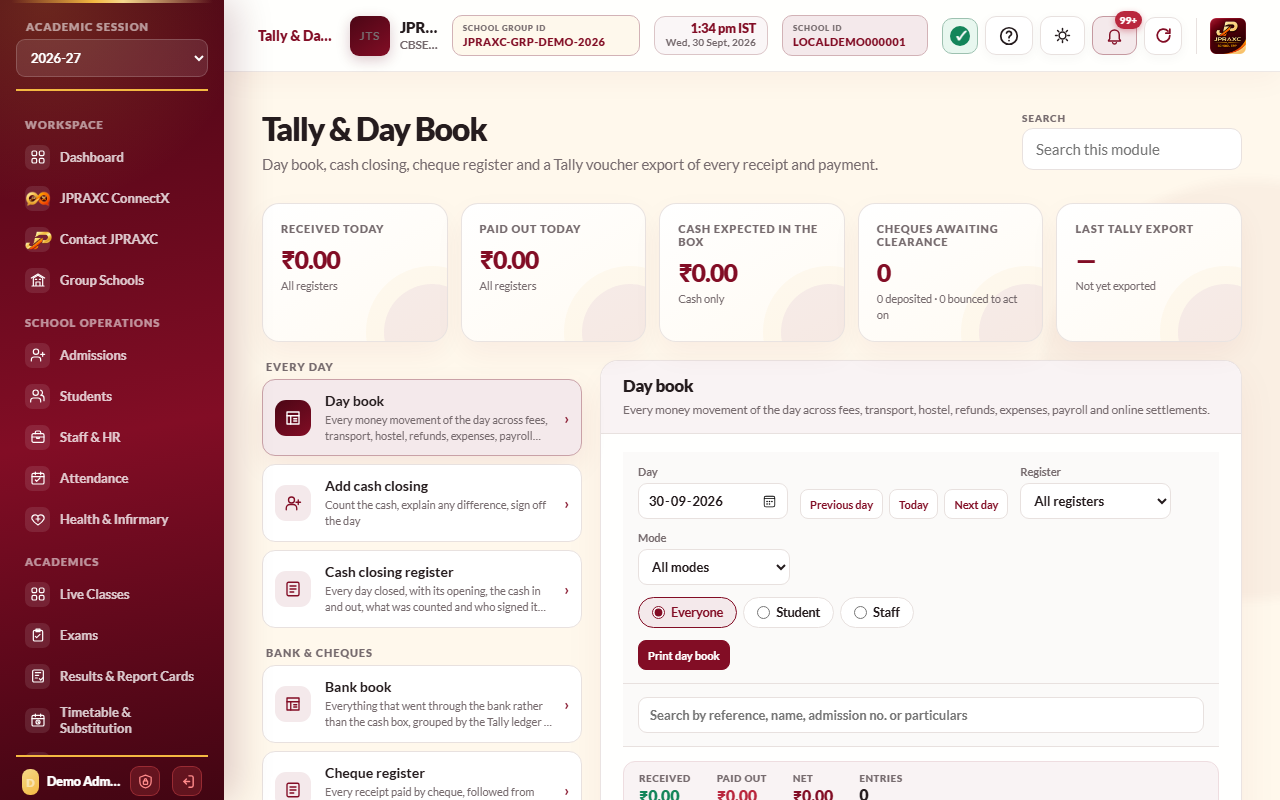
Tally & Day Book is the accounts office's daily view of money. The day book lists every rupee that came in or went out on a day, across fees, transport, hostel, refunds, expenses, salaries and online settlements. At the end of the day you count the cash box and close the day. Cheques are followed from the counter to the bank until they clear or bounce. When your accountant wants the figures in Tally, you export them as Tally vouchers.
The drawer has three groups: Every day, Bank & cheques and Tally.
Before you start#
- Tally & Day Book uses your role's Income & Expense permissions. Closing a day needs the add right; reopening a closed day needs the approve right; recording cheques and changing the ledger mapping need the edit right; previewing and exporting need the print right. A role that can only view sees You can view this register; your role cannot change it.
- Nothing is typed into the day book itself. It reads what the other modules have already recorded.
Read the day book#
- Open Tally & Day Book › Day book.
- Choose the Day, or use Previous day, Today and Next day.
- Narrow it with Register, Mode, the person picker or the search box.
- Read the strip: Received, Paid out, Net and Entries. Cancelled entries are shown but not counted.
- Below the list, the day is also totalled By payment mode and By register.
- Select Print day book for a paper copy.
Close the cash for the day#
- Open Add cash closing, and choose the Day.
- Check Cash expected in the box: the opening cash, plus cash received, minus cash paid out. The entries behind each figure are listed below it.
- The first time the school closes a day, type Cash in hand at the start of the day (₹). After that, each day opens with the previous day's counted cash.
- Under Notes counted, type how many of each note are in the box, and the Coins and small notes (₹). The Counted cash adds itself up.
- If the counted cash does not match what is expected, type the Reason for the difference.
- Select Close the day and lock it, then confirm.
Once closed, the day's signed-off cash figures are locked. Days are closed in order, one after another. The Cash closing register lists every closed day with its opening, cash in and out, what was expected, what was counted, the difference and who closed it. Select Print on a day for its closing sheet. Someone with the approve right can select Reopen on the most recent closed day, giving a Reason for reopening.
Bank book#
Bank & cheques › Bank book lists everything that went through the bank rather than the cash box, between the From and To dates you choose, grouped by the Tally ledger it posts to. Select Show to read the dates, and Print bank book to print. Balances start from nil on the first day shown, because the ERP does not hold the bank's own opening balance.
Follow cheques#
Every receipt paid by cheque appears in Bank & cheques › Cheque register, starting as Awaiting deposit.
- Select Details to record the Cheque number, Drawn on bank and Date on the cheque, then Save cheque details.
- When the cheque is banked, select Deposited, give the date and any pay-in slip reference, and select Record deposit.
- When the bank clears it, select Cleared, give the date, and select Record clearing.
- If it bounces, select Bounced, give the date, any Bounce charge (₹) and the Reason the bank gave, and select Record bounce.
Use Show cheques to see those Awaiting clearance, Awaiting deposit, Deposited, Bounced, Cleared or All cheques.
A bounced cheque means the money never arrived. The Bounced cheque register lists each one with What to do. The receipt it paid must be undone in the register that made it: select Open in Fees (or Open Income & Expense) to go there. A bounced cheque can also be recorded as presented again with Present again. The bounce charge is noted on the cheque only; it is not posted to the accounts.
Set up the Tally ledger mapping#
Do this once, with your accountant, before the first export.
- Open Tally › Ledger mapping.
- Type the Tally company name exactly as it is in Tally, and the Receipt voucher type, Payment voucher type and Journal voucher type.
- Choose what happens to Cancelled and reversed receipts: Send them with a reversal voucher or Leave them out of Tally.
- For each ERP head (fee heads; transport, hostel and mess heads; payment modes; expense and income categories), type the Tally ledger and choose the Tally group. A blank ledger keeps the default shown faintly in the box.
- Select Save Tally settings.
Ledger names must match the Tally company exactly.
Export to Tally#
- Open Tally › Add Tally export.
- Choose Export as: Tally XML — vouchers, CSV — one row per ledger line, or Tally XML — ledger masters only.
- Set the First day and Last day.
- For a new Tally company, tick Include the ledger masters (for a fresh Tally company).
- Select Preview. Check the Vouchers, Receipts, Payments and Journals totals, the voucher list, and anything listed under Left out.
- Select Export and download, then import the file into your Tally company.
The Export register keeps every export with its dates, counts, totals and file name.
Good to know#
- The cards at the top show what was received and paid out today, the cash expected in the box, cheques awaiting clearance and the date of the last Tally export.
- Fee and other receipts go to Tally as Receipt vouchers; refunds, expenses and salary payments as Payment vouchers; gateway settlements as Journals.
- Salary payments go to Tally as the net salary paid. PF, ESI, TDS and employer contributions are not part of the export.
- A cancelled receipt sent with a reversal voucher reaches Tally as the receipt plus a journal on the day it was cancelled. In Tally, allow cash accounts in journals, or name a voucher type here that does.
- For the school's other income and spending, see Income and expense register.
Troubleshooting#
| Symptom | What to do |
|---|---|
| Close the day and lock it is greyed out | Check the notes under Day: an earlier day may not be closed yet, a later day may already be closed, or the day is in the future. |
| The day shows The registers have changed since this day was closed | Something was posted or cancelled for that day after it was closed. Someone with the approve right can reopen the latest closed day and close it again. |
| Entries carry no payment mode | They are not counted as cash or bank. Check the receipts in the module that made them. |
| The export warns Already exported | Choose dates that follow the last export, or confirm only if you are sure the earlier file was not imported into Tally. |
