
Timetable and substitution
Set the day's periods, build each class's weekly timetable, print it, arrange cover for absent teachers and watch every teacher's workload.
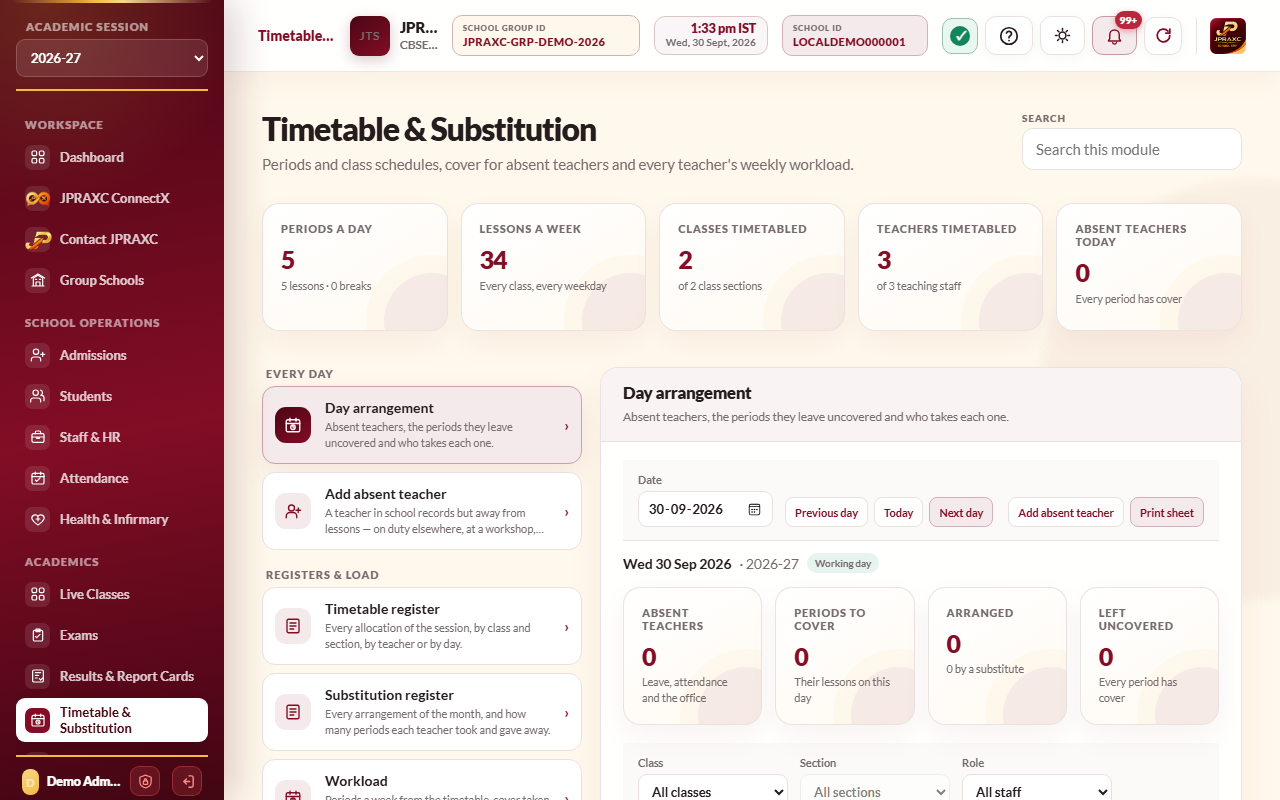
Timetable & Substitution holds the school's period structure, the weekly timetable of every class, and the daily arrangement of cover when a teacher is away. Cover is worked out from the timetable itself: the ERP knows which lessons an absent teacher leaves and which teachers are free in each period.
Before you start#
- Your role needs the Timetable & Substitution permission.
- Classes, sections, subjects and teaching staff must exist in the session chosen in the sidebar. Tick each teacher's subjects on their staff record, so they are offered for those subjects.
The module's panes are grouped in the order a school uses them:
| Group | Panes |
|---|---|
| Every day | Day arrangement, Add absent teacher |
| Registers & load | Timetable register, Substitution register, Workload, Print timetable |
| Setup | Add class schedule, Period structure, Substitution settings |
Set the period structure#
Do this once, before building timetables.
- Open Period structure.
- In How many periods in a day, including lunch?, choose the number.
- For each row, type the Label (for example Period 1), the Starts and Ends times, and tick Break for lunch or any other break. Name the lunch row Lunch.
- Select Save period structure.
Nothing can be scheduled into a break.
Build a class timetable#
- Open Add class schedule.
- Choose the Class, the Section and the Weekday. The day opens, period by period.
- For each period, choose the Subject (or leave Free period), the Teacher (the list shows teachers of that subject), and type the Room / lab if you use rooms.
- Select Save class timetable.
- Repeat for each weekday and each class and section.
The ERP will not let one teacher be in two classes in the same period. It tells you which class the teacher is already assigned to.
Check and print the timetable#
- Timetable register lists every allocation of the session. Filter by class and section, by teacher, or by day, or search by class, period, subject, teacher or room.
- Print timetable: choose By class & section, By teacher, or By day — all classes & teachers. For class and teacher you can print one day or the full week. Select Print timetable.
Record a teacher who is away#
Teachers on approved leave and teachers marked absent in staff attendance are picked up automatically. Use Add absent teacher for someone who is in school records but away from lessons, for example on exam duty or at a workshop.
- Open Add absent teacher (or select Add absent teacher on the Day arrangement toolbar).
- Choose the Teacher.
- Set the Date and Away for: Full day, First half, Second half or Particular periods (then tick the periods).
- Type a Reason and select Save absence.
Arrange cover for the day#
- Open Day arrangement. Use Previous day, Today and Next day, or pick a Date.
- Absent teachers lists who is away and why (Leave, Attendance or Office), and for how much of the day. Select Change or Adjust to correct this for the day, or Remove for an office entry.
- Periods to cover lists every lesson the absent teachers leave, in the order the day runs. An uncovered lesson shows a Suggested teacher when one is free.
- For each lesson, select Assign with the suggested name, or Choose… to see the ranked free teachers with the reasons, and the other outcomes: Free period, Self-study or Merge with another section. Add a Room and a Note for the teacher if needed, and select Save arrangement.
- To cover everything at once, select Auto-assign all. Each lesson gets the best-ranked free teacher within the school's rules, hardest periods first. You can change any of them afterwards.
- Select Print sheet for the day's arrangement sheet with a signature column.
Substitute teachers are told in the Staff app. If a teacher is back and an arrangement is no longer needed, it is listed under Arrangements no longer needed; select Cancel so the substitute is told.
Teachers held back by the school's rules (too many substitutions that day, or too many periods in a row) are listed separately. You can still assign one; the ERP asks you to confirm going past the rule.
Registers and workload#
- Substitution register: every arrangement of the month and, per teacher, how many periods they took and gave away. Use Export counts, Export arrangements or Print register.
- Workload: each teacher's periods a week from the timetable, cover taken, and a flag when they are over or under the school's norm. Select Print workload to print it.
Substitution settings#
Open Substitution settings to set:
- Most substitutions a teacher a day and Most periods in a row (0 switches the periods-in-a-row rule off).
- Full load (periods a week) and Light load below (periods a week) for the workload flags.
- First half ends after: which period ends the first half of the day, for half-day absences. The default is the lunch break.
- Allowed outcomes: Free period, Merged with another section and Self-study. A substitute teacher is always allowed.
Select Save settings.
Good to know#
- The E-Diary is laid out from the period structure. See E-Diary and homework.
- The figure cards show the periods a day, lessons a week, classes and teachers timetabled, and absent teachers today with any periods still to cover.
Troubleshooting#
| Symptom | What to do |
|---|---|
| The selected teacher is already assigned to … in this period | Choose another teacher, or change the other class's timetable first. |
| No teacher is offered for a subject | Tick that subject under Subjects / roles on the teacher's staff record. |
| Day arrangement says there are no lessons to arrange | The date is a holiday, a closed day or a weekly day off in the school calendar. |
| Every free teacher is held back by the cap or the periods-in-a-row rule | Choose a held-back teacher and confirm, choose another outcome, or change Substitution settings. |
