
Sign in to webmail
Sign in with your e-mail address, reset a forgotten password, and set the first administrator's permanent password.
You sign in to Business E-mail webmail with your full e-mail address and your password. There is no separate username. Mailboxes are created by your organisation's administrator, so if you do not have an address yet, ask them.
Before you start#
- Your full e-mail address, for example teacher@sunrisepublicschool.example.
- Your password. A new mailbox starts with a temporary password that your administrator gives you.
- The webmail address. JPRAXC sends it to your administrator when the Business E-mail plan is issued.
Sign in#
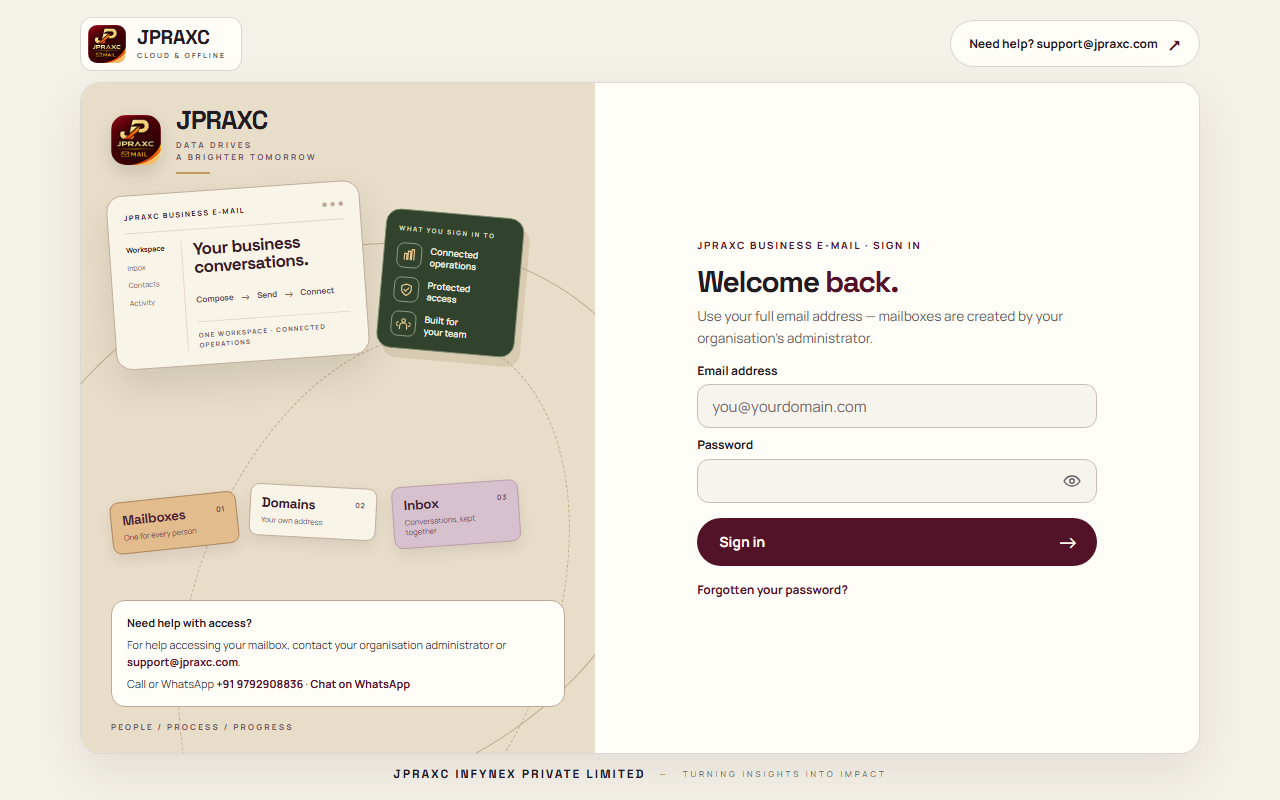
- Open the webmail address in your browser.
- In Email address, type your full e-mail address.
- In Password, type your password. Use the eye button inside the box to show or hide what you typed.
- Select Sign in.
Your Inbox opens. To leave, select Sign out at the bottom of the sidebar, or open your name at the top right and choose Sign out.
First sign-in for an organisation administrator#
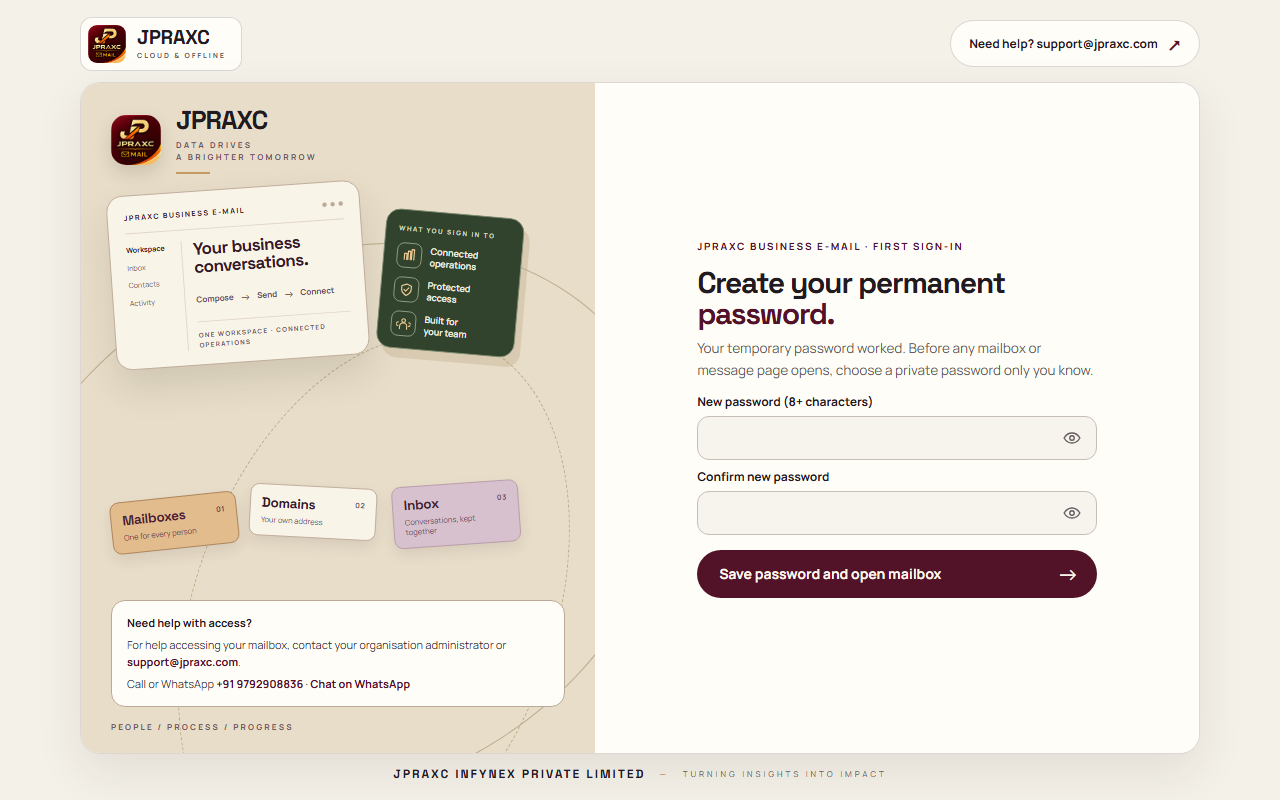
The first time an administrator signs in with the temporary password, the webmail asks for a permanent password before any mailbox page opens.
- Sign in with the temporary password.
- On Create your permanent password, type a new password in New password (8+ characters).
- Type it again in Confirm new password.
- Select Save password and open mailbox.
The new password must be different from the temporary one. Your mailbox opens with the message Password changed. Your mailbox is ready.
Mailbox users (not administrators) are not stopped at this step. If your administrator gave you a temporary password, change it yourself in Settings › Security.
Reset a forgotten password#
The reset code goes to the recovery e-mail saved in your Settings, not to the mailbox you cannot open.
- On the sign-in page, select Forgotten your password?
- Type your mail address and select Email me a code.
- Open your recovery e-mail inbox and find the message Your password reset code.
- Back in the webmail, check Email address, then type the code in 6-digit code.
- Type a new password in New password (8+ characters).
- Select Set the new password.
You return to the sign-in page with Password changed — sign in with the new one. Sign in with your new password.
The code works for a short time only. If it has expired, start again from Forgotten your password?
Good to know#
- After you ask for a code, the page says If that address has a recovery email on file, a 6-digit code is on its way there. If no code arrives, you may not have added a recovery e-mail.
- No recovery e-mail on file? Ask your administrator to set a new temporary password for you. An administrator without a recovery e-mail can ask another administrator in the organisation, or contact JPRAXC support at support@jpraxc.com.
- Passwords must have at least 8 characters. A longer password that you do not use anywhere else is safer.
- After several failed attempts, sign-in pauses for a while. Wait and try again, or reset your password.
Troubleshooting#
| What you see | What to do |
|---|---|
| That address and password do not match. | Check that you typed the full address and that Caps Lock is off. Use Forgotten your password? if needed. |
| This mailbox is currently suspended. Ask your administrator. | Your administrator has paused the mailbox. Ask them to activate it. |
| This organisation's mail service licence has ended. Ask your provider to renew it. | Your organisation's Business E-mail plan needs renewal. Ask your administrator to contact JPRAXC. |
| A message that sign-in is paused after too many attempts | Wait before trying again. Do not keep guessing; reset the password instead. |
| That code is wrong or has expired. Request a fresh one. | Ask for a new code and use the newest one. |
| Choose a password different from the temporary password. | On the first-password page, pick a new password you have not used here before. |
| No reset code arrives | Check the spam folder of your recovery inbox. If you never added a recovery e-mail, ask your administrator to reset your password. |
