
Income and expense register
Record the school's other income and spending, read the register by day, month or category, and open the statement for your accountant.
Income & Expense is the school's money register for the session. Fee collections, refunds and salary payments are entered in it by themselves as they happen. Everything else, such as a government grant, a donation, the electricity bill or a repair, is posted here by the office. At the end of a month or a year, the register gives your chartered accountant one statement of everything it holds.
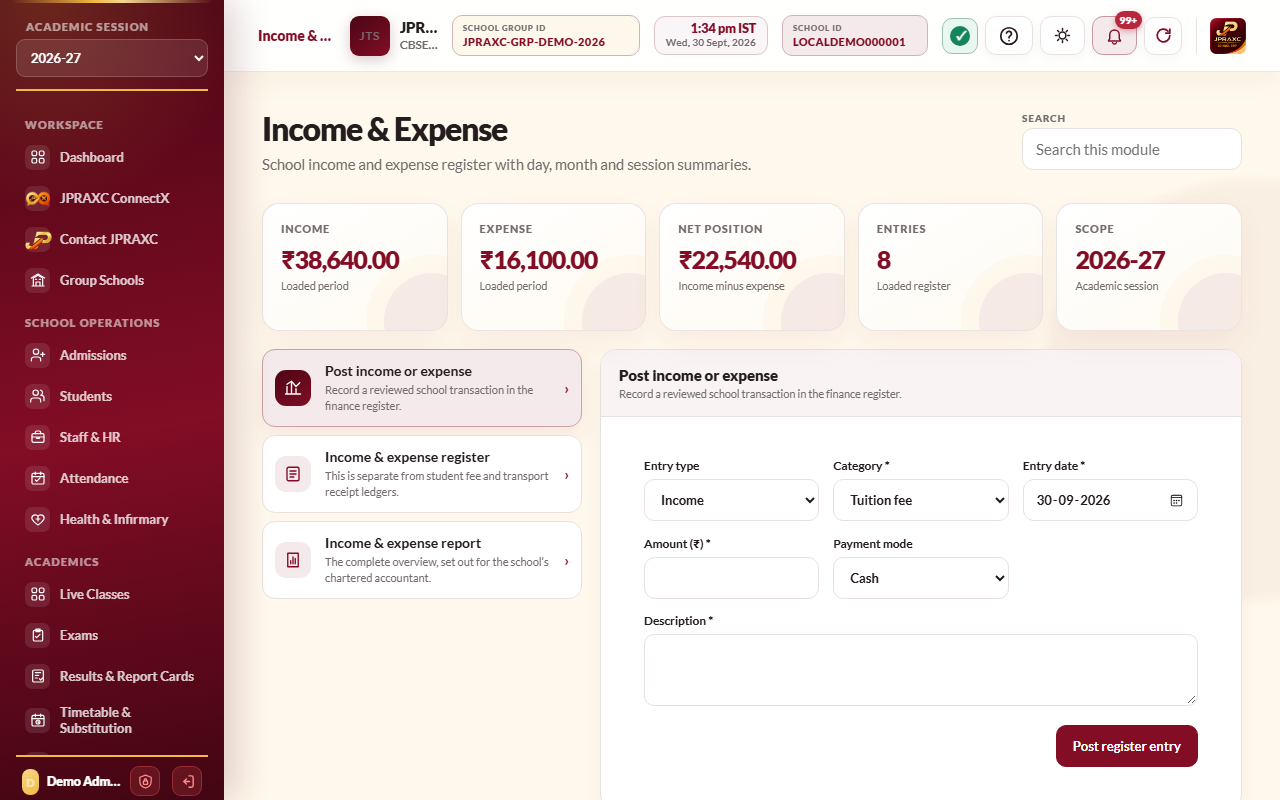
Before you start#
- Your role needs access to Income & Expense.
- Check the Academic session chosen in the sidebar. Entries, the register and the statement all belong to that session, and an entry's date must fall inside it.
Post an income or expense entry#
- Open Income & Expense › Post income or expense.
- Choose the Entry type: Income or Expense. The category list changes to match.
- Choose the Category. If none fits, choose Other and type the category in Name this category.
- Set the Entry date.
- Type the Amount (₹).
- Choose the Payment mode: Cash, UPI, Bank transfer or Cheque.
- Type a Description, for example Electricity bill for July 2026, meter 12345.
- Select Post register entry. The entry gets its own reference number.
Categories#
Income categories include Tuition fee, Admission fee, Transport fee, Hostel fee, Late fee and fine, Government grant, Scholarship received, Donation, Rent received, Interest received, Event and function income and Miscellaneous income, among others.
Expense categories include Staff salary, Provident fund and ESI, Electricity, Water, Telephone and internet, Building rent, Repairs and maintenance, Computer and IT equipment, Software and subscriptions, Transport fuel, Vehicle maintenance and insurance, Security services, Audit and professional fees, Bank charges, Insurance, Taxes and statutory dues and Miscellaneous expense, among others.
What is entered for you#
| When this happens | The register shows |
|---|---|
| A fee receipt is taken at the counter or paid online | Income, under the register's fee category |
| A receipt is cancelled | That income entry is struck off |
| A receipt is reversed, or a refund is recorded | An expense on the refund date, such as School fee refund; the original income stays |
| A salary payment is posted | An expense for the salary |
Because these entries come from their own modules, you do not post fees or salaries here by hand.
Read the register#
- Open Income & Expense › Income & expense register.
- Use Show to see Income and expense, Income only or Expense only.
- Use Search by to narrow it to a Category, A single date or A month.
- The strip above the list totals what is shown: Entries, Income, Expenditure and Net.
Each line shows the date, type, category, description, amount, payment mode and reference. Cancelled and reversed entries stay in the list but are not added into the income and expenditure totals. The cards at the top show the session's income, expense and net position.
Open the statement for your accountant#
- Open Income & Expense › Income & expense report.
- Choose the Period: The whole academic session, A month, A single day or Between two dates, and fill in the date boxes that appear.
- Select Open statement. It opens ready to print; choose Print, then save it as a PDF if you want a file.
The statement sets out the totals, every head of income and expenditure, month by month, by payment mode, and by the part of the ERP each entry came from. Cancelled and reversed entries are left out and listed separately. It is a statement of record, not a tax computation or a statutory return.
Good to know#
- Income & Expense is separate from the fee and transport receipt registers. To look at fee receipts, use Fee reports and registers.
- For a Tally export of the same money, see Tally export and day book.
Troubleshooting#
| Symptom | What to do |
|---|---|
| The entry date must be inside the academic session selected in the sidebar. | Change the date, or choose the right session in the sidebar first. |
| Complete the valid date, type, category, description and amount. | Fill in every required field. The amount must be more than zero. |
| The date range must stay inside the academic session selected in the sidebar. | Choose dates within the session, or switch the session in the sidebar. |
