
Online fee collection
See the fees families pay online, check a payment's status, open its receipt and match gateway deposits to the bank.
When the school has a payment gateway switched on, families can pay fees online, and the ERP makes the receipt by itself once the gateway confirms the payment. Fees › Online fee collection is where the office follows those payments: what came in, what is still being confirmed, what failed, and which bank deposits the gateway has made. Setting up the gateway itself is covered in Payment gateway integration. It is done by the school administrator under General Settings › Payment Configuration.
Before you start#
- Your role needs to be able to view fees. Recording a bank settlement also needs the approve right in Fees.
- A live gateway must be set up and enabled. Until then, families see The school has not enabled a live online payment gateway.
What the family does#
- The family opens Fee in the parent portal. For paying from the Parent app, see Parent, Staff and Mail apps.
- Under Pay fees online, they tick the fees they are paying. If the school allows part payments, they can change the amount.
- If the school offers more than one gateway, they choose one under Pay with.
- They select Continue to payment and complete the payment on the secure checkout page. Card and bank details are entered on the gateway's own payment window, not in the ERP.
- They come back to the portal. The payment shows in Online payment history with its status. Once confirmed, Download receipt appears.
Good to know for families:
- The ERP works out the amount and any late fee. Online payers cannot give themselves a discount or waive a fine.
- The school adds no convenience fee. If the payment page shows an extra charge, it comes from the gateway.
- While a payment is still being confirmed, the portal shows Processing — please do not pay again, with a Check status button.
Follow online payments in the ERP#
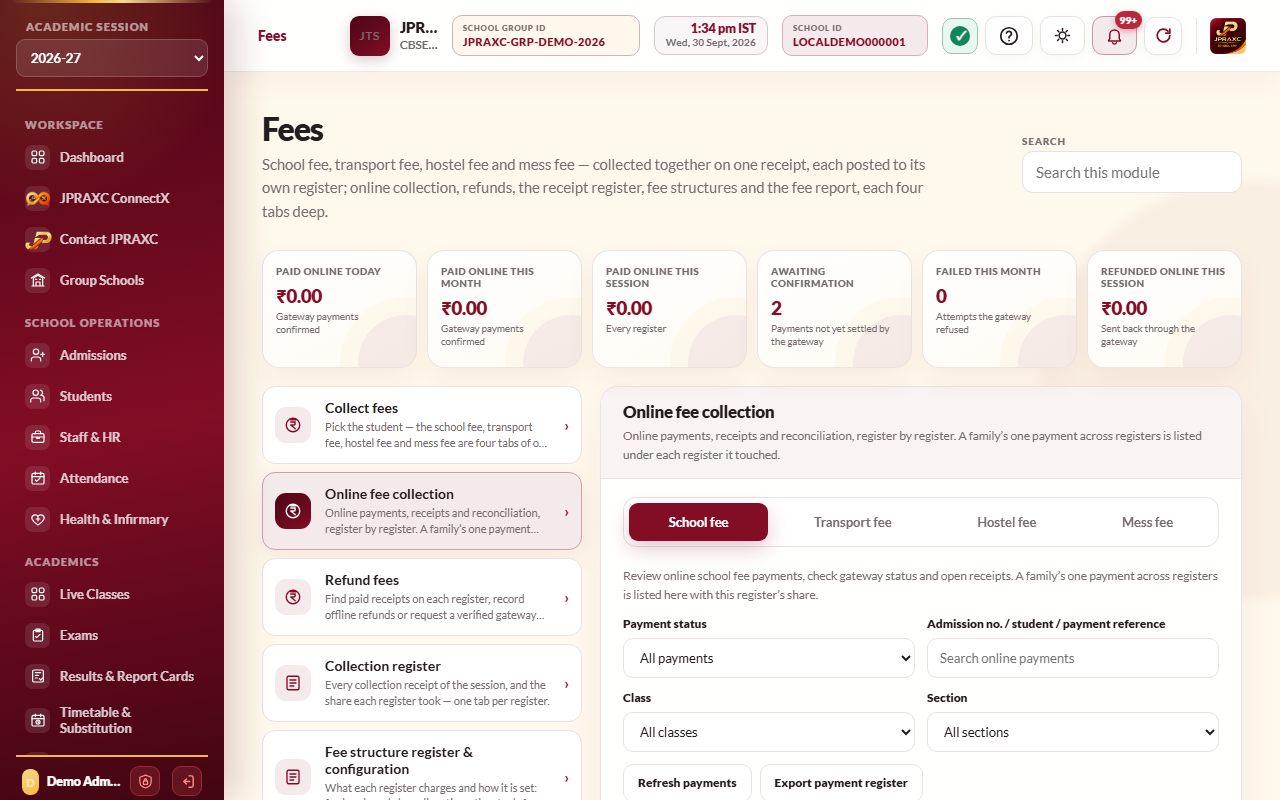
- Open Fees › Online fee collection.
- Choose the tab: School fee, Transport fee, Hostel fee or Mess fee. A family's single payment across several registers is listed under each register it touched, with that register's share.
- Narrow the list with Payment status (All payments, Successful, Awaiting confirmation, Failed, Needs attention, Test payments), the search box (admission number, student or payment reference), Class and Section.
- Read the summary: Net online collection (successful live payments after completed refunds), Awaiting confirmation and Needs attention.
- In the Online payment register, each payment shows the student and date, the gateway and payment reference, the amount and status.
- Select Check status to ask the gateway again about a payment. Select View receipt to open the receipt of a confirmed payment.
- Select Load older payments to go further back, or Export payment register to download the list.
The cards at the top of the pane show amounts paid online today, this month and this session, how many payments are awaiting confirmation or failed this month, and what was refunded online this session.
Reconcile gateway deposits with the bank#
The gateway pays the collected money into the school's bank account later, usually after deducting its charges. These deposits are recorded apart from the fee payments.
- Open Bank settlements on the tab.
- Open Record a verified bank settlement.
- Choose the Gateway account.
- Fill in Provider settlement reference, Bank UTR, Settlement date, Gross amount (₹), Provider charges (₹) and Net deposited (₹). Gross less charges must equal net.
- Select Record settlement.
For some gateways, a fetch option in the same section can fill these details in from the gateway. Check them against the bank statement before recording. Select Export settlements to download the list.
Good to know#
- A payment is receipted only after the gateway confirms it. Coming back from the payment page is not enough on its own.
- A receipt made from an online payment shows in the Fee receipt register like any other, and the family is told if the school has switched on the Fee received message.
- If a family pays more than is still owed, for example by paying twice, the extra is kept as Available credit on the payment, not silently absorbed.
- Payment verification and notification jobs lists payments still being checked and receipt messages still to be delivered. They are retried by themselves.
- Test payments made while setting up the gateway are shown under Test payments and never count as collections.
- To give money back for an online payment, see Refund fees.
Troubleshooting#
| Symptom | What to do |
|---|---|
| A family says they paid but the payment shows Awaiting confirmation | Select Check status. The receipt is made as soon as the gateway confirms. Ask the family not to pay again meanwhile. |
| A payment shows Failed | No money was recorded. The family can pay again. If money left their account, check the gateway's dashboard. |
| A payment is under Needs attention | The gateway reported a problem while it was being verified. Select Check status, and check the payment on the gateway's dashboard. |
| Enter a dated bank settlement reference and UTR, with gross less charges equal to net. | Fill in every field, and check that gross minus charges equals the net amount. |
