
Notices and communication
Issue formal school notices, send messages by WhatsApp, SMS, e-mail and ConnectX, choose the automatic messages, and check what was delivered.
Notices are formal A4 notices on the school letterhead, each with a reference number, kept in an official register. Communication sends short messages by WhatsApp, SMS, e-mail or JPRAXC ConnectX to a class, to parents with fees due, to staff or to the whole school, and records whom each message reached. Some messages go out by themselves when something happens, such as a fee being received.
Before you start#
- Your role needs access to Notices and to Communication. See Users and access.
- Each channel must be switched on and set up in General Settings: WhatsApp Configuration, Email Configuration, SMS Configuration and JPRAXC ConnectX Configuration. ConnectX needs no setup. For the others, see WhatsApp, JPRAXC SMS and JPRAXC Business E-mail.
- Messages go to the numbers and e-mail addresses on the student and staff records. Messages about a student go to the father's mobile, unless you choose the audience Every student — mother.
Issue a school notice#
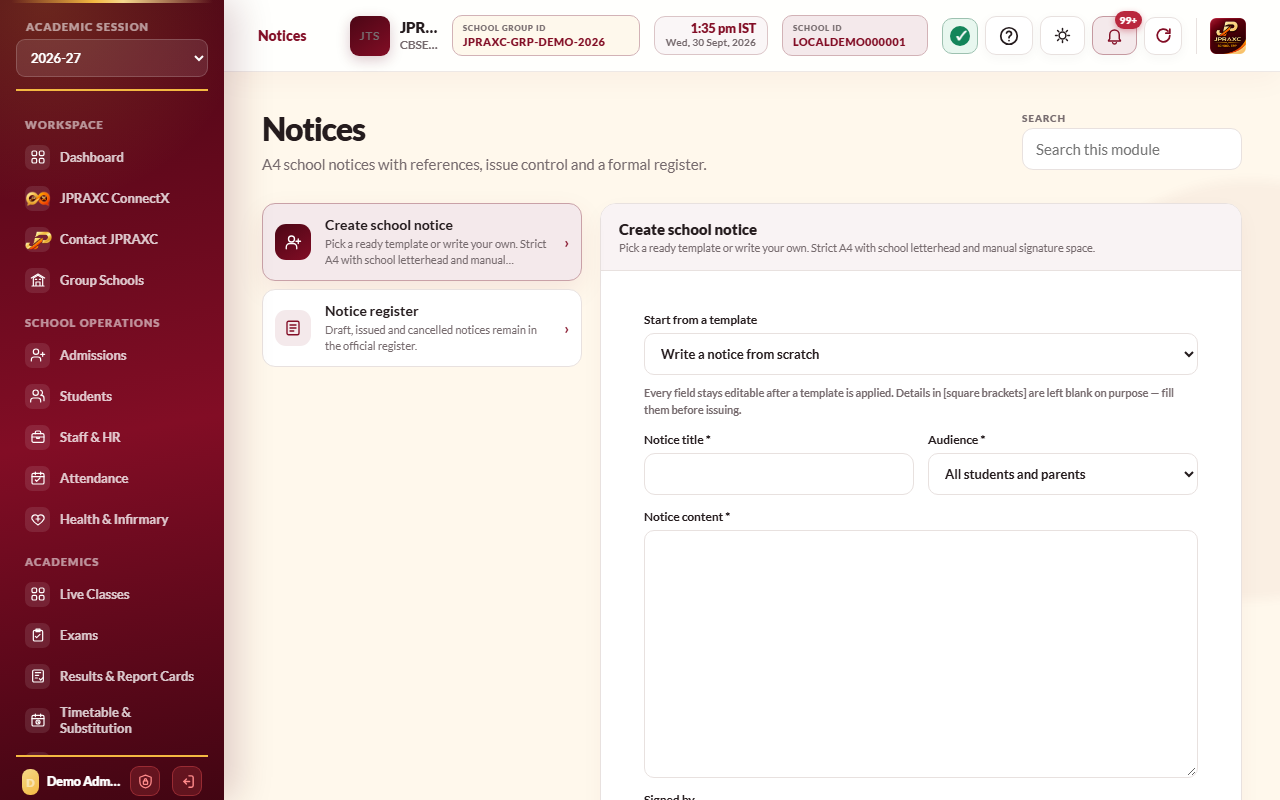
- Open Notices › Create school notice.
- Optionally pick a template in Start from a template, for example a holiday, examination or fee notice. Fill in anything left in [square brackets].
- Type the Notice title and choose the Audience. For a class audience, choose the Class and, if needed, the Section.
- Write or edit the Notice content, and choose who it is Signed by.
- Leave Issue immediately ticked to issue it now, or untick it to save a draft.
- Select Save and preview notice, then Print.
An issued notice gets a reference and a verification code. Parents or staff in its audience are also told in the Parent and Staff apps that a new notice has been issued.
In Notices › Notice register, each notice has Preview, Edit, Issue (for a draft), Cancel (with a reason) and Delete. If your school website is connected to the ERP, Publish to website puts the notice on the website's notice board and Unpublish takes it off.
Send a message#
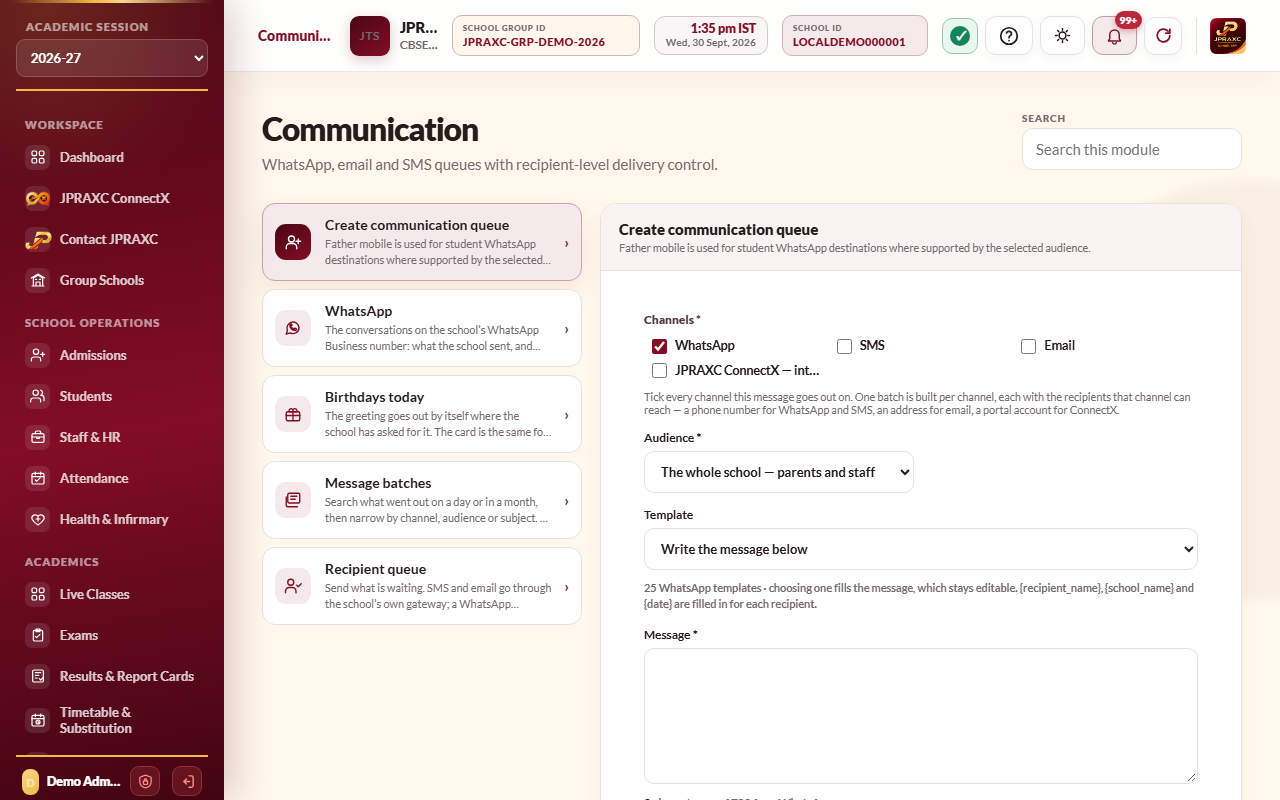
- Open Communication › Create communication queue.
- Under Channels, tick every channel the message should go out on: WhatsApp, SMS, Email and JPRAXC ConnectX — into their portal.
- Choose the Audience, such as One class or section, Students with fees due, Transport users, Teaching staff or The whole school — parents and staff.
- Optionally choose a Template. The ERP has ready wording in English and Hindi for each channel, such as Fee due reminder, Transport fee reminder, Holiday notice, Parent-teacher meeting, Library book overdue and Staff meeting. The message stays editable. Each person's name, the school's name and the date are filled in for every recipient.
- For e-mail, type a Subject.
- Write or check the Message. The line under it shows the length and, for SMS, how many SMS each message takes: 160 characters to an SMS in English, 70 once it contains Hindi.
- Select Build recipient queue. One batch is built for each channel ticked, with everyone that channel can reach.
- Open Communication › Recipient queue and select Send now on each message, or Send on WhatsApp for a WhatsApp message.
A batch that has not started sending can still be changed in Message batches with Edit or Delete.
Messages sent automatically#
Each channel's configuration pane in General Settings has a section called Sent without being asked. For each event, choose Yes or No for that channel, then save the pane, for example with Save WhatsApp configuration. An event can go out on several channels at once.
| Event | Who is told |
|---|---|
| Fee received | The parent, with a link to the parent portal where the receipt can be viewed and downloaded. By e-mail, the receipt is also attached as a PDF |
| Marked absent | The parent |
| Admission confirmed | The parent |
| Certificate issued | The parent, or the member of staff, naming the certificate |
| Salary paid and Salary slip issued | The member of staff |
| Birthday wishes | The student's family |
In the same section:
- Language of every message — English only, हिंदी only or Both languages (one message carrying both).
- State the amount in the fee message — untick it and the Fee received message only says the fee has arrived and gives the receipt number. The amount stays off the phone, and the receipt behind the link still shows it.
Fee-due reminders that send themselves are set up in Dues & Reminders. See Dues, reminders and late fees.
Delivery status#
- Recipient queue lists every person a message was addressed to, with the channel, Status and any Error. Narrow it with When, Channel, Recipient and State.
- Done means the message was handed over on that channel. Pending with an error means it could not be sent. Fix the cause, then select Send now again. A message already sent shows Resend.
- Message batches shows each batch with its channel, audience, subject, number of recipients and status.
- On the WhatsApp Business API, sent, delivered and read ticks show in the WhatsApp conversation. SMS delivery reports are in your JPRAXC SMS account.
Example#
Sunrise Public School closes on 2 October. The office issues a holiday notice to Whole school, then sends the Holiday notice template on WhatsApp and ConnectX to The whole school — parents and staff. When Aarav Sharma's father later pays ₹4,700 at the counter, he gets the Fee received message on WhatsApp without anyone typing it.
Good to know#
- A ConnectX message costs nothing and needs no phone number. It goes into the family's or staff member's own conversation in their portal and app. See JPRAXC ConnectX.
- With WhatsApp set to Click to send, each message opens in the school's own WhatsApp ready to send, and is recorded as sent once you select it.
- Birthday wishes go out when someone first opens Communication that day. Birthdays today also lets you send a greeting now with Send on WhatsApp, or open the birthday Card.
Troubleshooting#
| Symptom | What to do |
|---|---|
| No valid recipients were found for this audience… | The records in that audience have no mobile number, e-mail address or portal account for the channel chosen. Update the records, or choose another channel. |
| This batch has already started going out, so it can no longer be changed. | Part of the batch has been sent. Send a correction as a new message. |
| An automatic message did not go out | Check that the event is set to Yes for that channel, that the channel is switched on and ready, and that the record has a valid number or address. |
