
Backup and session archives
Take and check backups, download an academic session as one ZIP, delete an old session into a 30-day trash, and restore it from the trash or from its ZIP.
The Backup module keeps copies of the school's data. A backup covers the whole school: the database and the protected files (photos, documents, signatures) together. Session archives, on the same page, work one academic year at a time: you can download a session as one ZIP file, remove an old session to free space, and bring it back later.
Before you start#
- Taking a backup needs a role with Create on Backup & Archives. Session archives are for the administrator only.
- Deleting or restoring a session needs the school's e-mail to be set up, because the ERP e-mails the administrator a confirmation code. Set it up in General Settings › Email Configuration first.
- Keep somewhere safe to store downloaded files: a pen drive, another computer or your own cloud storage.
Take a backup now#
- Open Backup.
- Select Back up now.
- Wait while the ERP creates and checks the backup.
- Look at Backup history. The newest row shows when it was created, its size, its State and when it was Verified.
Run automatic policy runs the school's routine backup straight away. If a recent backup already exists, it reuses that one instead of making another copy.
If the ERP asks for a backup key, enter the one that came with your activation documents. If it is lost, contact JPRAXC support.
| Edition | Where routine backups go |
|---|---|
| Cloud | Each backup is checked, and a verified server copy is kept as well. If the server copy is still pending, the next attempt sends the same backup again rather than making a new one. |
| Offline | Backups stay on this computer. They are not uploaded. Download a copy and keep it on separate storage. |
Download a copy of the backup#
- Cloud: select Download sealed backup file. It is a copy of the newest backup, sealed to your school. Another school's ERP cannot open it.
- Offline: select Download sealed local backup. It downloads the latest existing local backup; it does not make a new one.
Keep downloaded backups private and on separate protected storage.
Session archives#
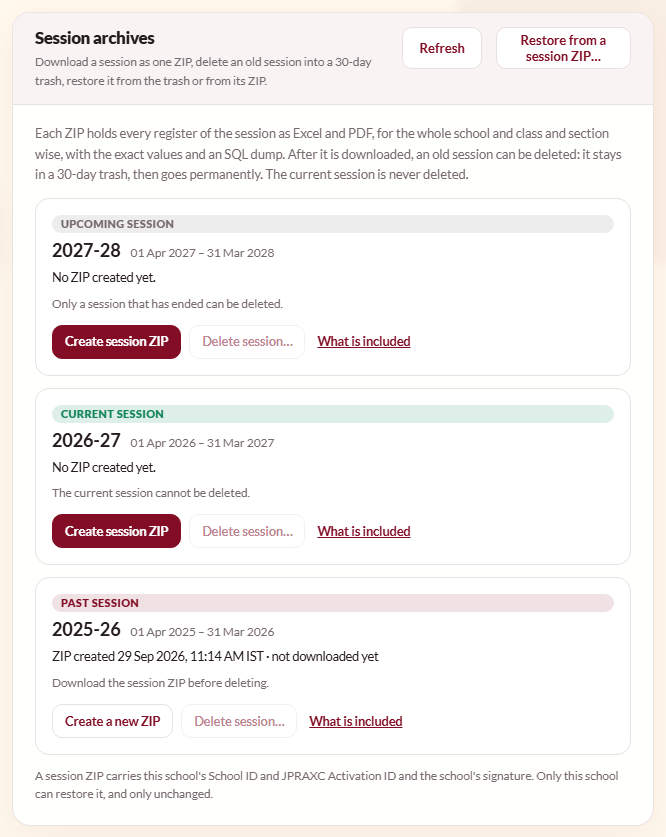
The Session archives panel shows one card per academic session, marked Current session, Past session or Upcoming session, with its dates and what has been done with its ZIP.
Each session ZIP holds every register of that session, for the whole school and class and section wise, as PDF and Excel. It also holds the exact values and the records the ERP needs to restore the session. The PDFs are formal registers with the school letterhead, totals and signature lines. The ZIP can be restored only into your own school, and only if it has not been changed.
Download a session#
- Open Backup and scroll to Session archives.
- On the session's card, select Create session ZIP. For a large school this can take a few minutes.
- When the ZIP is ready, select Download ZIP.
- Save the file somewhere safe and check that it opens.
- Back on the card, select I have saved the ZIP, tick the box and select Confirm.
Select What is included on any card to see which registers the session holds and how many records each has.
Delete an old session#
You can delete a session only when all of these are true: it has ended, it is not the current session, its ZIP has been created and downloaded, and you have confirmed you saved it. Until then, Delete session… is greyed out and the card says what is missing.
- On the session's card, select Delete session….
- Read the disclaimer. It lists:
- What is removed: everything that belongs only to that session, such as attendance, exams and marks, report cards, the timetable, the diary and homework, leave and ID cards.
- What stays: students and staff, admissions, classes, fee structures, receipts and dues, hostel beds and every other session. Unpaid fees stay collectable.
- Your ZIP: after 30 days the ZIP is the only way to bring the session back.
- Responsibility: JPRAXC's responsibility statement. Keeping the ZIP safe, and choosing to delete or restore, are the school's responsibility.
- Tick the box to accept, and select Accept and continue.
- Enter the Administrator password and select E-mail me the code.
- Enter the six-digit Code from the e-mail and select Delete session.
The session moves to a 30-day trash. Its card shows In the trash and the last date it can be restored. After 30 days it is deleted permanently.
Restore a session from the trash#
Within 30 days of deleting it:
- On the session's card, select Restore session.
- Read the disclaimer, tick to accept and select Accept and continue.
- Enter the Administrator password and select Restore session.
Restore a session from its ZIP#
At any time, including after the 30 days:
- In the Session archives panel, select Restore from a session ZIP….
- Read the disclaimer, tick to accept and select Accept and continue.
- Choose the Session ZIP file downloaded from this ERP.
- Enter the Administrator password and select E-mail me the code.
- Enter the six-digit Code from the e-mail and select Check and restore.
The ZIP is checked before anything changes. A ZIP from another school or another installation is refused, with the reason.
What a restore does#
- The session's records are put back exactly as they were. Other sessions, students, staff and fees are not changed.
- A record that already exists is kept as it is.
- If a record has been changed since the ZIP was made, the restore stops and nothing is restored.
Each acceptance, together with the password check and the e-mailed code, is recorded as the administrator's authorisation.
Moving from Offline to Cloud#
On the Offline edition, the Backup page also has a Shift to Cloud panel. Moving to the Cloud edition is arranged with JPRAXC, who will tell you when and how to use it. Contact JPRAXC sales or support to start.
Good to know#
- Backup and session ZIP file names use the IST date.
- On the Cloud edition, Import backup… and the Verified backup imports register are used only together with JPRAXC support.
- Backups do not count against the school's storage allowance.
- Every academic session stays online for as long as your storage allows. Deleting an old session frees that space.
Troubleshooting#
| Symptom | What to do |
|---|---|
| Deleting a session needs a code sent to the administrator's e-mail | Set up the school e-mail in General Settings › Email Configuration, then try again. |
| Delete session… is greyed out | Read the line under the card: create the ZIP, download it, or confirm you saved it. The current session and sessions that have not ended cannot be deleted. |
| Some records cannot be exported yet, so this session cannot be deleted | Open What is included to see what is blocking it, and contact JPRAXC support if it does not clear. |
| The session panel says a component is needed | This happens on some Offline installations after an in-app update. Run the latest Windows installer over the installation (your data is kept), or install the next software update. See Install the Offline edition on Windows and Software updates. |
| A backup for this school is already in progress | Wait a minute, refresh Backup history, and try again. |
| The code e-mail has not arrived | Check the administrator's spam folder. Start again to get a new code; each code is valid for a short time. |
