
Transport and live bus tracking
Set up routes and stops, seat students on the bus, stop or restart a ride, and follow buses live on the map.
Transport management & tracking runs the school's buses. You set up routes and their stops, and students who take transport are seated on the bus from their own student record. You can stop or restart a child's ride, and, where the buses carry GPS trackers, see each bus live on a map. Families can see their child's bus in the Parent app. The money side of transport (the fare at each stop, collecting it and its receipts) is under Fees. See Collect fees at the counter and Set up fee structures.
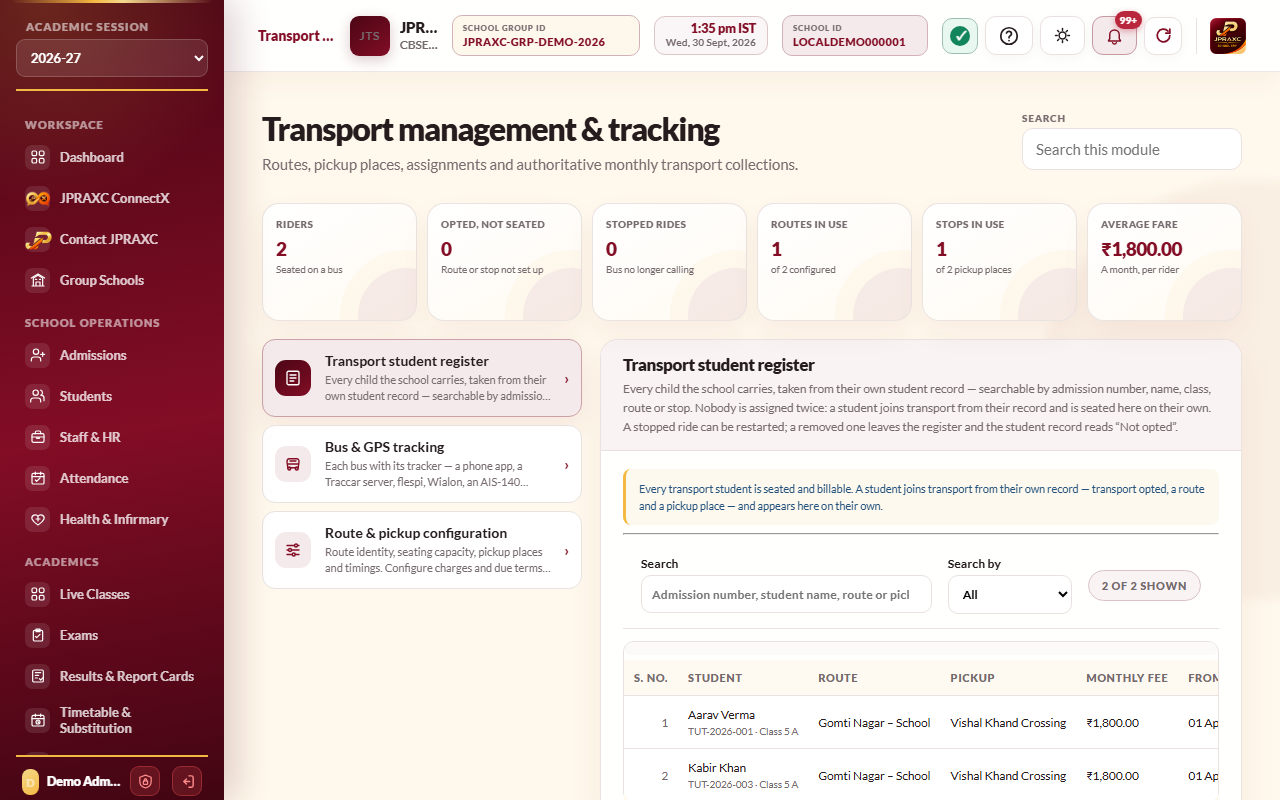
The module has three drawer entries: Transport student register, Bus & GPS tracking and Route & pickup configuration.
Before you start#
- Creating routes and stops needs the add right for transport. Editing, stopping and restarting rides, and saving buses, need the edit right. Deleting needs the delete right.
- Plan your routes and the stops on each, with the monthly fare for each stop.
Set up routes and stops#
- Open Transport management & tracking › Route & pickup configuration.
- In the route form, type the Route code and Route name, and optionally the Capacity (the number of seats; leave it blank for no limit). Select Create route.
- Create each stop with its fare under Fees › Fee structure register & configuration › Transport fee: choose the Route, type the Pickup place, Place code and Monthly fee (₹), set the due day and any late fee, and optionally the Pickup time and Drop time. Select Create pickup place.
- Back in Route & pickup configuration, the register lists every route with its stops, times and capacity. Use Edit route or Edit stop to correct names, codes, capacity or times.
A route or stop that has ever had a student seated on it cannot be deleted.
Seat a student on the bus#
Students join transport from their own record, not from the Transport module.
- On the student's admission form or record, set Transport facility to Yes.
- Choose the Route and the Pickup place.
- Save the record.
The student is seated on the bus automatically once the route and stop on their record match a route and stop the school runs. Their monthly fare is taken from the stop. They then appear in the Transport student register.
If a student's record asks for transport but the route or stop on it does not exist (or the route is full), a banner at the top of the register says how many students cannot be billed yet and lists them. Create the stop, or correct the student's record, and they are seated on their own.
Manage rides#
Open Transport management & tracking › Transport student register. Search by admission number, name, route or stop, or use Search by to narrow it by class and section or by route and stop. Each row shows the route, pickup, monthly fee, the date the ride started and its status (Active or Stopped).
- Edit: change the Route, Pickup place or Starts on date, then Save transport. The student record is updated to match. Months already receipted keep the amount they were collected at.
- Stop: set Service ends on and select Stop assignment. The bus stops calling for the child. The ride is charged up to and including the month it ends.
- Restart: for a stopped ride, select Restart, then Restart transport. The child rides again from today.
- Delete: select Delete, then Remove from transport. The child leaves the register, and their student record reads Not opted.
How transport months are charged#
- Each month of the ride, from the month it starts to the month it ends, owes the stop's monthly fare. There is no part-month charge.
- Months before the ride began are never charged.
- The late fee is the stop's per-day charge for each day after its due day, once the grace days have passed. It is never charged for a month before the ride began, and in the joining month it counts from the day the ride began.
- Unpaid months from an earlier session are offered at the fee counter as arrears.
Add buses and follow them live#
- Open Transport management & tracking › Bus & GPS tracking.
- In the vehicle form, type the Vehicle number, choose the Route, and choose the Driver (a member of staff, or Other to type a driver's name and mobile).
- Leave Show this bus live to the families on its route (Parent app › Transport) ticked if families should see it.
- Select Add vehicle.
The bus's GPS tracker must also be connected to the ERP. This is a one-time technical set-up for each bus. Ask JPRAXC support if you need help with it.
The Vehicle register lists every bus with its route and riders, its signal, its last position time, whether families can see it (Live or Hidden) and its status. The signal reads:
| Signal | Meaning |
|---|---|
| Moving with a speed | The bus is reporting and moving. |
| Stopped or Parked | The bus is reporting but not moving. Parked means the engine is off. |
| No signal with how long ago | The last position is older than the school's no-signal time. |
| No fix yet | The tracker has not reported yet. |
Select Track to open the bus live. You see its signal, speed, heading, ignition and battery, the map with the bus and its recent trail, and a list of its latest positions. The view refreshes itself while it is open. Open in Google Maps opens the position in Google Maps.
Under Tracking rules, set No signal after (seconds) and Keep the trail for (days), and tick Families may watch their bus live in the Parent app to let families see their bus. Select Save tracking rules.
What families see#
In the Parent app, a family sees the bus on their child's route, live on the map, when the school allows families to watch, the bus is active and shared, and the child is seated on that route. See Parent, Staff and Mail apps.
Troubleshooting#
| Symptom | What to do |
|---|---|
| A student opted for transport is not in the register | Check that the route and pickup place on their record exist and match exactly, and that the route has a free seat. |
| Capacity cannot be below the number of students already assigned. | Raise the capacity, or move some students to another route first. |
| Students have been assigned to this route, so it cannot be deleted. | The route has been used, so it stays. |
| A bus shows No signal | Check that the tracker has power and a mobile signal. The bus shows again as soon as it reports. |
