
Payroll and statutory deductions
Put staff on payroll, run and approve the monthly payroll, pay salaries, issue salary slips and prepare PF, ESI, PT and TDS files.
Payroll & Statutory pays the school's staff. You give each member of staff a salary structure once. Each month you generate a payroll run from those structures and the month's attendance, check it, approve it, and record the payments. Salary slips are issued from the approved run. If the school switches it on, the same run also works out PF, ESI, professional tax and TDS, and prepares the monthly files and the annual salary certificate.
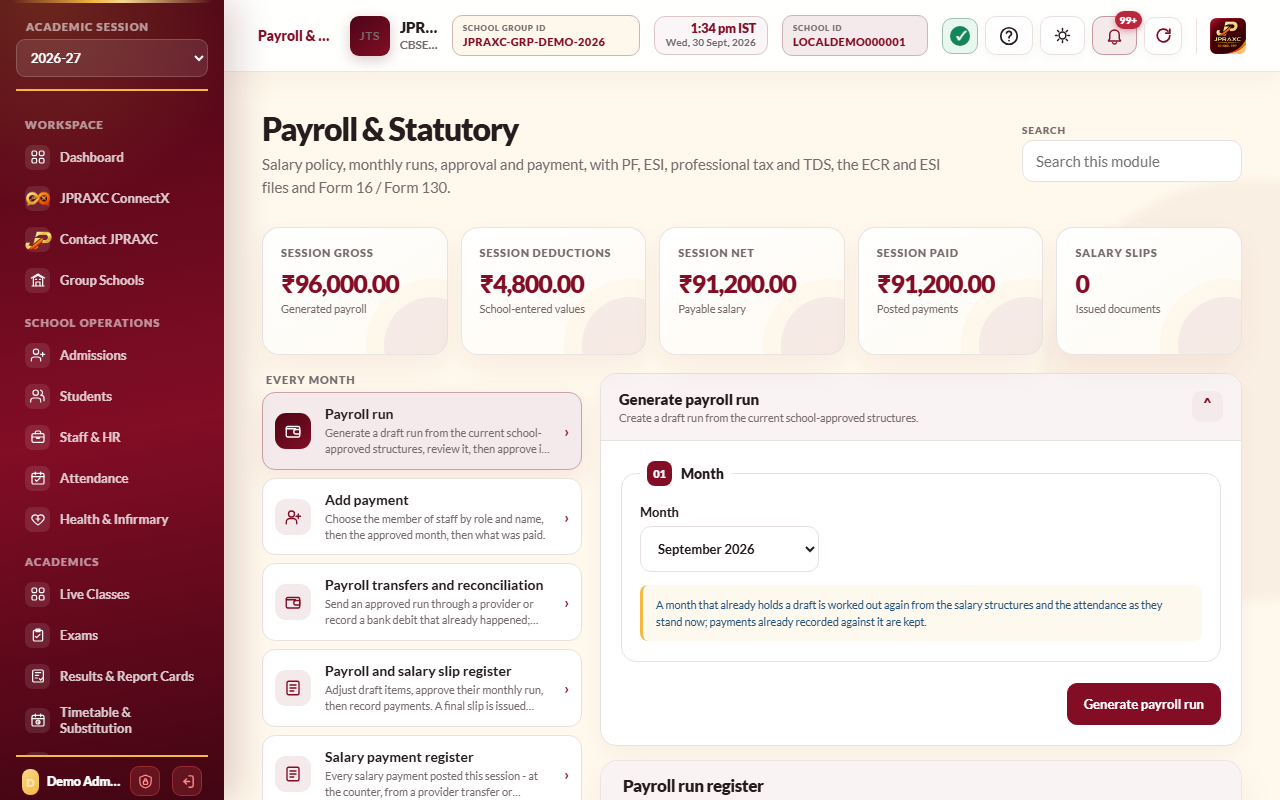
The drawer is grouped the way the work happens: Every month, Staff pay & tax, and Year end & setup.
Before you start#
- Staff must already be on the Staff & HR register.
- The month's staff attendance and leave decisions should be complete. A run cannot be approved while leave or attendance for its month is still changing.
- In your role's Payroll & Statutory rights, generating runs and posting payments need the add right, adjusting a draft needs the edit right, and approving or undoing a run and reconciling bank payments need the approve right. Printing slips and preparing returns need the print right.
Set up once#
- Open Payroll & Statutory › Payroll configuration.
- Under Employer statutory profile, fill in Employer PAN, Employer TAN, Labour Identification Number, PF establishment code and ESI employer code as they apply to the school. Select Save employer profile.
- Under Payroll policy, choose whether Salary is payable for June, and whether the June amount is the monthly salary or a custom amount.
- Choose how A day of absence costs is worked out: Days the school was open (recommended), A fixed 26 days, or Days in the calendar month.
- Choose whether A weekly off between two absences Stays paid (recommended) or Is deducted as well.
- Select Save payroll policy.
Put a member of staff on payroll#
- Open Add staff salary.
- Choose the role, then the Staff member, and set Effective from.
- Under Pay components, type Basic salary (₹), and if used Dearness allowance (₹) and Other allowances (₹).
- Under Deductions, type any fixed Employee PF deduction (₹), Employee ESI deduction (₹) and Other deduction (₹). If statutory computation is switched on, PF and ESI are not typed here; the run works them out.
- Under Wage-record identifiers and bank, fill in the bank details, UAN, ESIC number and Employee PAN as they apply.
- Select Save salary structure.
Each person has one structure; saving again replaces it. Runs already generated keep their figures, and a draft run picks up the new structure when it is re-run. Total deductions cannot be more than half of the wages. The Staff salary structure register lists every active member of staff, with or without a structure.
Run the monthly payroll#
- Open Payroll run, choose the Month, and select Generate payroll run. A draft run is made from the structures and the month's attendance.
- In the Payroll run register, select View to see the run. In the Payroll and salary slip register, select Adjust on any line that needs correcting.
- If attendance or structures changed, select Re-run. The draft is worked out again; any payments already recorded are kept.
- Select Approve. Approval makes the wages official and issues a salary slip for each person on the run.
A run includes active staff who have a salary structure and had joined by the end of the month. Loss of pay is worked out from the month's staff attendance and approved leave, using the payroll policy.
A draft can be thrown out with Reject while nothing has been paid from it. An approved run can be taken back with Undo run: it returns to draft, its salary slips are withdrawn, and payments already recorded stay on the month. Delete removes a run entirely while nothing has been paid from it. Once a run is approved, staff attendance and leave for that month cannot be changed for the people on it until the run is undone.
Pay salaries#
- Open Add payment, choose the role and Staff member, then the Salary month. The month must show approved.
- The member's months are listed with gross, deductions, net, paid and outstanding, and a strip showing Net this session, Paid so far and Still owing today.
- Type Amount paid (₹), Payment date, Payment mode (Bank transfer, Cash, Cheque or UPI) and Payment reference. A reference (UTR, cheque number or voucher) is needed for every mode except cash, and each reference can be used only once.
- Select Post payment. A salary payment receipt prints, and the payment is recorded as an expense in Income & Expense.
A salary can be paid in parts. It cannot be paid beyond what is still owed.
You can also select Pay on an approved line in the Payroll and salary slip register. Every payment is listed in the Salary payment register with its receipt number.
Salaries already sent through the bank#
If the school paid salaries from its bank outside the ERP, open Payroll transfers and reconciliation › Reconcile a bank statement payment. Choose the staff member and the Approved salary item, type Amount confirmed (₹), Bank debit date and Bank UTR / statement reference, tick the confirmation that you matched it against the bank statement, type your Current login password, and select Reconcile bank payment. This records the payment; it sends no money. Each bank reference can be used only once.
Schools with a payroll payout account enabled can also send approved salaries from Send payroll through a provider. The salary counts as paid only after the transfer is verified.
Salary slips#
- A slip is issued for everyone when a run is approved, and a final slip is issued when the net wage has been paid in full.
- Select Salary slip on a line to open it. To print many, narrow the Payroll and salary slip register by month, status, role or name, then select Print salary slips.
- If the school has switched on the salary-slip message, the member of staff is told when the final slip is issued.
Statutory: PF, ESI, PT and TDS#
Statutory computation is off unless the school switches it on. While it is off, runs use the PF and ESI typed on each salary structure.
- Open Statutory settings › Add statutory settings version.
- Set Effective from and tick Compute statutory deductions on payroll runs from this month.
- Go through the sections: Provident fund (EPF), Employees' State Insurance (ESI), Professional tax and Income tax (TDS on salary). The form starts with PF, ESI and TDS ticked; untick any the school does not deduct, and check every rate with your accountant.
- Select Save settings.
A version applies from its month until a later one, so changing a rate never rewrites a month already worked out. A draft run picks up new settings when it is re-run. With TDS on, the income-tax slabs for that tax year must be entered first; with professional tax on, the state and its slabs must be entered first. Related panes:
- Employee coverage and tax: who is covered by PF and ESI, and each person's tax regime and declarations (Add tax declaration).
- Professional tax: add each state the school pays wages in and enter its slabs from the state notification.
- Income-tax slabs: the slabs, standard deduction, rebate and cess for each tax year, and a Tax calculator.
- Returns and files: prepare the EPFO ECR file, the ESIC monthly contribution file, the PT register, and the TDS register and 24Q annexure. Files are made from approved runs only.
- Form 16 / Form 130: choose the staff member and tax year, then select Prepare certificate. The title follows the tax year: Form 16 up to FY 2025-26, Form 130 from tax year 2026-27.
Troubleshooting#
| Symptom | What to do |
|---|---|
| Post payment is greyed out | The month's run is not approved yet. Generate and approve it first. |
| Complete staff attendance before payroll for … | Mark the listed days present, absent or half day, or approve the leave, under Attendance and Staff & HR, then generate again. |
| Review pending staff leave in this payroll period before calculating salary. | Approve or reject the pending leave requests for the month first. |
| This wage period has already been approved. | Select Undo run on the month, then re-run it. |
| A run cannot be undone because of a transfer | A provider transfer or a bank-statement reconciliation is recorded against it. Settle or reverse that payment first. |
| Leave or attendance changed. Generate this draft again before approving it. | Select Re-run on the draft, check it, then approve. |
| Review invalid wages or deductions before approving this payroll run. | A line has no wages or deductions that are too high. Adjust the line or the structure. |
| A payment has been recorded against this run, so it cannot be deleted | Reverse the payment first, or re-run the month instead. |
| Complete the net wage payment before issuing the final salary slip. | Record the remaining payment first. |
