
Fee reports and registers
Find, reprint, cancel or reverse fee receipts, and build the session fee report for a class or the whole school.
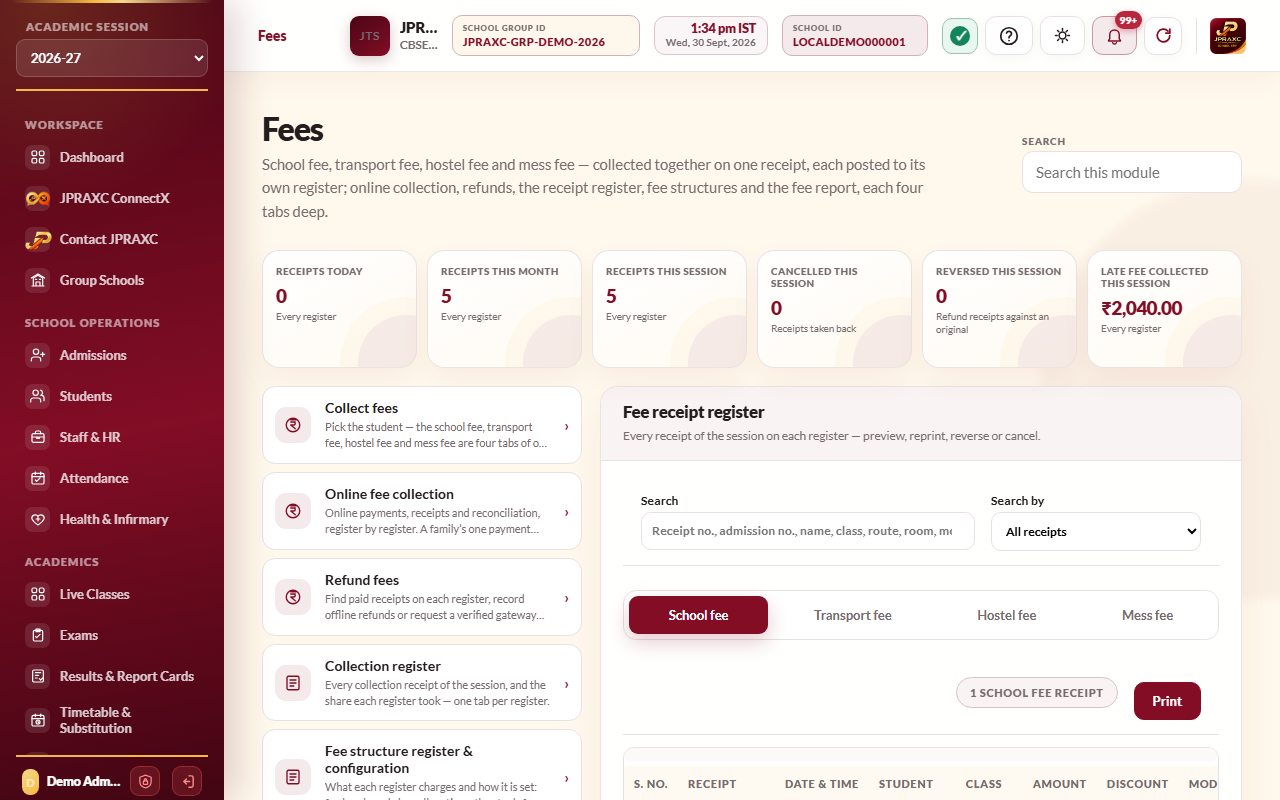
Every rupee taken at the fee counter lands in three places you can read back: the Collection register (one line per hand-over at the counter), the Fee receipt register (every receipt on each register, where you reprint, cancel or reverse) and the Fee report (the whole session for a class, a section or the school, student by student). All three are under Fees and are read on four tabs: School fee, Transport fee, Hostel fee and Mess fee.
Before you start#
- Your role needs access to the Fees module. The transport, hostel and mess tabs also need your role to be able to open those modules; otherwise the tab says the register could not be read.
- The registers and report follow the Academic session chosen in the sidebar.
Collection register#
Each line is one hand-over at the counter: one collection number, the student, the share that went to the register on the current tab, the whole amount handed over and the payment mode.
- Open Fees › Collection register.
- Narrow the list with Search (collection number, admission number, name or mode), Class, Section or Student.
- Choose a tab to see the collections that carried a share for that register.
- Select Print on a line to reprint that collection receipt.
The cards above show collections today, this month and this session, and the school, transport and hostel-and-mess shares of the session's collections.
Fee receipt register#
- Open Fees › Fee receipt register.
- Type in Search to find a receipt by receipt number, admission number, name, class, route, room, months, payment mode or amount.
- Or choose Search by: Day, Month of the session, or Class then section then student, and fill in the boxes that appear.
- Choose the tab for the register you need.
- On the School fee tab, select Preview to open and reprint a receipt. On the Transport fee tab, select Preview. On the Hostel fee and Mess fee tabs, select Print.
- To print the list itself, select Print above the school-fee list. The printout follows the search you have on screen.
Cancel or reverse a school-fee receipt#
Both actions are on posted receipts only, and both ask for a reason.
| Action | Use it when | What happens |
|---|---|---|
| Cancel | The receipt was made by mistake and no money actually changed hands. | The receipt is marked cancelled and its income entry is struck off. The periods it covered fall due again. |
| Reverse | Money was received and is now being handed back to the family. | The receipt is marked reversed. The original collection stays as income on the day it was taken, and the refund is recorded as an expense on today's date in Income & Expense. The periods it covered fall due again. |
- Find the receipt on the School fee tab.
- Select Cancel or Reverse.
- Type the Reason for cancellation or Reason for reversal.
- Select Confirm.
A hostel or mess receipt that has an amount can be cancelled from its tab in the same way (Cancel, then a reason). To give back only part of a payment, or to refund a payment made online, use Refund fees instead. See Refund fees.
Fee report#
The fee report shows, for each student in the scope you choose, what the session charged, what was paid, discounted and fined, and what is still owed.
- Open Fees › Fee report.
- Choose the Class, or leave it on Every class in the school.
- If you chose a class, choose a Section or leave it on Every section of this class.
- To report on one child, choose them in Student. Otherwise leave it on all students.
- Select Build fee report.
- Read the summary strip: students, charged, paid, discount, school, transport, hostel and mess outstanding, total outstanding and due till today.
- Use the tabs to see each register. On the School fee tab, the outstanding column names the periods still owed, for example April, May.
- Select Session detail on a student to see every period: fee, period, due date, amount, paid, discount, late fee, outstanding and status (Paid, Due or Not yet due).
- To download, choose a format and select Download report. PDF / printable fee report gives a printable sheet with a per-student breakdown across the months of the session. The spreadsheet formats (Excel, CSV and others) give one row per student per period, ready to sort and total.
Each student carries a status: Cleared, Part paid, Nothing paid or No fee allocated.
Good to know#
- Nothing is read for the fee report until you select Build fee report, because a whole-school report is large.
- Search fee report narrows the built report by admission number, student, parent, phone or class. What you download is what the search shows.
- A report built for one student is titled with that student's name, so a printout for one child is never filed as the class report.
- Printed registers and reports carry a verification code that can be checked in Verify Documents.
- Any issued receipt can also be found and reprinted from Print Centre. See Certificates and the Print Centre.
Troubleshooting#
| Symptom | What to do |
|---|---|
| Cancel and Reverse are missing on a receipt | The receipt is already cancelled or reversed. Only posted receipts can be changed. |
| This receipt has a gateway payment or refund journal. | The receipt was paid online or already has a refund. Use Refund fees so the payment history stays complete. |
| A refund adjustment cannot be cancelled or reversed. | The line is itself a refund. It stays in the register as a record of money given back. |
| No active student is on this class and section. | The scope you chose has no active students. Check the class, section and session. |
| Build the fee report before downloading it. | Select Build fee report first, then Download report. |
